
Where CloverpopAI is enabled
Leveraging the CloverpopAI integration in Cloverpop is one way to quickly build a basic decision tree with Generative AI assistance. You may use this feature either to help create a new decision from scratch or to add new drivers or sub-drivers to an existing decision or summarize data sources.
AI features are enabled when creating a new decision, uploading a document for an historical decision, and in an in-progress decision.
Adding new drivers (new decision)
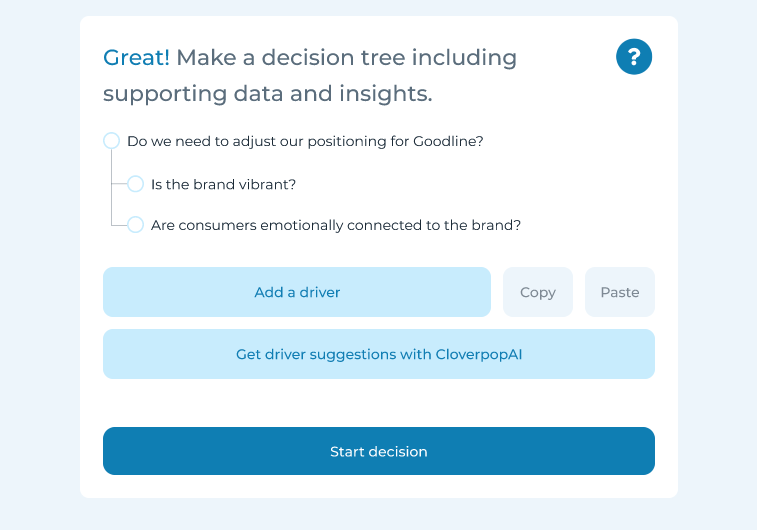
To create new drivers using the AI assistant, you must first include two drivers for the decision to provide context for the AI machine. After including the drivers, you may now click ‘Get driver suggestions.’
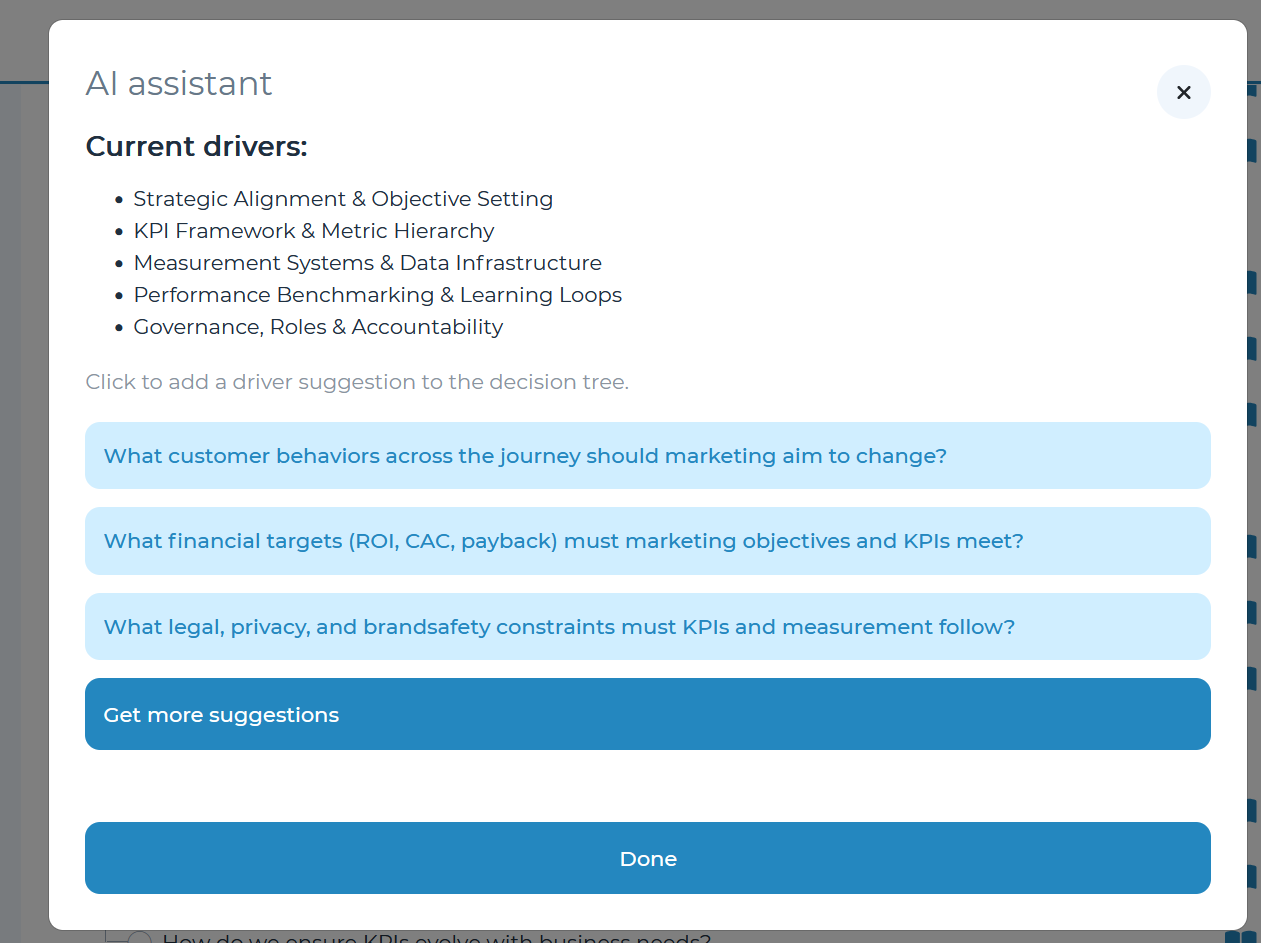
Once driver suggestions have been generated, you can select one or multiple to add to the decision tree. If you would like to see more ideas, click ‘Get more suggestions.’ Once you are satisfied with the new drivers, click the ones that you would like to include (tiles turn dark blue) and click ‘Done’ to load to the decision tree.
The Cloverpop platform also supports Copilot integration for creating full fledged decisions from meeting transcripts. For more information on setting this up, contact the Cloverpop team.
Adding new sub-drivers
To create new sub-drivers using the AI assistant, you may click on any existing driver and select ‘Get driver suggestions.’ You may edit any of the suggested sub-drivers by clicking the pencil icon and adjusting the verbiage as relevant. To ask the assistant for more sub-drivers, click ‘Get more suggestions.’ Select any sub-drivers you wish to include in the decision tree for the selected driver and click ‘Done.’
Adding new drivers (existing decision)
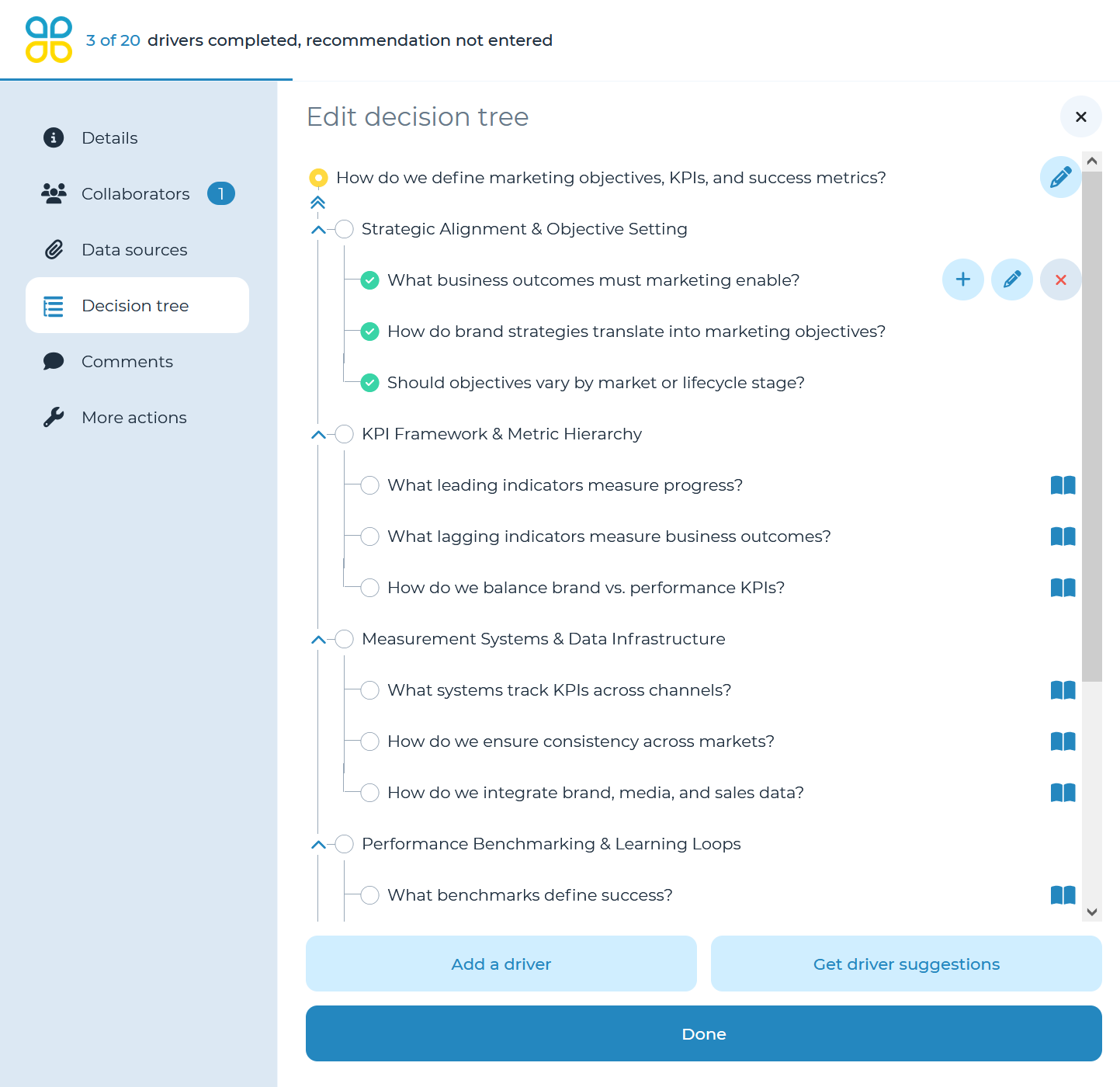
To add new drivers with AI to an already existing decision, click on ‘Decision AI assistant’ in the top right corner and select ‘Get driver suggestions.’ This panel can also be accessed by opening ‘Decision Tree’ from the left menu. Click on the pencil icon in the top right corner of the panel, then choose ‘Get driver suggestions’ at the bottom of the panel.
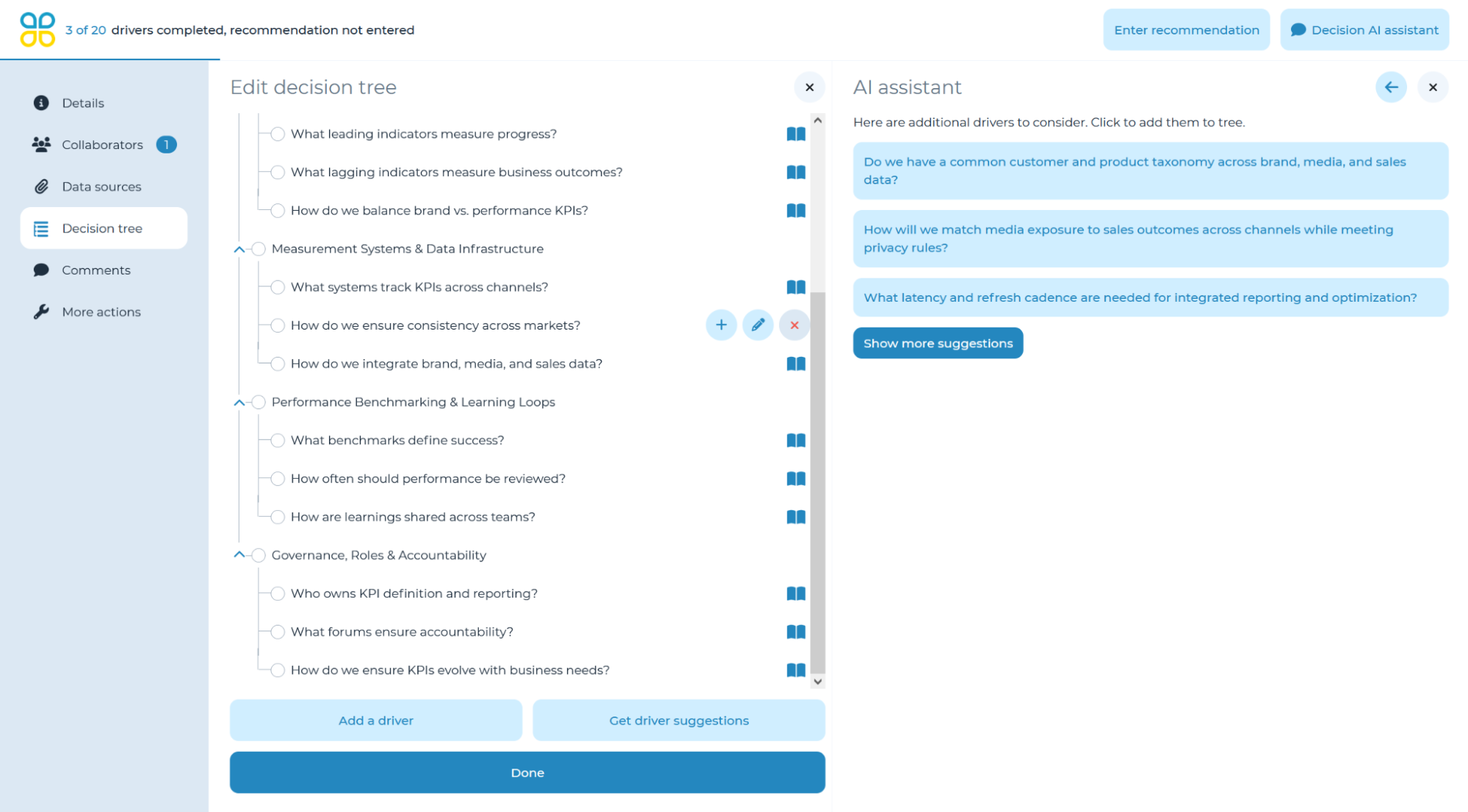
In the panel which opens, you can now select from the suggested list of drivers or see even more suggestions by clicking ‘Show more suggestions.’
You can also get suggestions for subdrivers by highlighting a driver by clicking on it, then opening the ‘More options’ dropdown at the bottom of the panel and selecting ‘Get driver suggestions.’ Drivers generated in this manner will specifically be tailored to be subdrivers for the highlighted driver.