
Assignment rules can be used to quickly assign a group of people to a decision.
Setting Up Assignment Rules
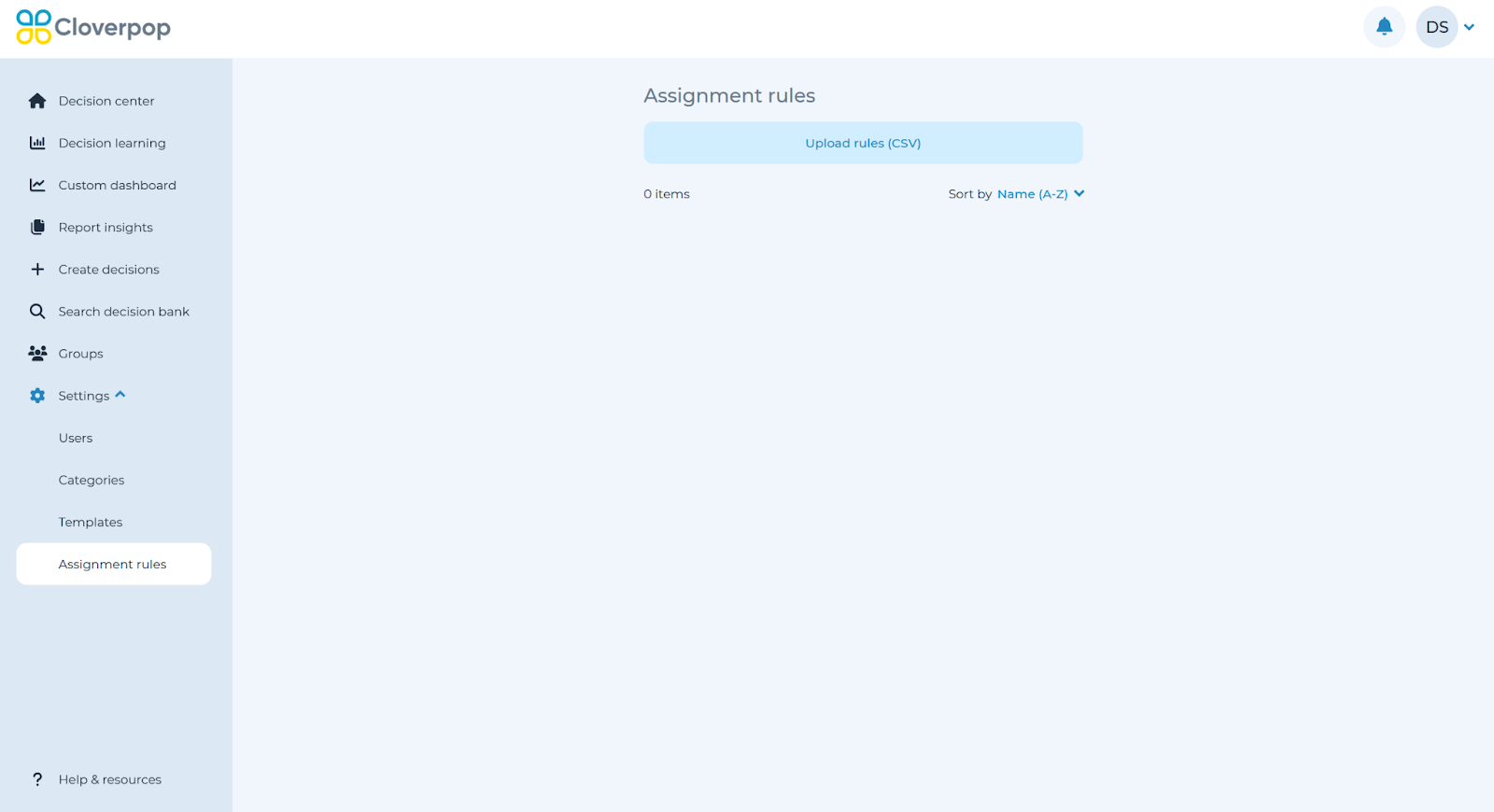
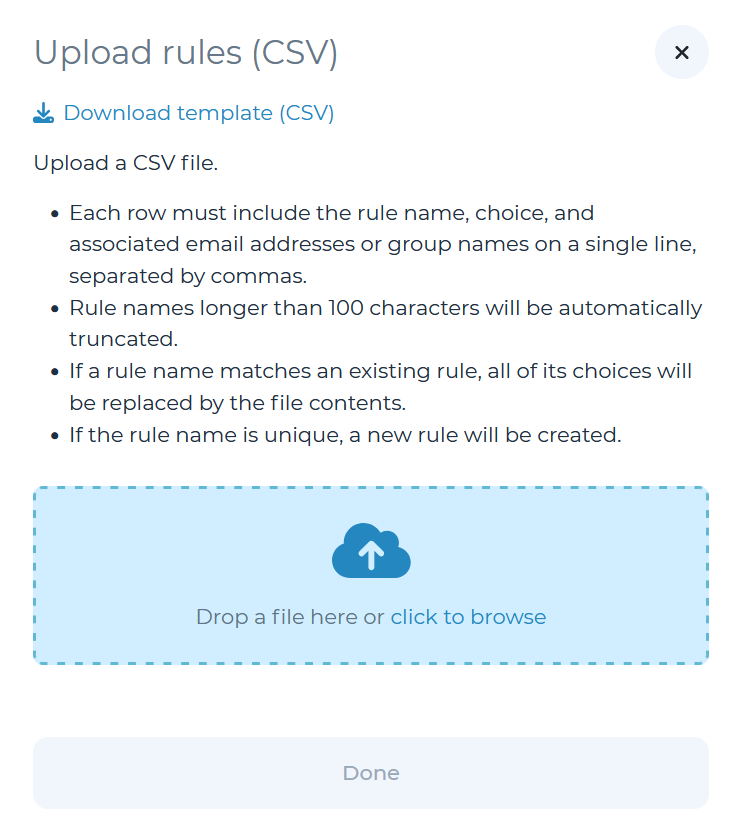
Navigate to the settings drop down menu in the home screen and select the ‘Assignment rules’ page. You can download a template of what the rule file should look like by selecting ‘Upload rules (CSV)’ and then clicking ‘Download Template (CSV)’ at the top of the popup window.
An example of what a populated rule table might look like is as follows:

Once you have populated the CSV template with your selections, upload the file to the popup window. The window will then show which rules will be added and also indicate any issues with the file, if any exist.
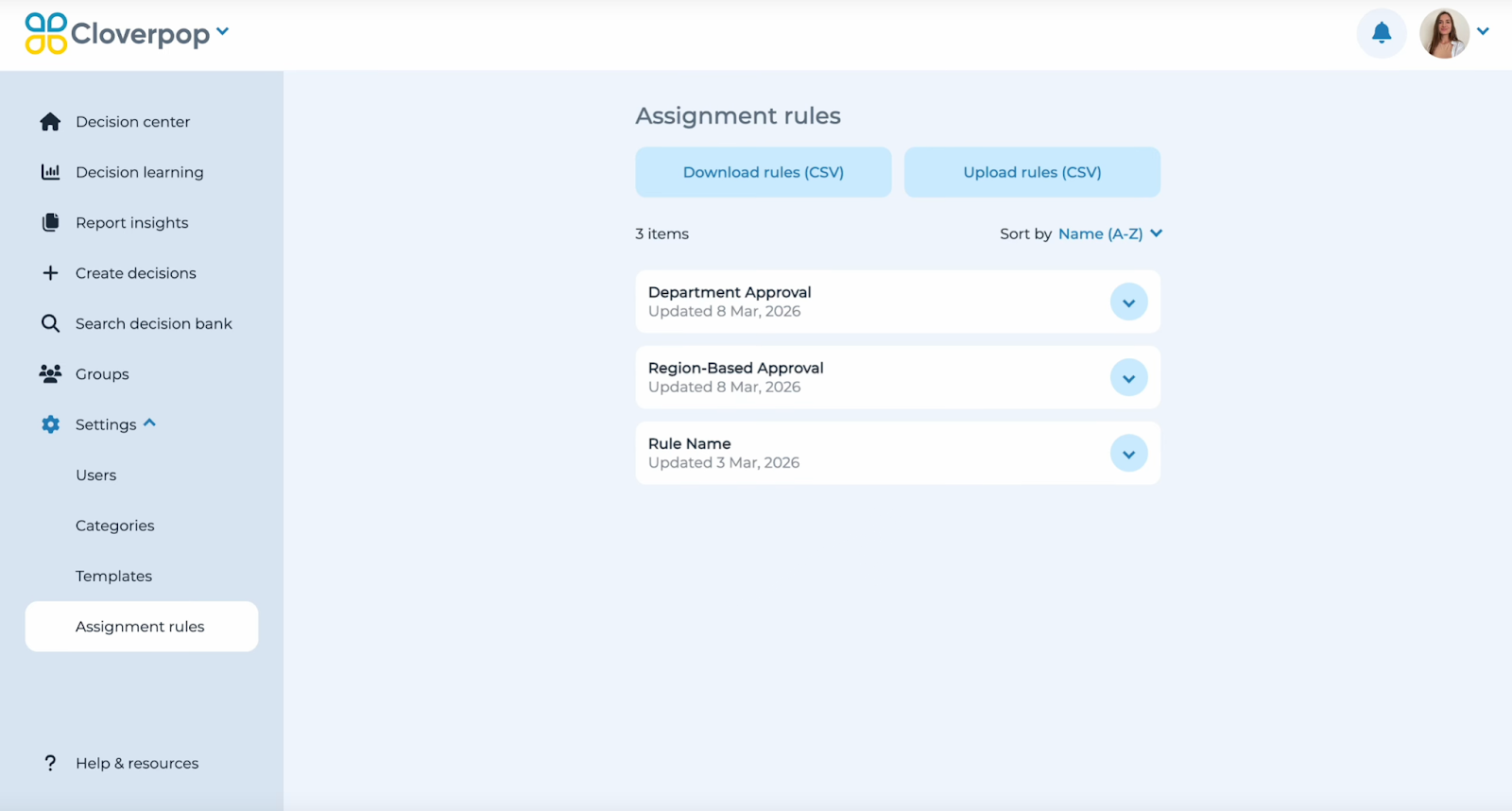
Select ‘Done’ to add the rules. You can then preview the assigned people and modify—including delete—the added rules using the arrow drop-down next to the corresponding rule name.
Furthermore, you can add more people whenever
Applying rules to a template
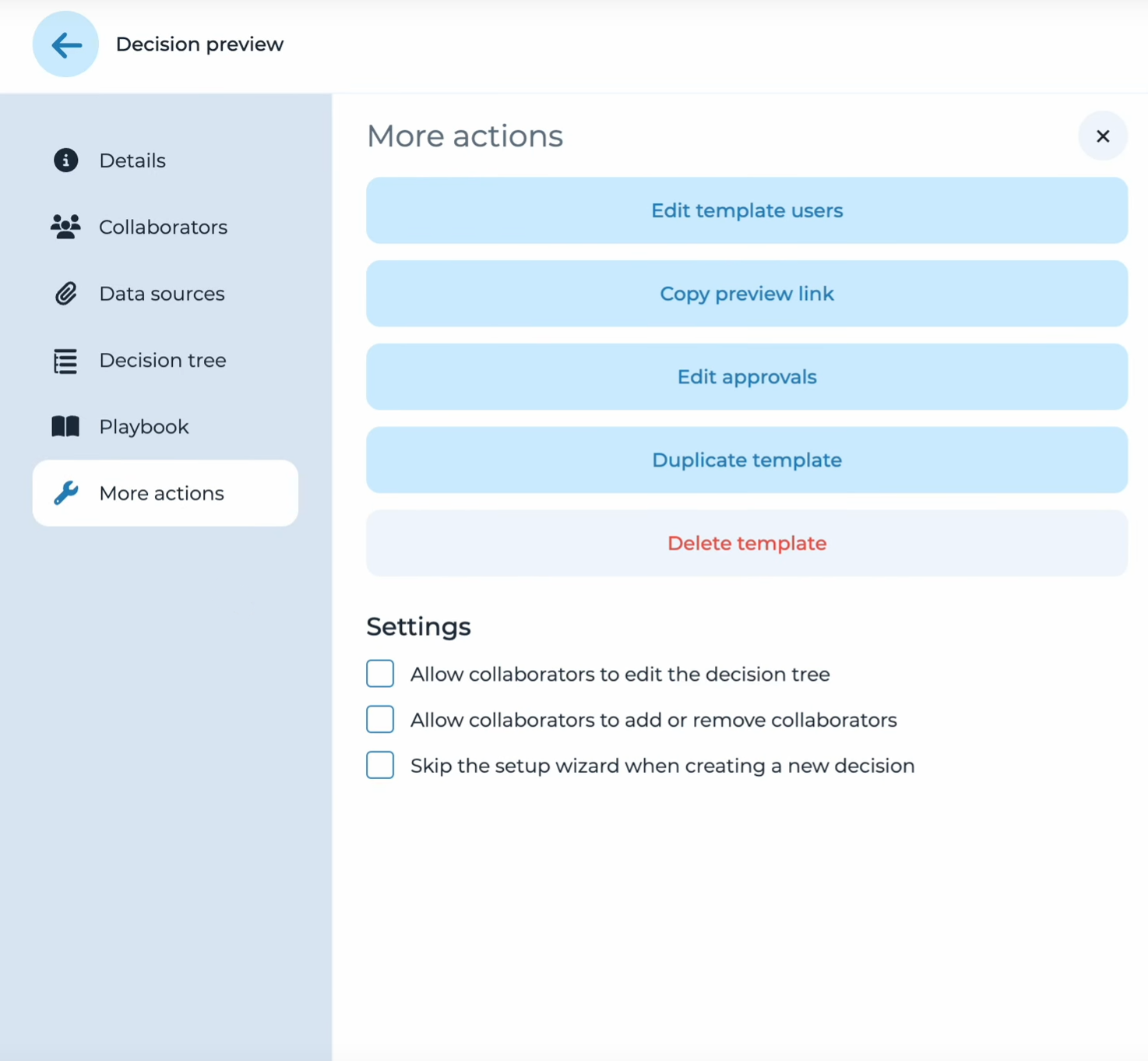
Navigate to the template to which you wish to apply a rule, and open the ‘More actions’ panel from the left side navigation menu, then select ‘Edit approvals.’
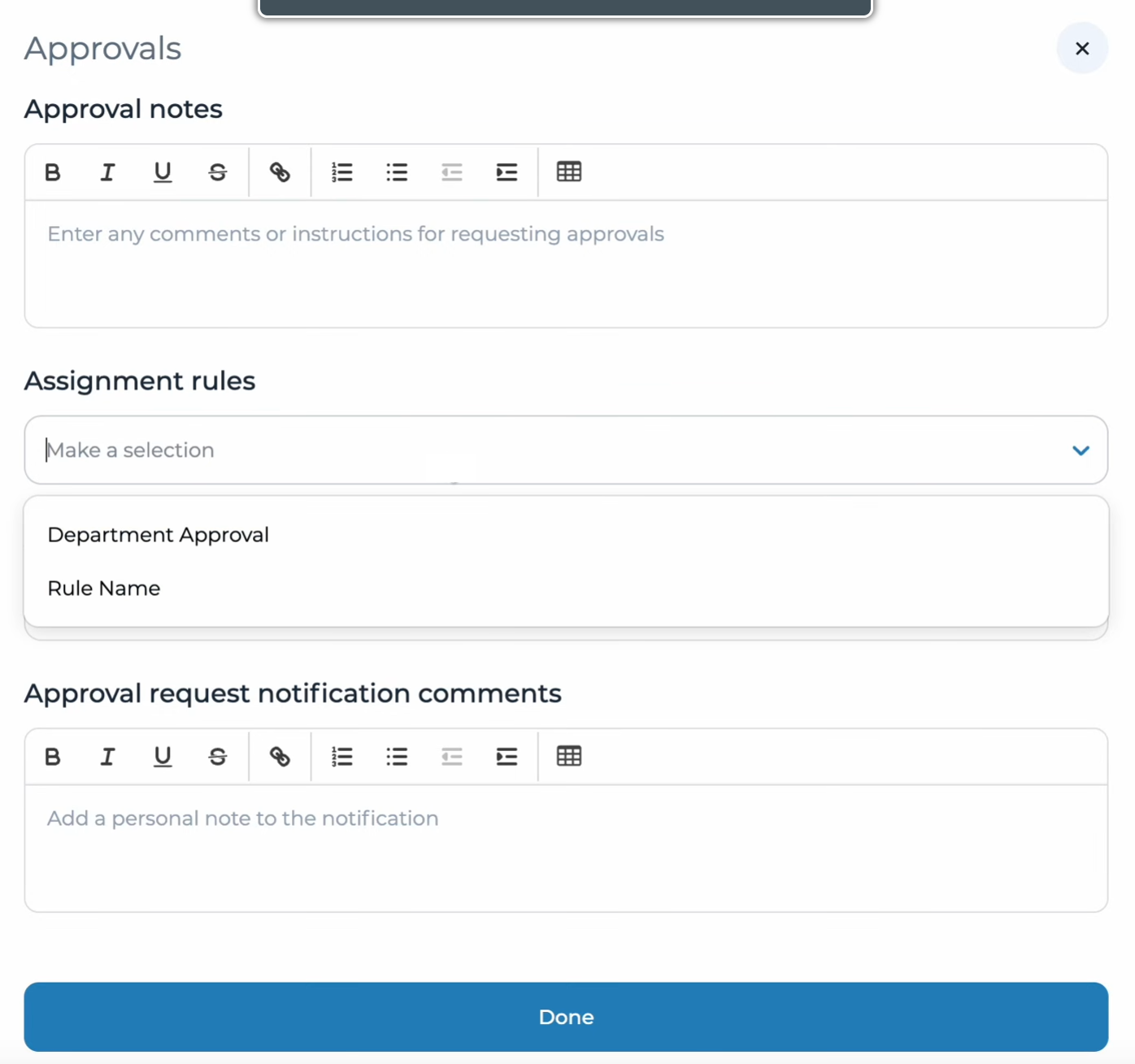
In the pop-up window which opens, you can add approval rules from the drop-down window under the ‘Assignment rules’ section. Once added, all decisions made from this template will have access to the grouped approvers assigned within the selected rules.
Using rules in a decision
If a decision has been created from a template with assigned rules, the people assigned to rules can be mass assigned for decision approvals.
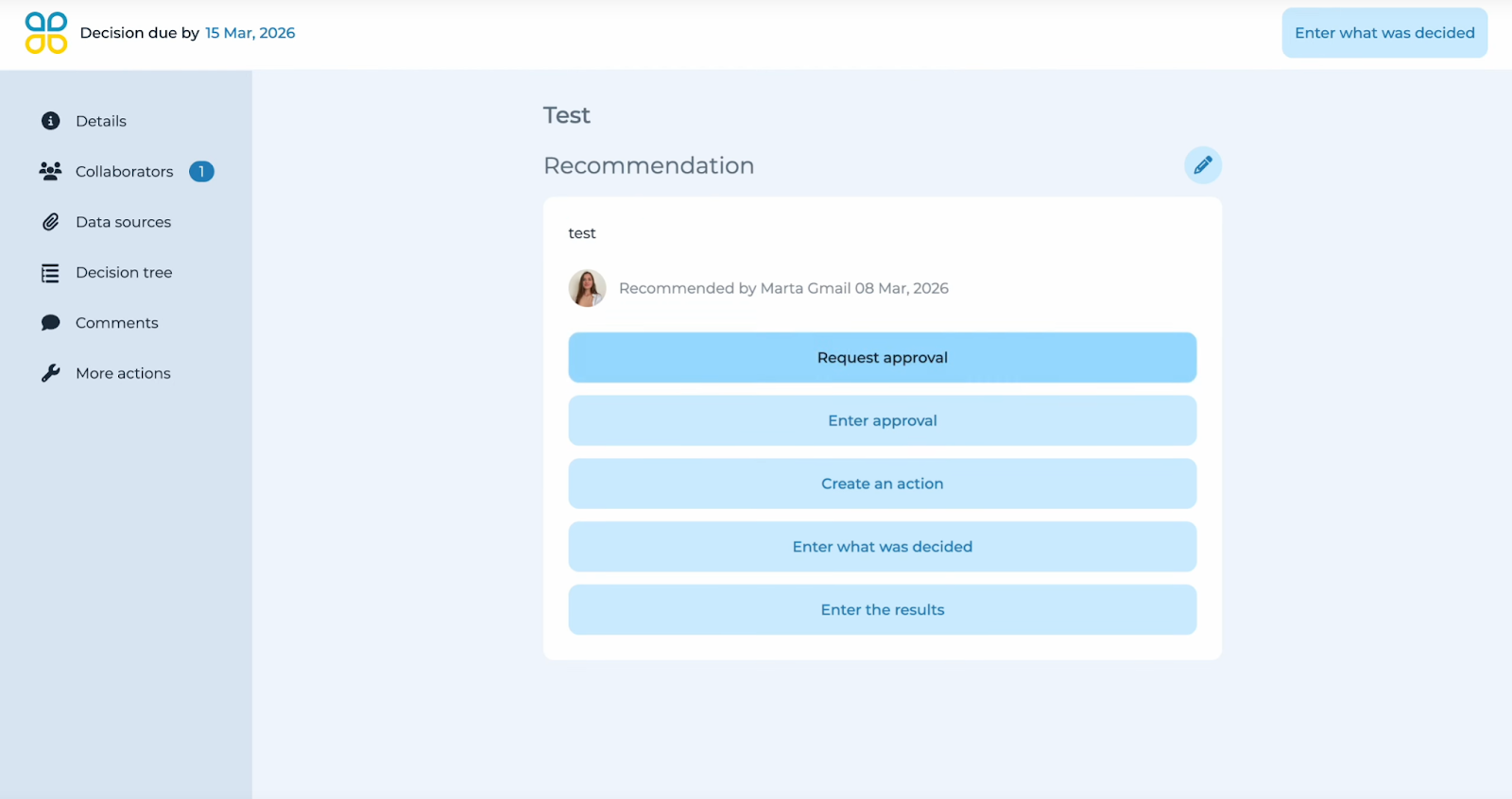
Once a recommendation or decision has been entered for the decision, select the ‘Request approval’ button to add people to review.
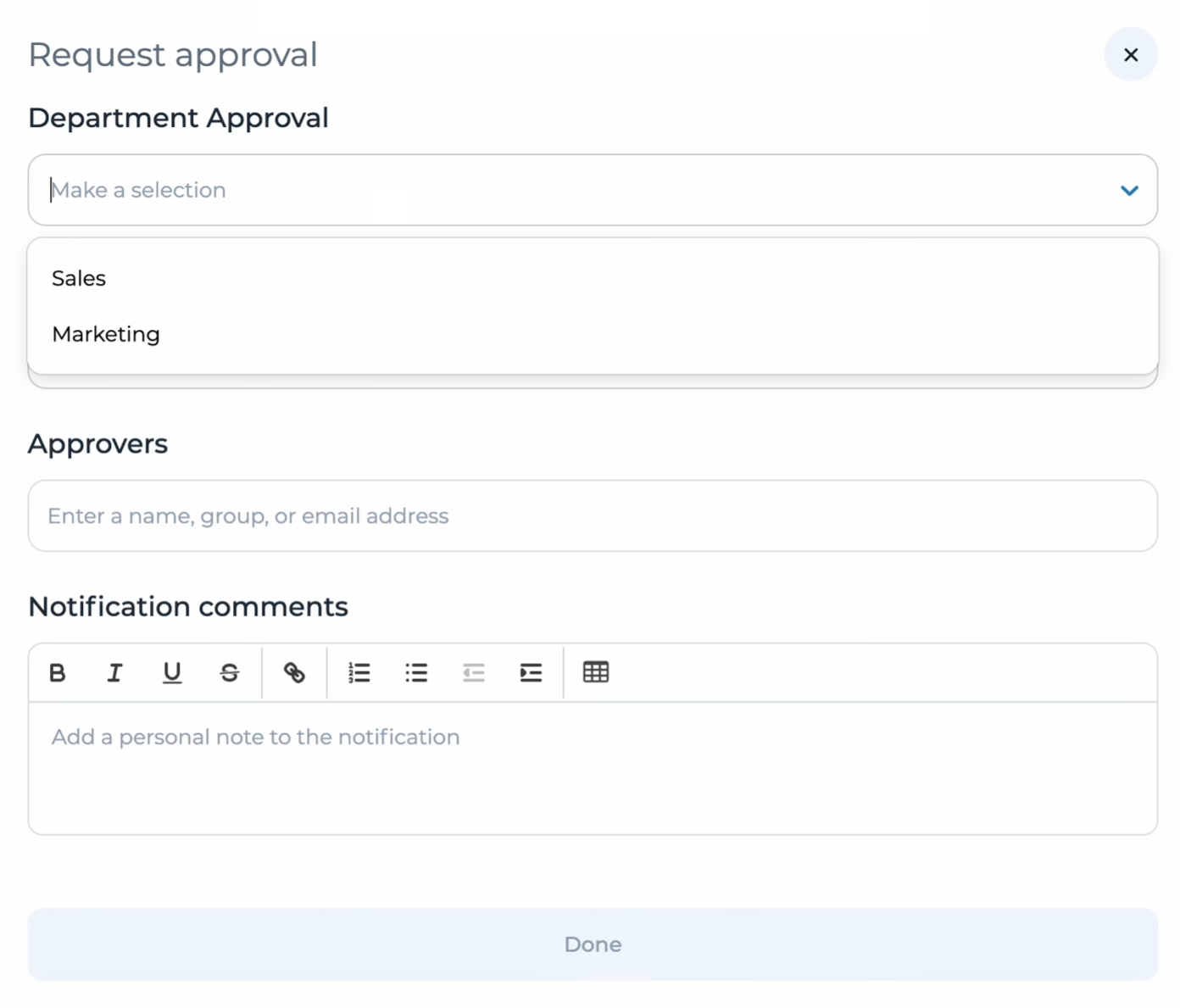
In the pop-up window, you can add either individual approvers as described in Make a recommendation / decision or add a group of people using the rules previously set up. Under the ‘Department Approval’ section, you can select the rules to add, which will automatically populate the ‘Approvers’ section of the menu with the required people. Select ‘Done’ to add the selected users as approvers, which will notify them of their required input to the recommendation / decision.