
New Users
Check your email for a Cloverpop welcome message and follow the instructions to create your account.
If you cannot locate your welcome email, ask a system admin at your company or your Decision Success Manager to resend the invitation. You can also use this link to submit a support request.
Returning Users
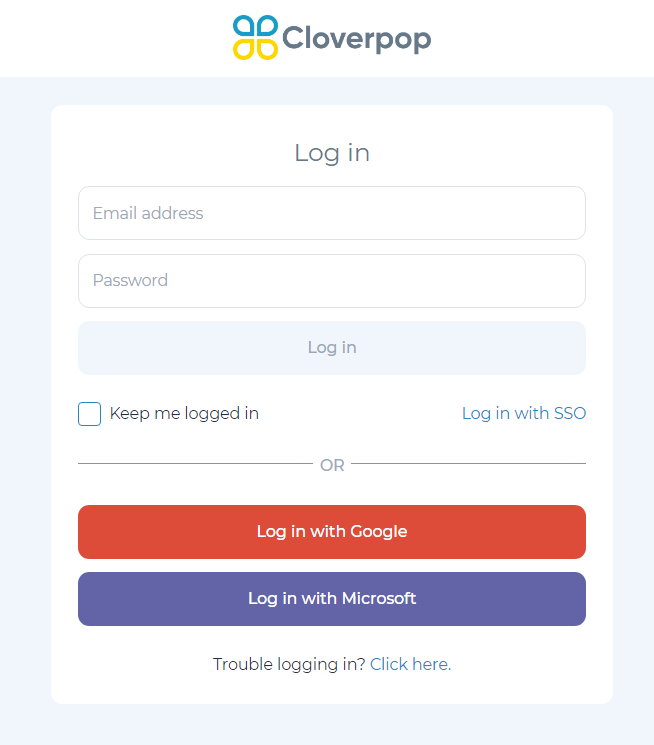
Simply go to the sign-in page to login.
Single sign-on
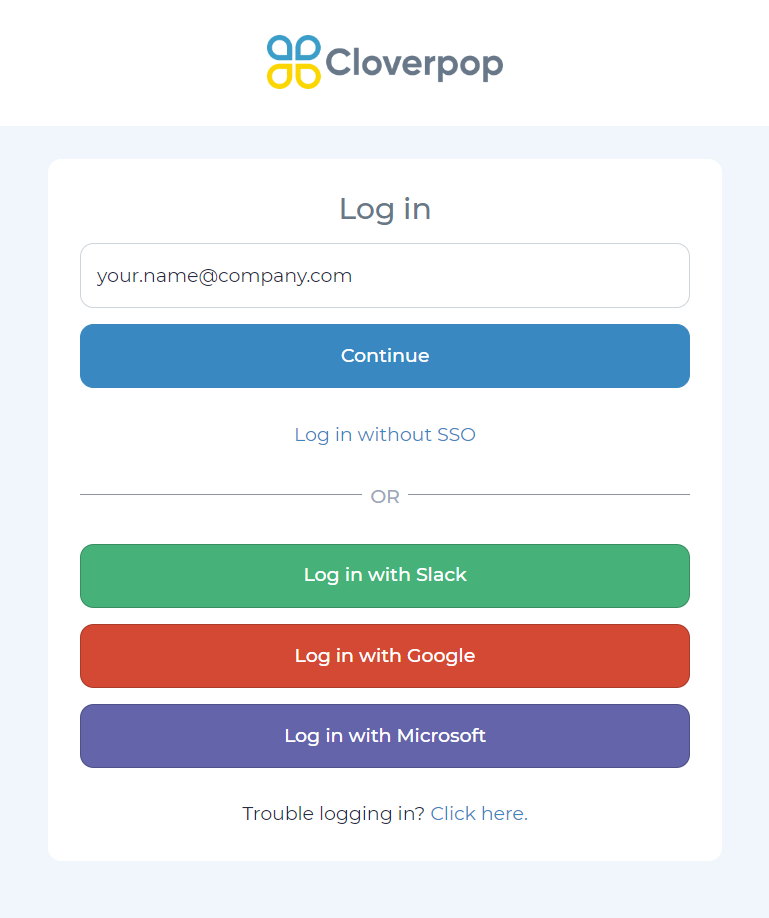
You will only be able to use SSO if it has been set up for Cloverpop for your organization. If your organization has not enabled SSO, you will need to log-in with your email and password.
If your organization has enabled SSO, select 'Log in with SSO'.
Then, input your email and click ‘Continue’. You will be directed to your typical SSO login page.
One-time login link
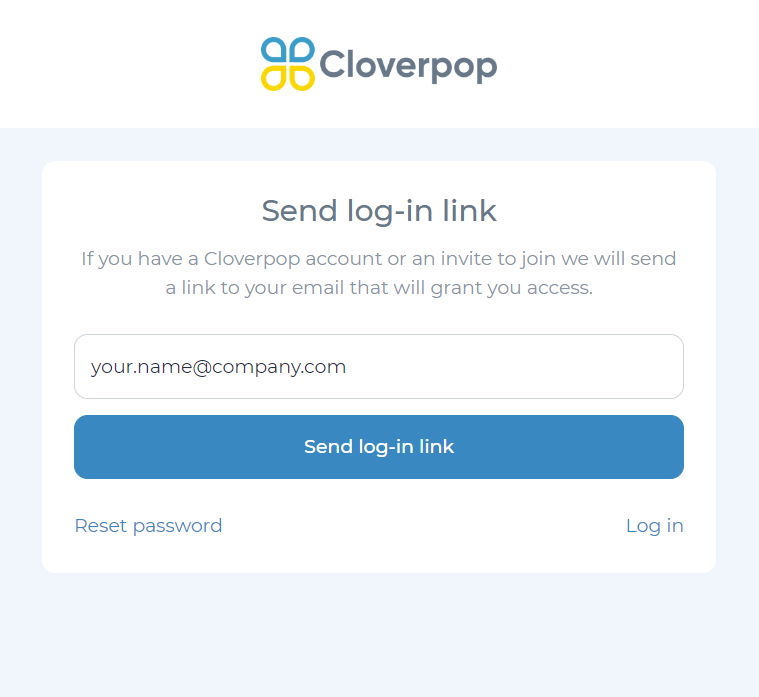
One-time links provide an alternative way to sign into your Cloverpop account other than your password. To request a one-time login link, click here. Alternatively, you can navigate to the log-in page and click ‘Trouble logging in? Click here’ at the bottom of the page. Enter your email and click ‘Send login link’. You will receive an automated email with a log–in link within a few minutes.
Reset your password
Forgot your password? No worries!
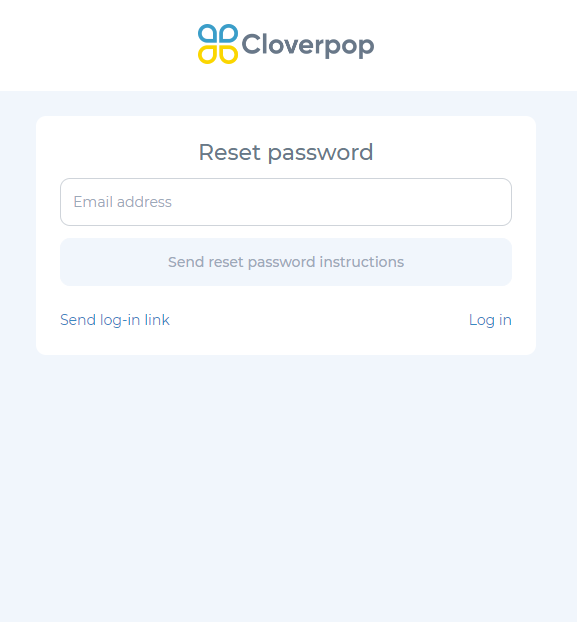
To reset your password, click this link and enter your email address and click ‘Send reset password instructions’. We will email you instructions to reset your password.
You can also scroll to the bottom of the sign-in page and select ‘Trouble Logging In? Click Here’, then click 'Reset password'. Enter the email address connected to your account and click ‘Send reset password instructions’. We will email you instructions to reset your password.