
Answer a Driver
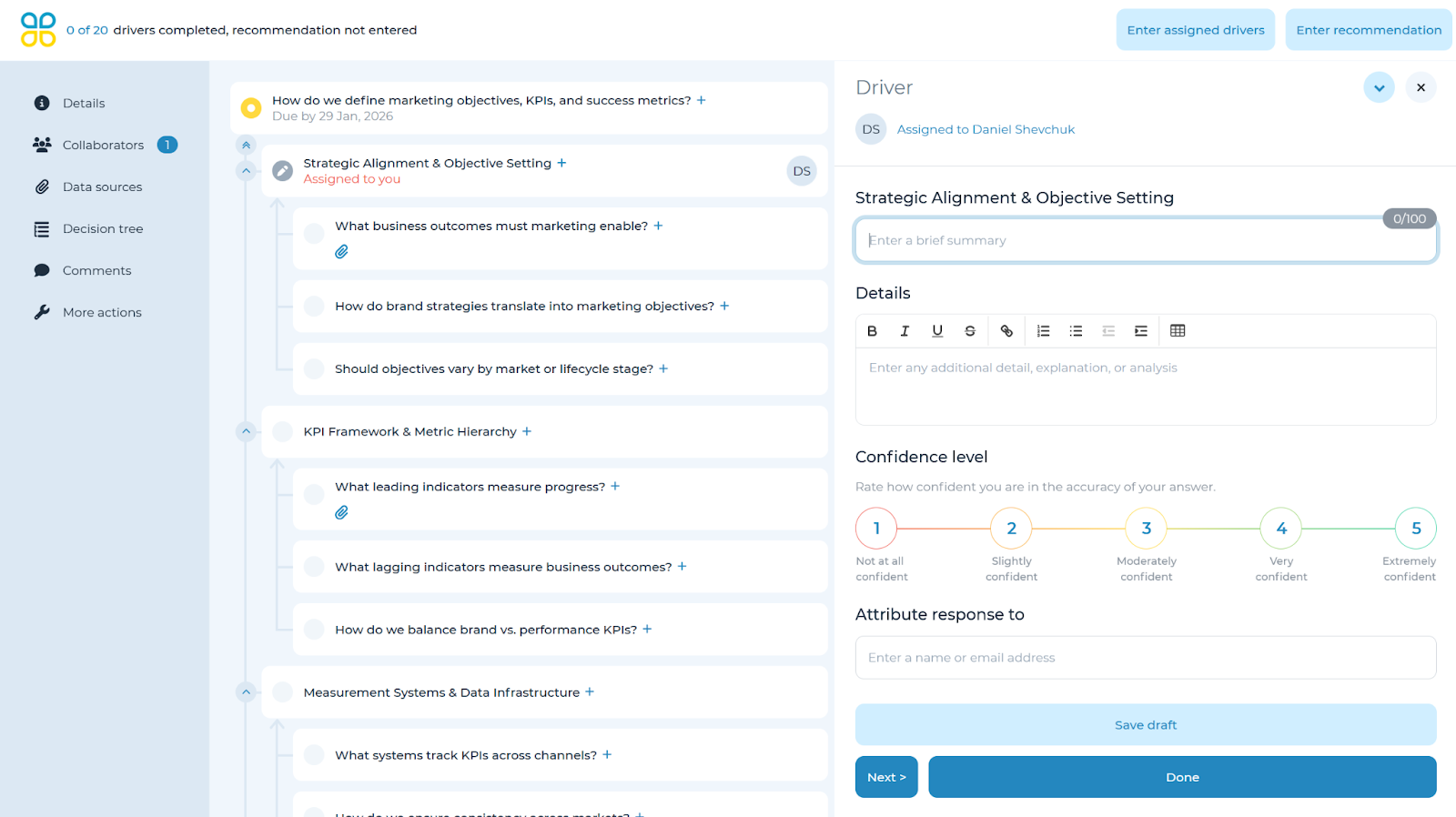
To answer a driver/question within a decision tree, click on any driver. It is best practice to answer only the drivers/questions labeled ‘Assigned to you.’
There are multiple response types depending on the question being asked which can be selected:
- Free response
- Date
- Number
- Pick a choice
- Pick all that apply
Each response type will vary in the format, but each one includes an extra ‘Details’ box in the where to enter any relevant extra information.
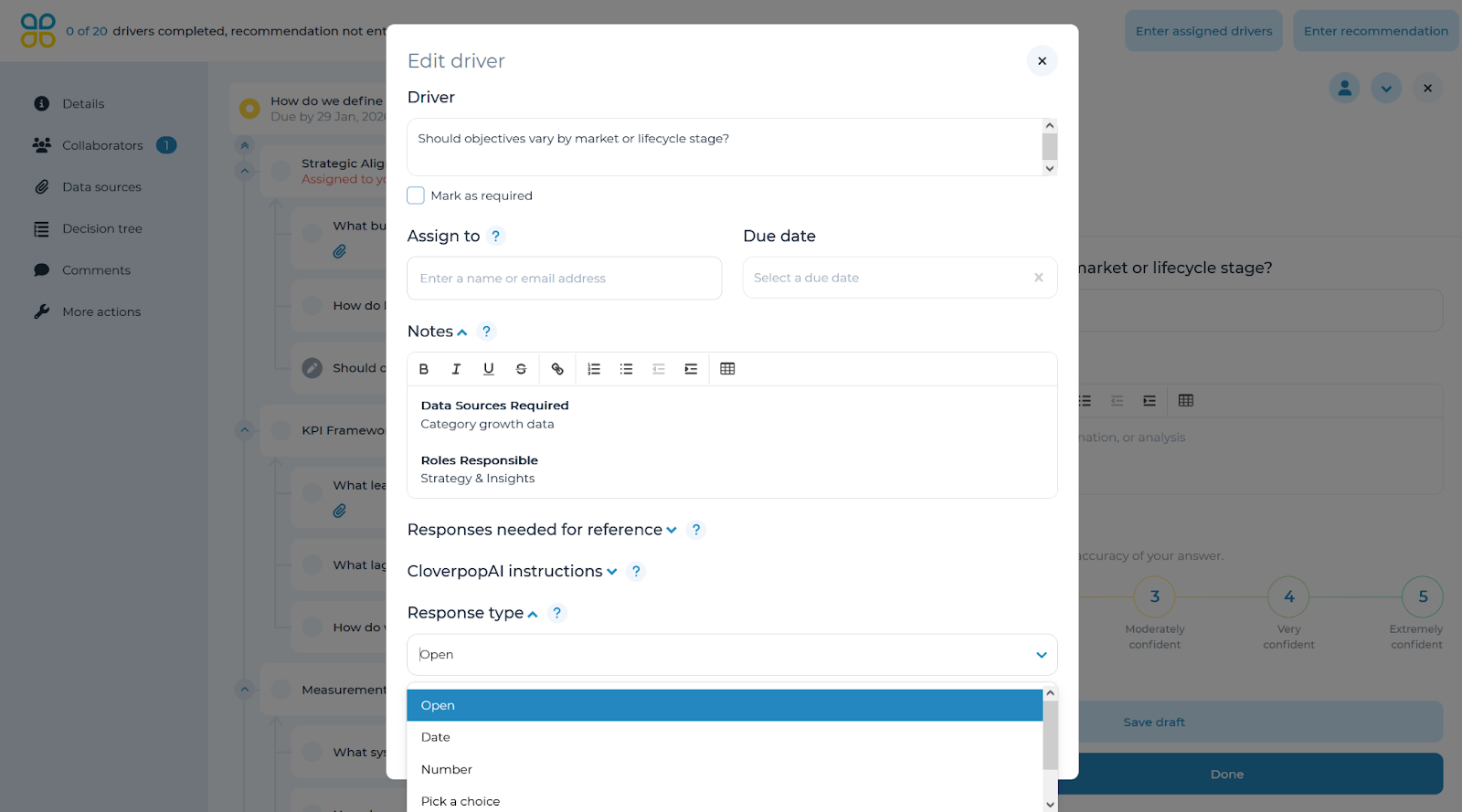
You can change the type of response for a specific driver by opening the drop-down from the arrow in the top right and selecting ‘Edit driver’. At the bottom of the panel which opens, you can select the response type which should be used for this driver.
Indicate your confidence level in the response using the buttons under the ‘Details’ section. The confidence level will appear on the decision tree to help your team understand where there is uncertainty. In addition, it is used to calculate an aggregate confidence level for the decision as a whole. You may also add comments to accompany the response at the bottom of the pop-up window as relevant.
Sum Sub-drivers
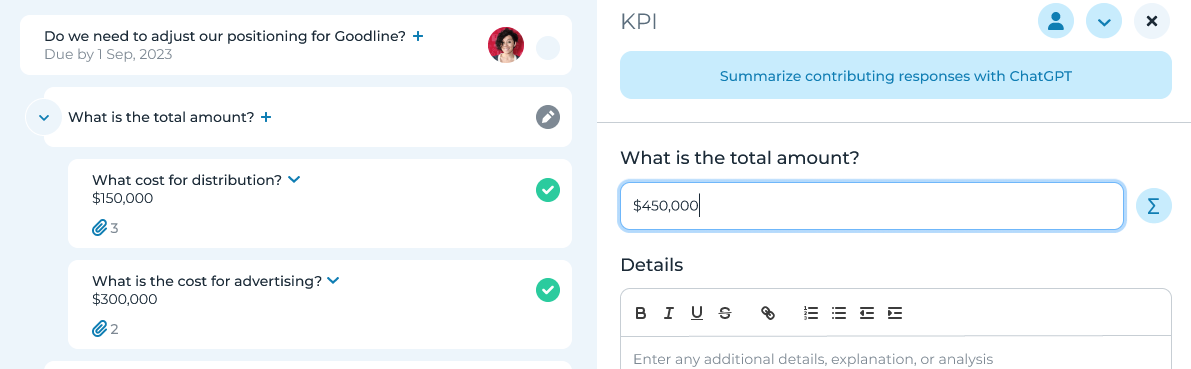
If the driver you are answering requires a numerical response and has sub-drivers with numerical values, you can use the Sum feature to quickly calculate the total.
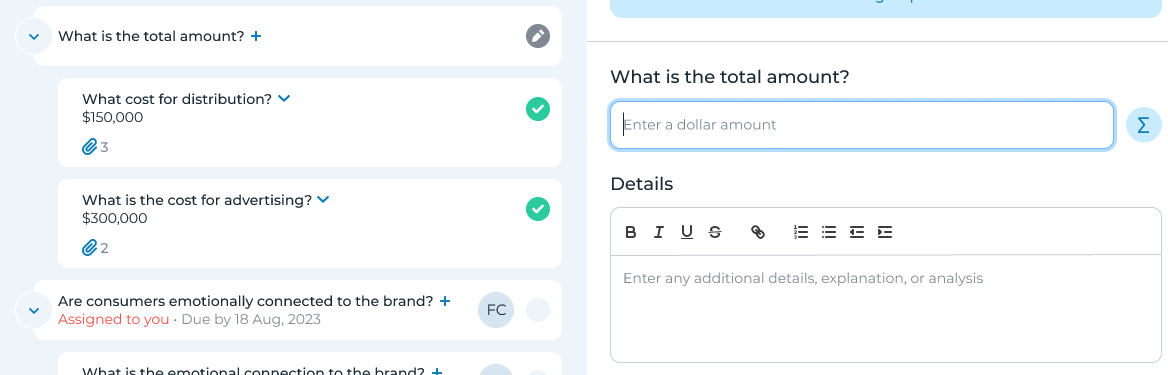
If the driver meets the conditions for summing (numerical response type and matching number format with its sub-drivers), a sum button will appear next to the driver response field.
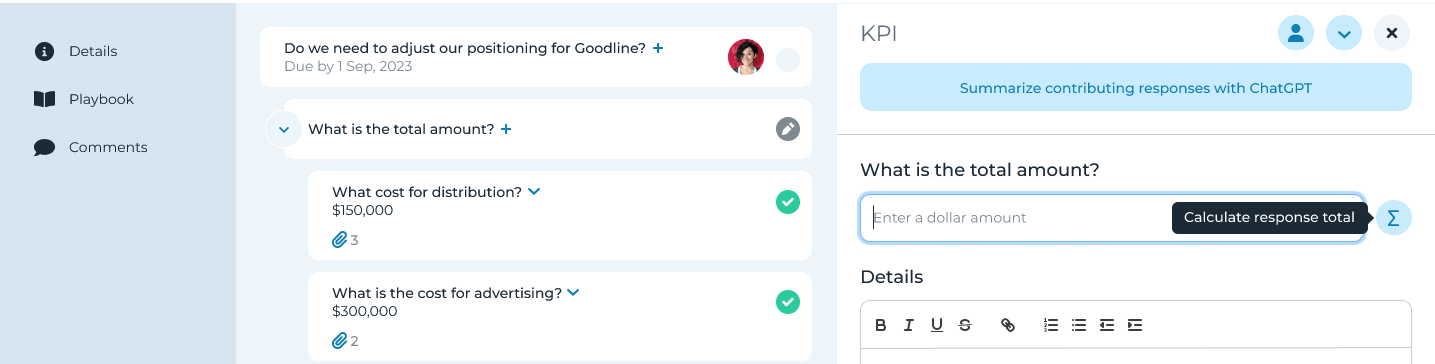
When you hover over the sum button, a tooltip will appear with the message: “Calculate response total.” Clicking the sum button will automatically populate the response field with the sum of all sub-driver values. Note: Only the direct sub-drivers will be included in the sum.
Manage Data Sources
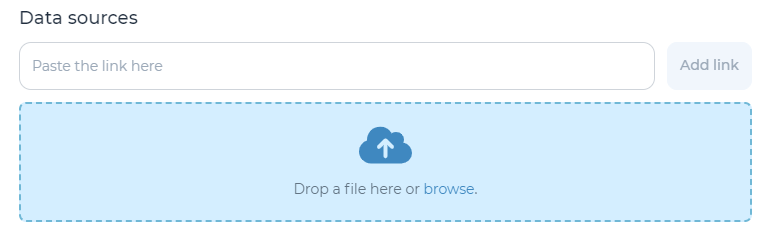
In order to add data sources, you can include a link to shared online data sources (e.g, Google drive), upload documents up to 100 MB in size within the ‘Data sources’ section, or copy-paste data (e.g images) from your clipboard. Once uploaded, the data source can be assigned to a specific driver or assigned to all drivers simultaneously by using the drop-down arrow and selecting ‘Add to all drivers.’ Additionally, you can add multiple data sources all at once by selecting ‘Add a report.’
Note: data sources can be added to one specific driver by selecting the appropriate driver, or you can add data sources to the decision tree by clicking on ‘Details’ within the left side navigation panel.
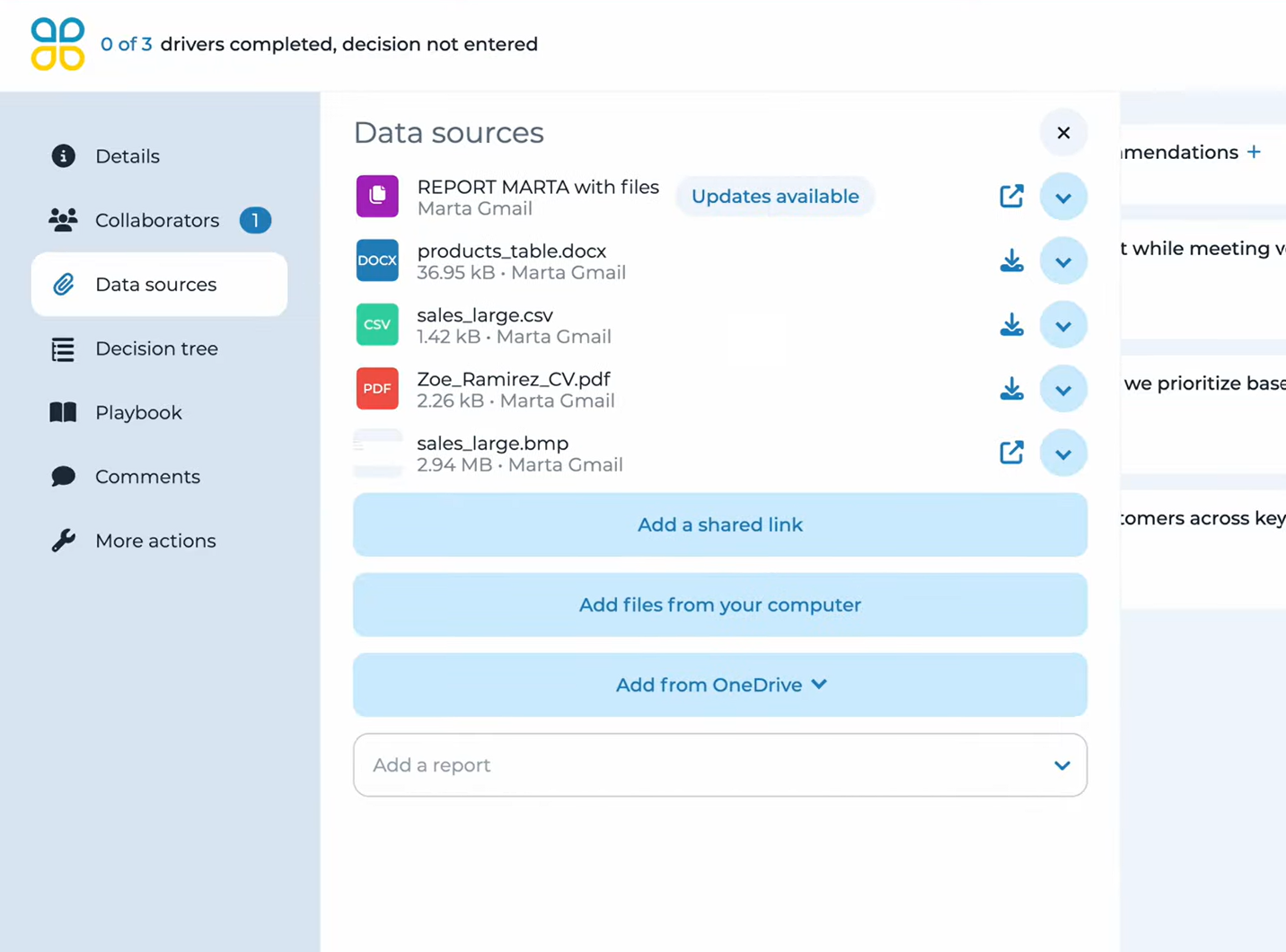
Whenever a data source is added to a report already attached to a decision, the report will show as being updated in the ‘Data Sources’ panel. Clicking on the ‘Updates Available’ button allows you to either update all locations in the decision where the report is used with the new document, or just update the report without affecting any existing uses of it in drivers (though attaching the report to any drivers after the new document is added will include the new document).
Content from uploaded documents can also be summarized and added to the drivers with CloverpopAI capabilities.
Using the AI assistant to summarize drivers
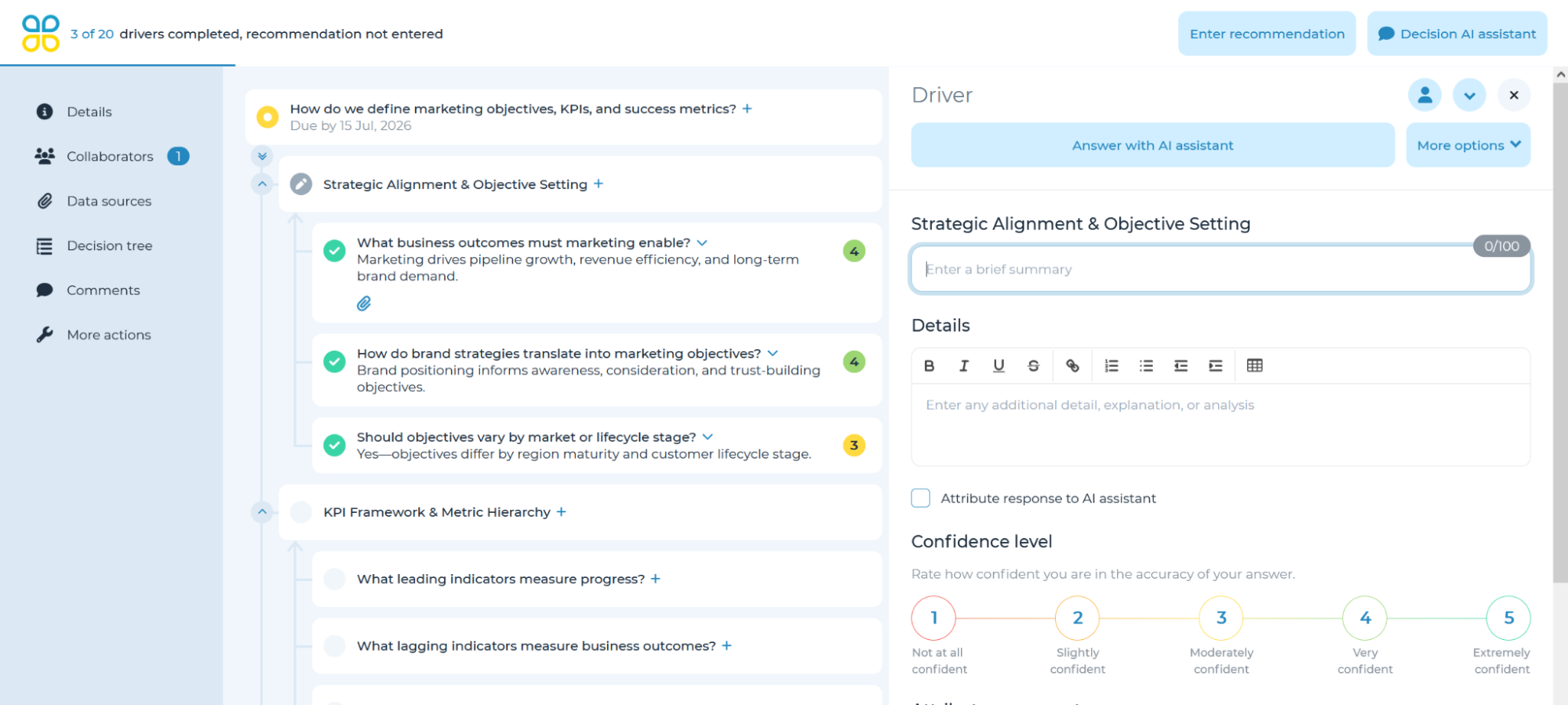
When there are answered sub-drivers and/or provided data sources, you can use AI to summarize the contributing answers to synthesize responses. Clicking on the ‘Answer with AI assistant’ button will automatically generate and insert a response to the driver.
Additionally, opening the ‘More options’ dropdown menu, you can instead generate a preview, which can be edited and then inserted with the ‘Add to driver’ button at the bottom of the panel.
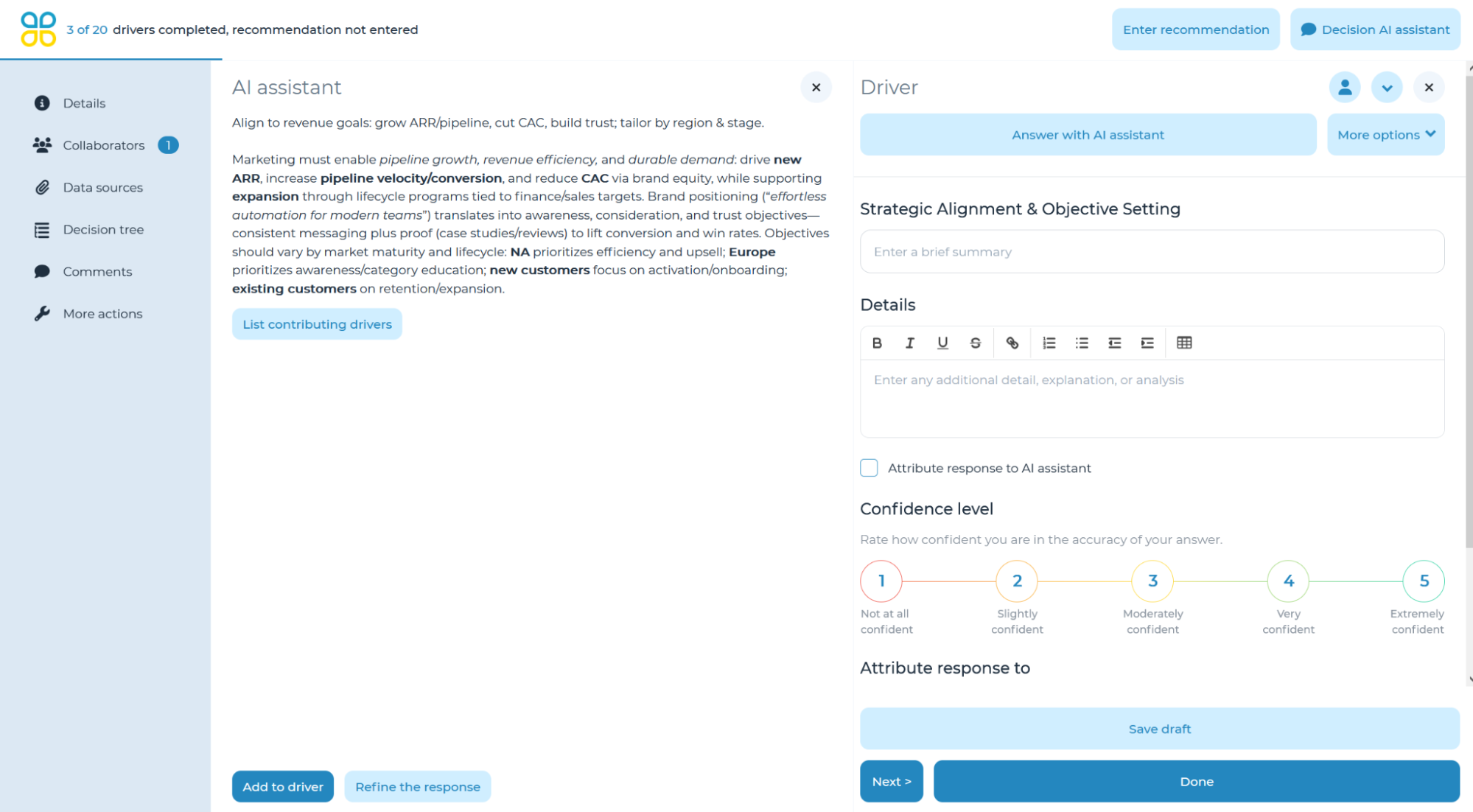
For more information about using CloverpopAI, refer to the Summarize Drivers and Data Sources section of the manual.
Reassign a Driver or Attribute response
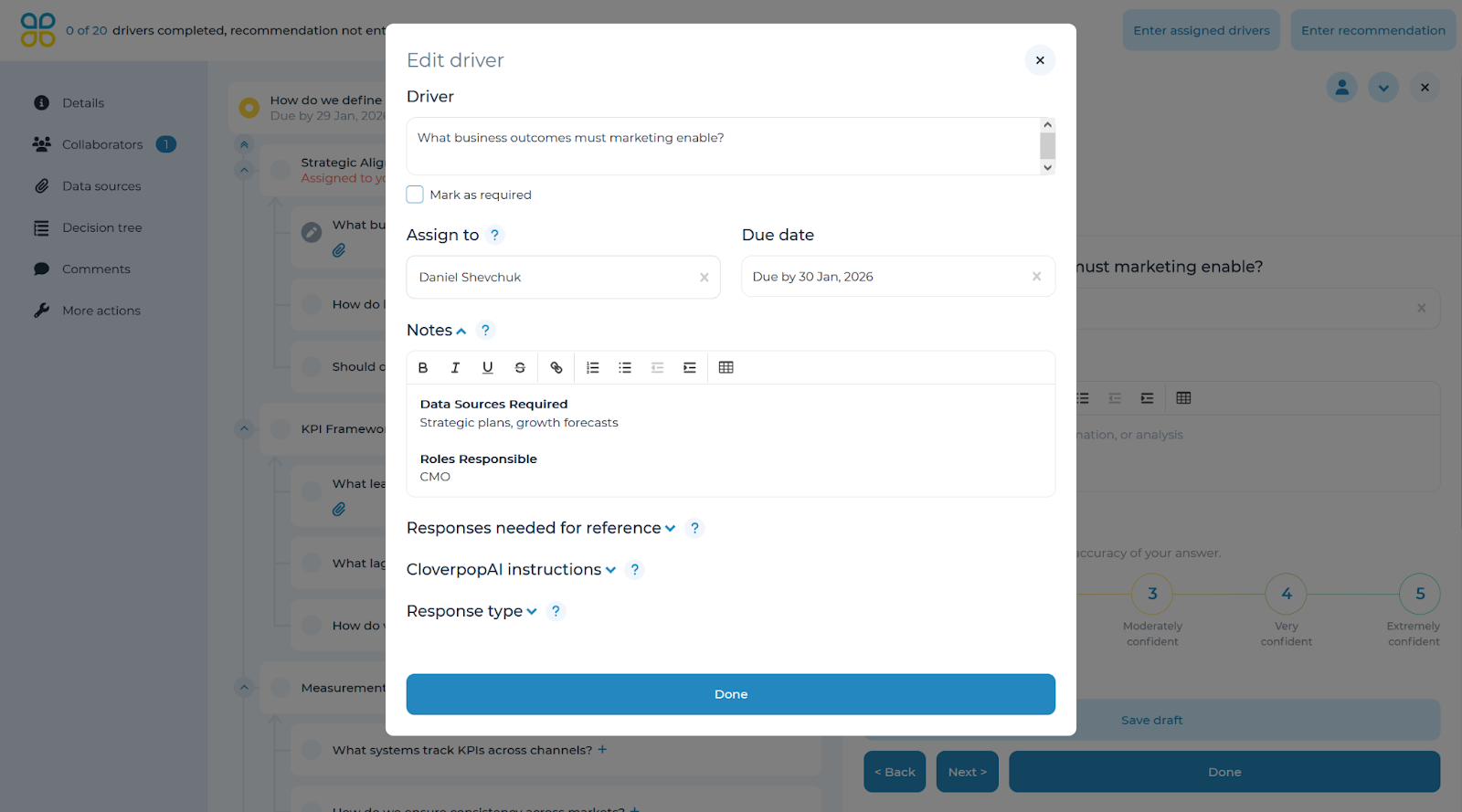
From the drop-down arrow in the top right of the driver panel, select ‘Edit driver’ and select the team member who should be assigned to this driver in the ‘Assign to’ field.
Note: each driver can be assigned to only one person at a time. Once the driver has been reassigned, it will show as an assigned driver only for the new owner.
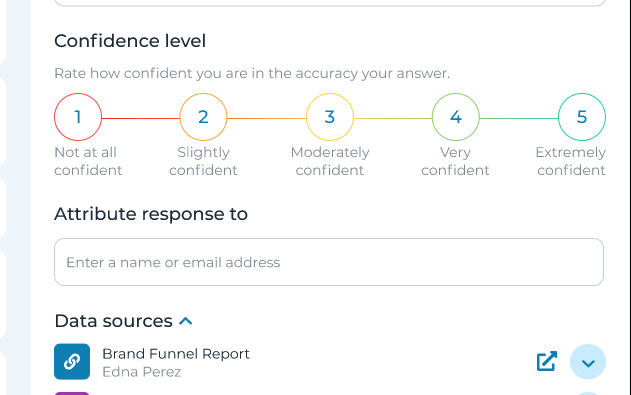
If a response has been gathered from other stakeholders and you want to keep a record of who provided it, you can attribute a driver response to them. To do this, use the “Attribute response to” menu as shown in the screenshot. This feature allows you to acknowledge input from others, maintaining a clear record of collaboration for each response
Once you have answered the question, uploaded data sources, and assigned drivers to the right team members: you may refer to the ‘Comments’ section of the user manual for guidance on how to track conversations or iterative processes in Cloverpop.