
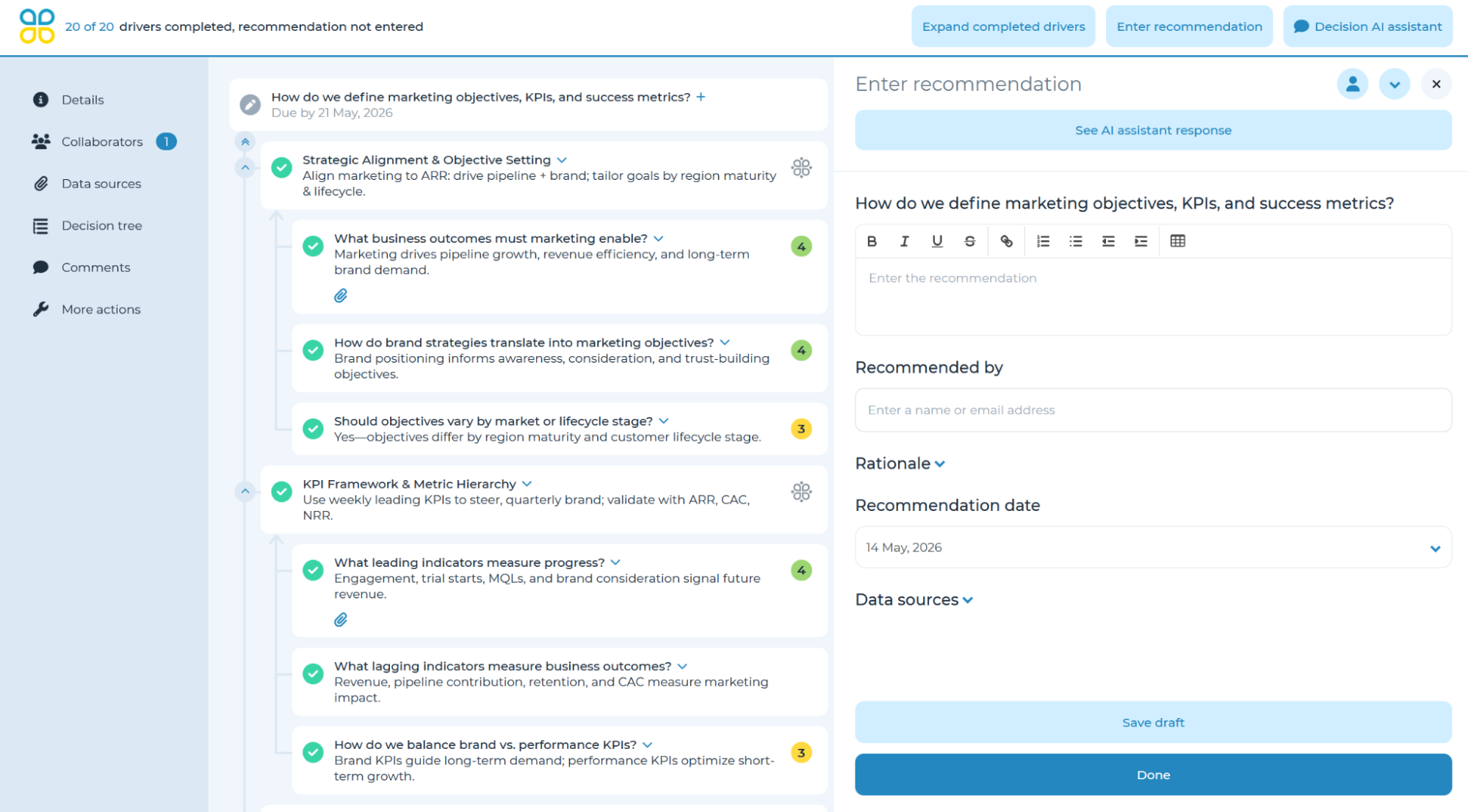
Once the team is ready to make a recommendation or decision, you can enter it in Cloverpop to complete the process. Enter the recommendation or decision by clicking on the ‘Enter the recommendation’ or ‘Enter what was decided’ button in the top-right corner. Note: the label will depend on what type of response the decision manager is requesting for this process.
You will first enter a recommendation or decision. You can also include rationale for the decision, as well as next steps and / or expected results, value, or cost. You may also attach files to document how the decision was made (e.g., business case). After entering the recommendation / decision and rationale, enter the name of the ‘Recommender’ or ‘Decider’ by typing their name or email address.
You can also use the AI assistant to produce a ready-to-go summary/recommendation for the decision along with suggestions for improvement. By clicking on the ‘Decision AI assistant’ button in the top right corner and then selecting ‘Complete the tree,’ any incomplete drivers will be automatically filled in, after which a decision recommendation will be generated by the AI assistant.
For more information about using CloverpopAI on individual drivers, see Summarize drivers and data sources.
You have an option to add shared links or upload files up to 100 MB as data sources to the recommendation or decision, such as a report or presentation. Once all inputs are entered, click ‘Done’ to submit the recommendation/decision.
If you choose to enter a recommendation first, you can later duplicate that entry as the decision as well. You may select ‘Click here to duplicate the recommendation.’ Cloverpop separates recommendations from decisions to track changes throughout the decision process.
For guidance on the suggested process to make a decision, please reference the user manual section Decision Approvals.