
Create decision flow template
Click the ‘Templates’ tab within the ‘Settings’ section on the left side navigation menu to begin. Next, select ‘Add a new decision flow’ in the top right corner to launch a pop-up window and activate a new decision flow template.
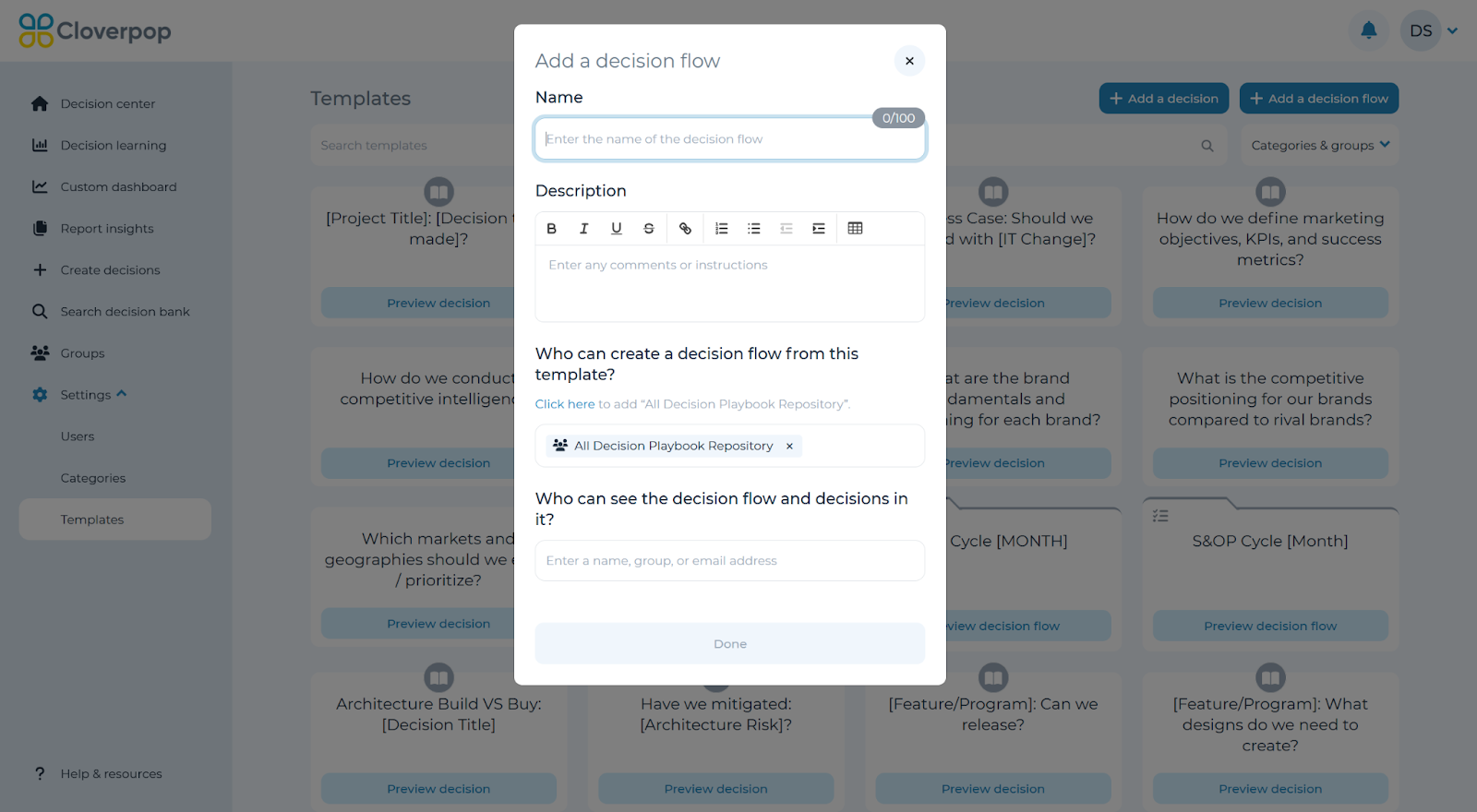
You can adjust the name of the decision flow and enter comments or instructions in the ‘Description’ field. You may allow any team members or groups who should be able to create decision flows from this template. You can also provide team members with access to decisions built on the template flow by adding team members in the second section.
Click ‘Done’ once ready to proceed with the decision flow template.
Add, remove, or sort templates
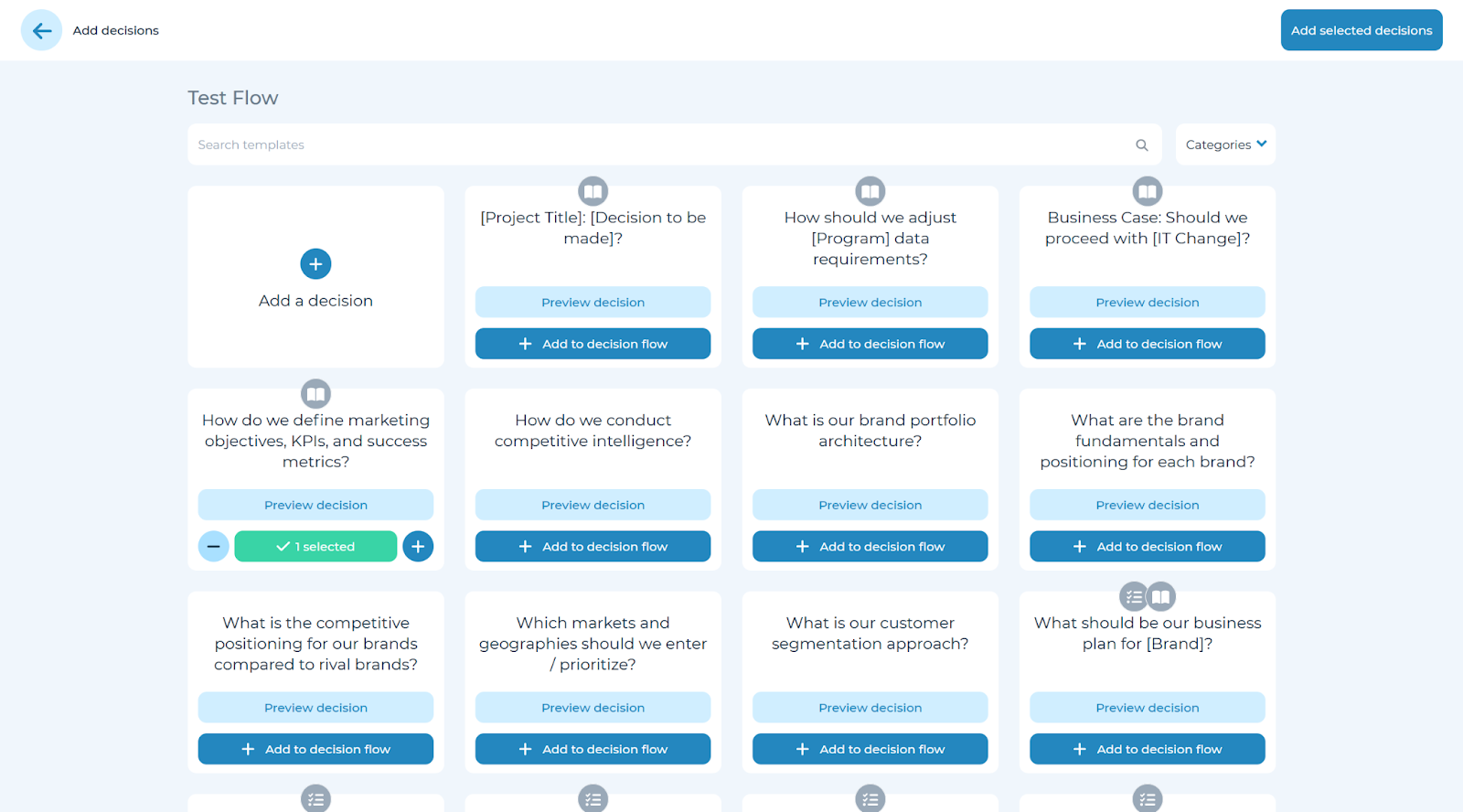
Click ‘Add decision’ to access a list of existing templates as displayed above. You can preview templates, click ‘Add to decision flow’ to add a template or create a completely new decision by clicking on ‘Add a decision.’ If you add a completely new decision, it will automatically be added to the flow.
You can use the + and - buttons to add or remove multiple copies of a template. Once you have selected all of the relevant templates, click ‘Add selected decisions’ in the top left corner.
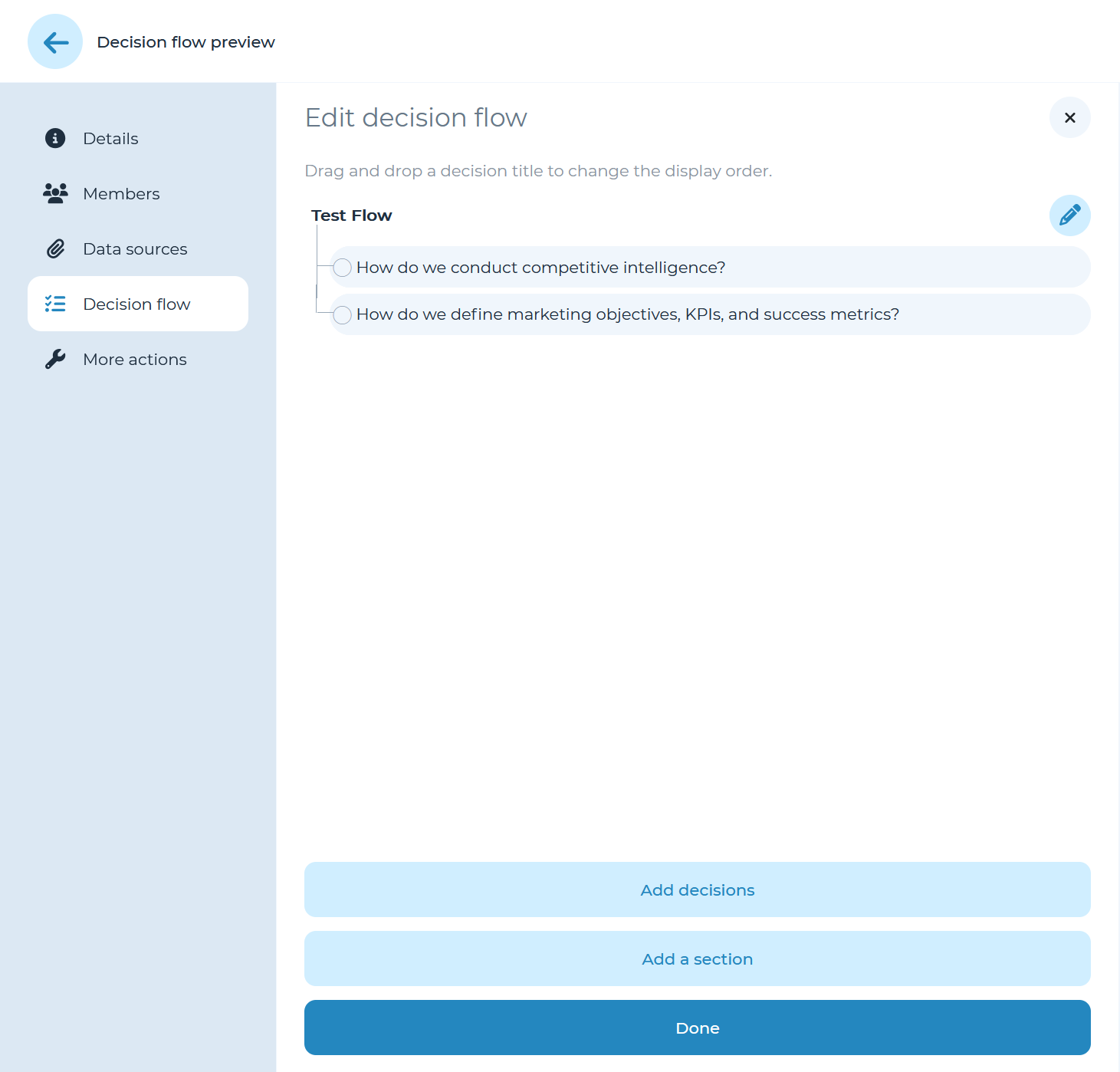
You can then choose to add more decisions or drag and drop decisions to change their order. By hovering over a decision, you can remove it from the flow by clicking the ‘X’ or assign collaborators to that decision by clicking the person icon.
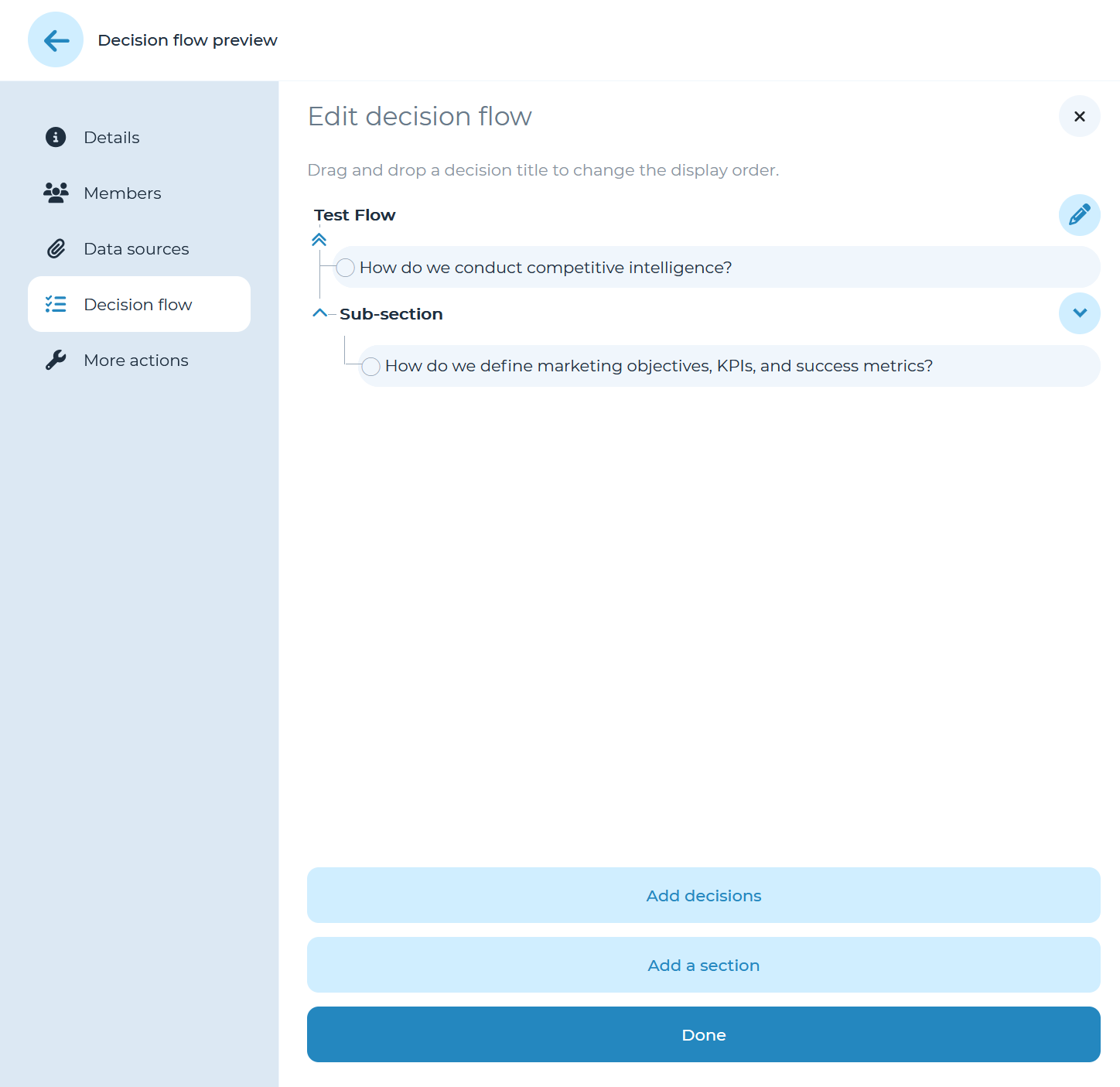
You can also add a section to further sort the added decisions by dragging and dropping decisions. In order to remove a section, you can hover over the section name and click on the down arrow, then select ‘Ungroup section’ to return all the grouped decisions to the upper layer of the flow.
Edit decision flow users
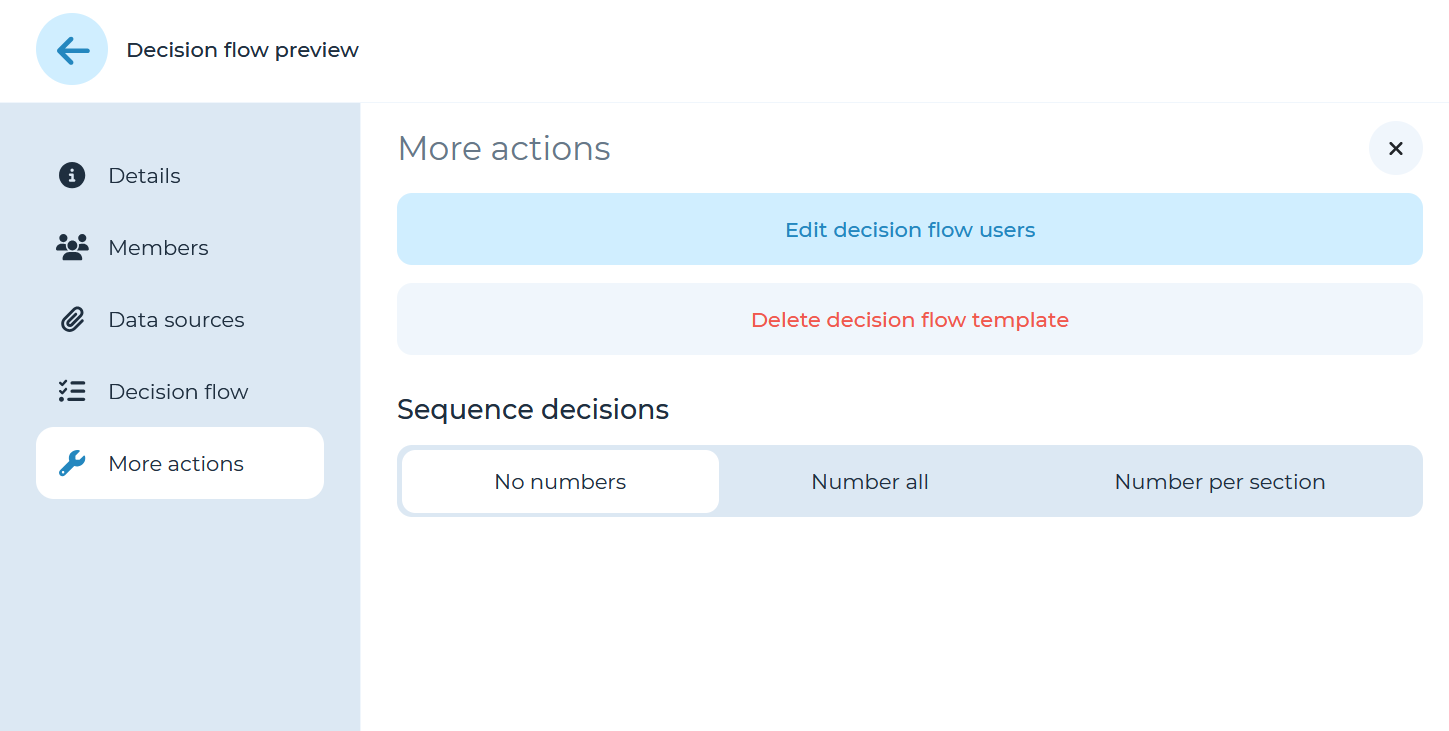
You may allow any team members or groups who should be able to create decision flows from the ‘More actions’ panel by clicking on ‘Edit decision flow users”. You can also provide team members with access to decisions built on the template flow by adding team members to the specific decision in the ‘Decision flow’ panel as mentioned in the add/sort/remove templates section above.
Edit decision flow name
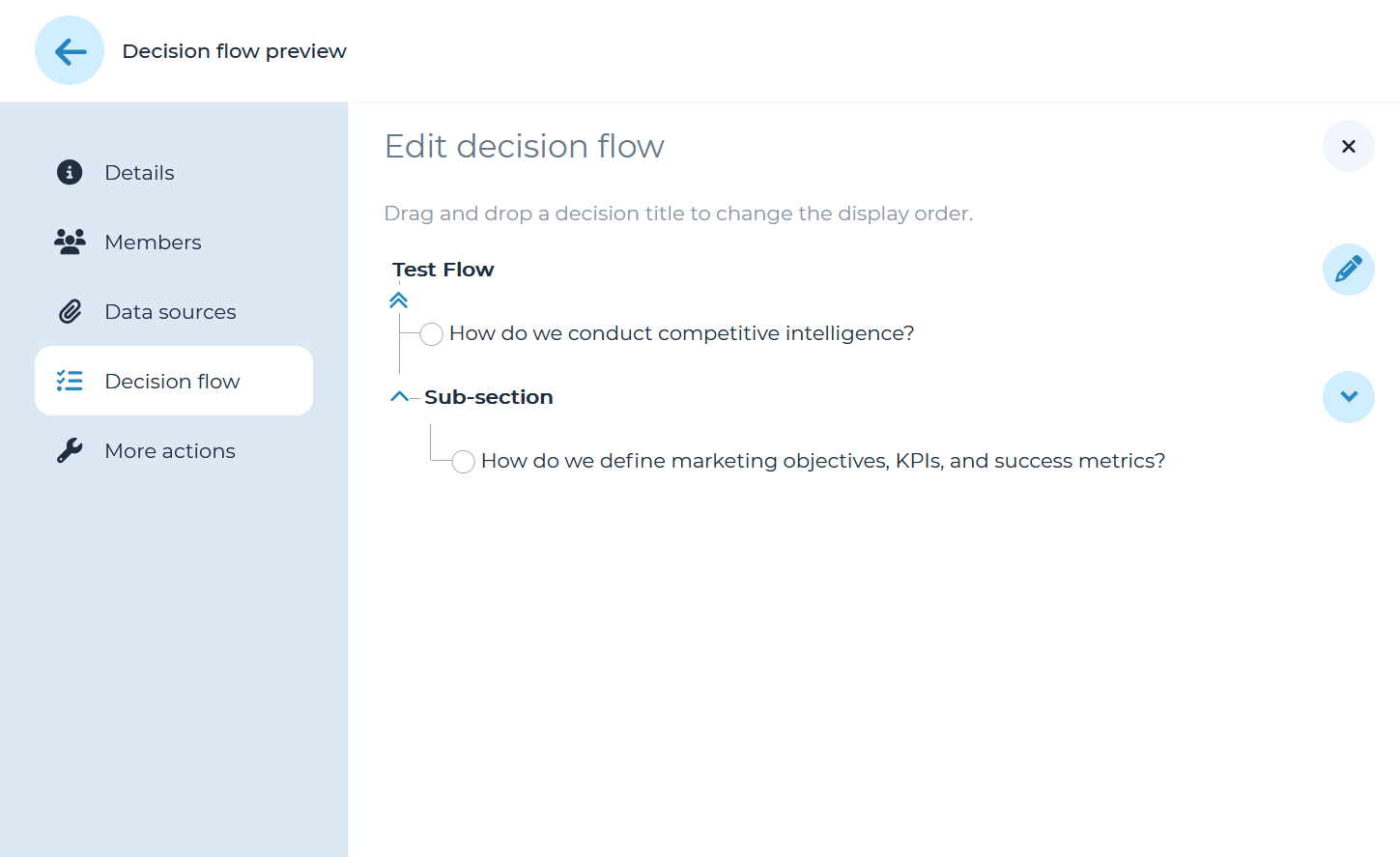
Open the ‘Decision flow’ panel from the left menu and select and click on the pencil icon to rename the decision flow
Ungroup decision flow
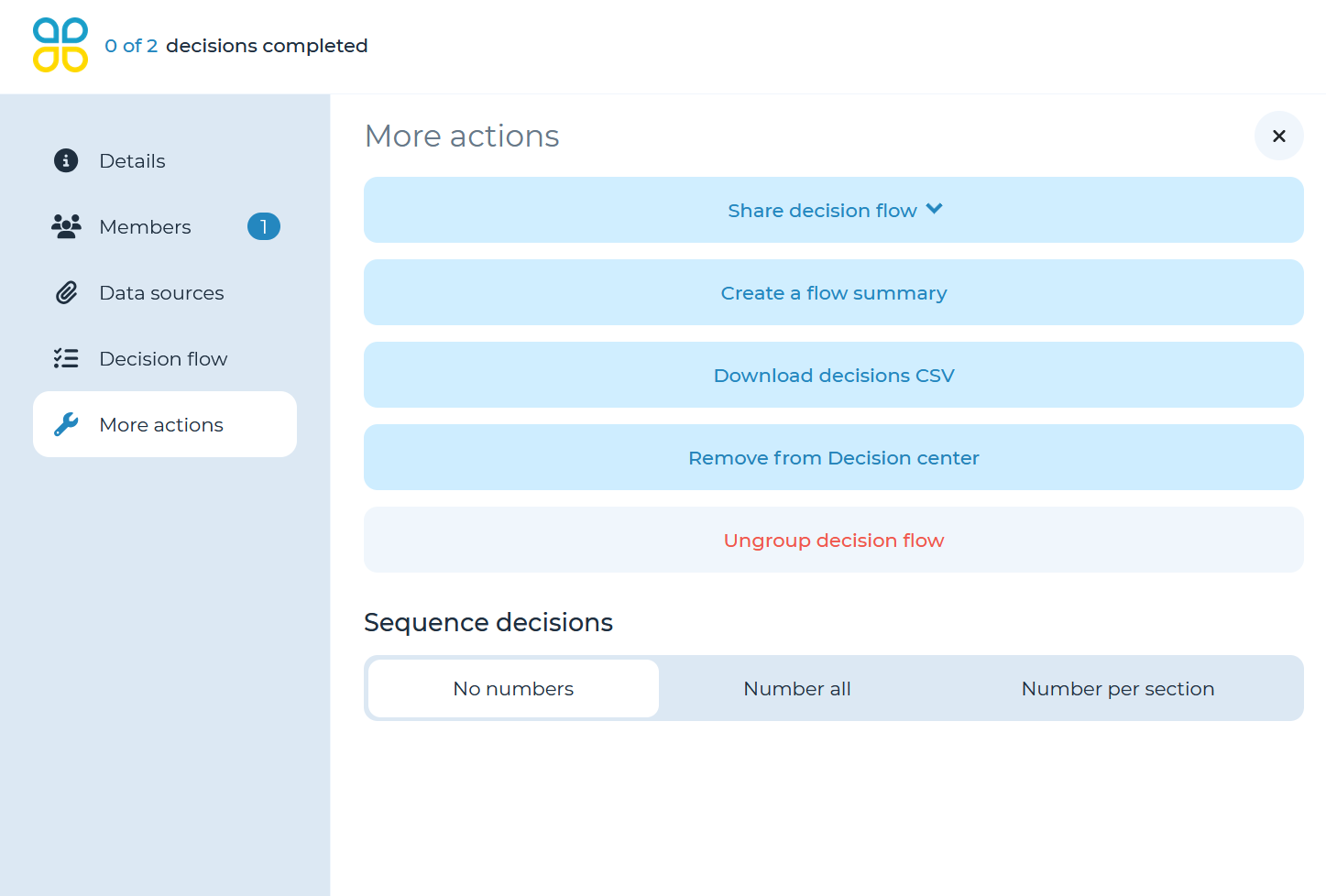
You can ungroup all of the decisions inside of it by going to ‘More actions’ and selecting ‘Ungroup decision flow’.
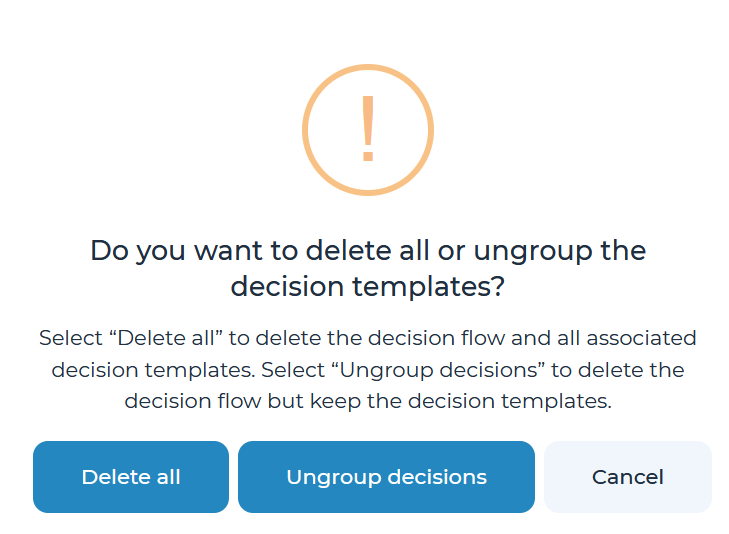
You can either delete the entire flow, which will delete all included templates as well, or choose to ungroup the included templates which will create a separate copy of each of the templates currently included in the flow.
Note: this will separate each decision from the flow and result in unique decisions without the sections or inter-linkages.
Sequence decisions
You can assign an order to the decisions within the flow by selecting one of three options in the ‘More actions’ panel.
- No numbers: no order to decisions.
- Number all: decisions have consecutive numberings, irrespective of their locations within sub-sections.
- Number per sections: Each section will restart the numbering of decisions within itself from 1.