
Add a new category
Admin users are able to add a new category in Cloverpop. Categories are groupings that make decisions filterable in the Decision Bank. Admins are able to set default and required category tags while setting up a category.
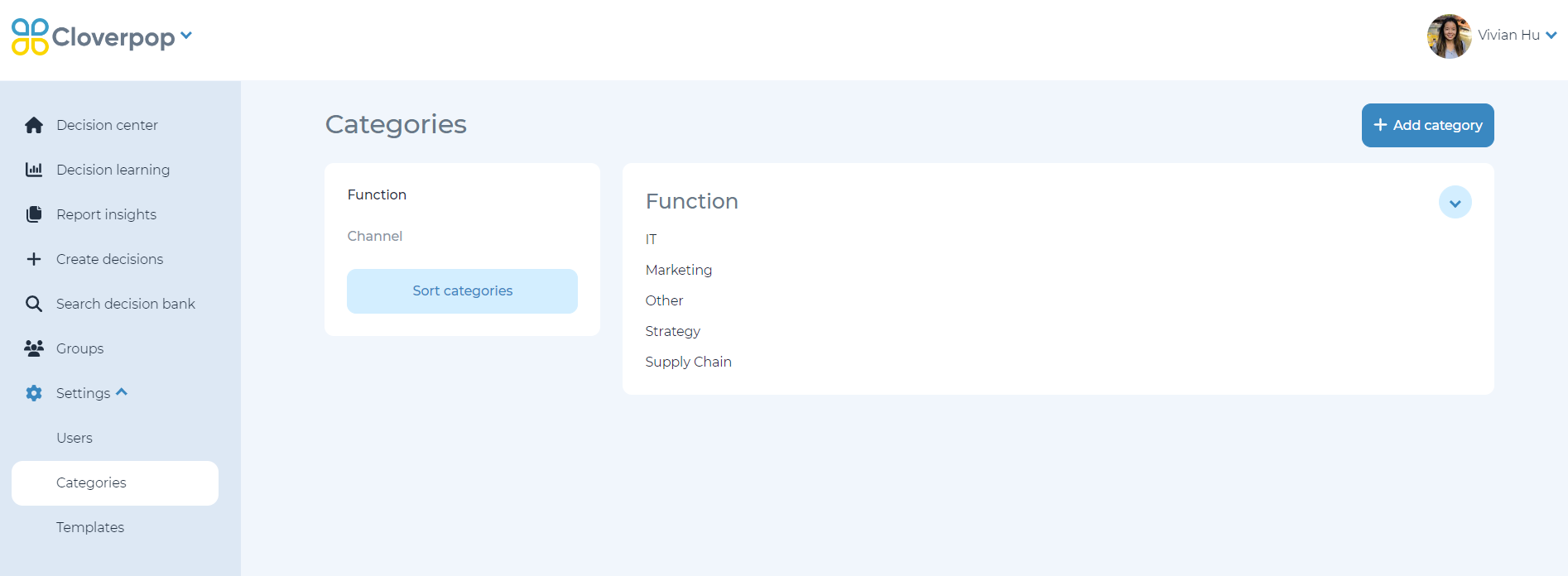
To add a new category, use the left-side navigation bar and select ‘Settings’ then ‘Categories’. Then select ‘+ Add category’ to create a new category.
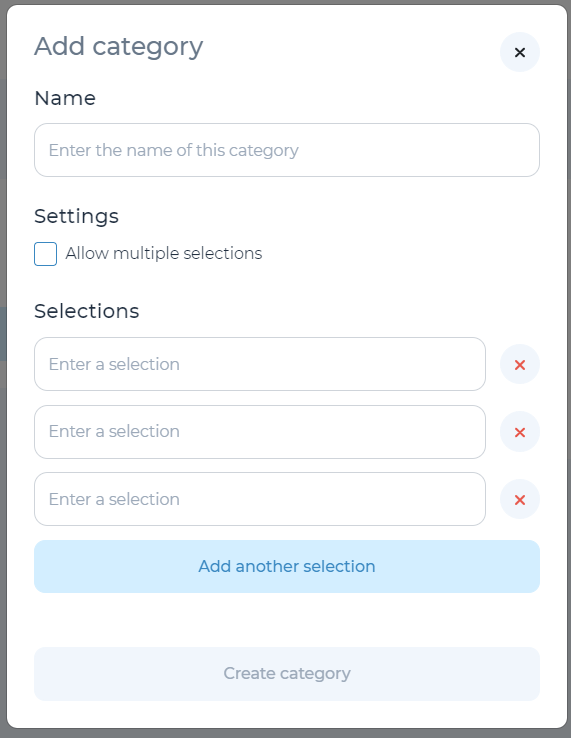
In the pop-up menu, you can then create the category name, settings, and selections.
- Name: The title of the category
- Settings: Select whether users can tag more than one selection per category
- Selections: Choices to select within the category. To add more selections select ‘Add another selection’. To delete a selection option, click the red ‘X’ next to the selection option.
Once you have completed the fields, select ‘Create category’ to save changes and close the menu.
Edit a category
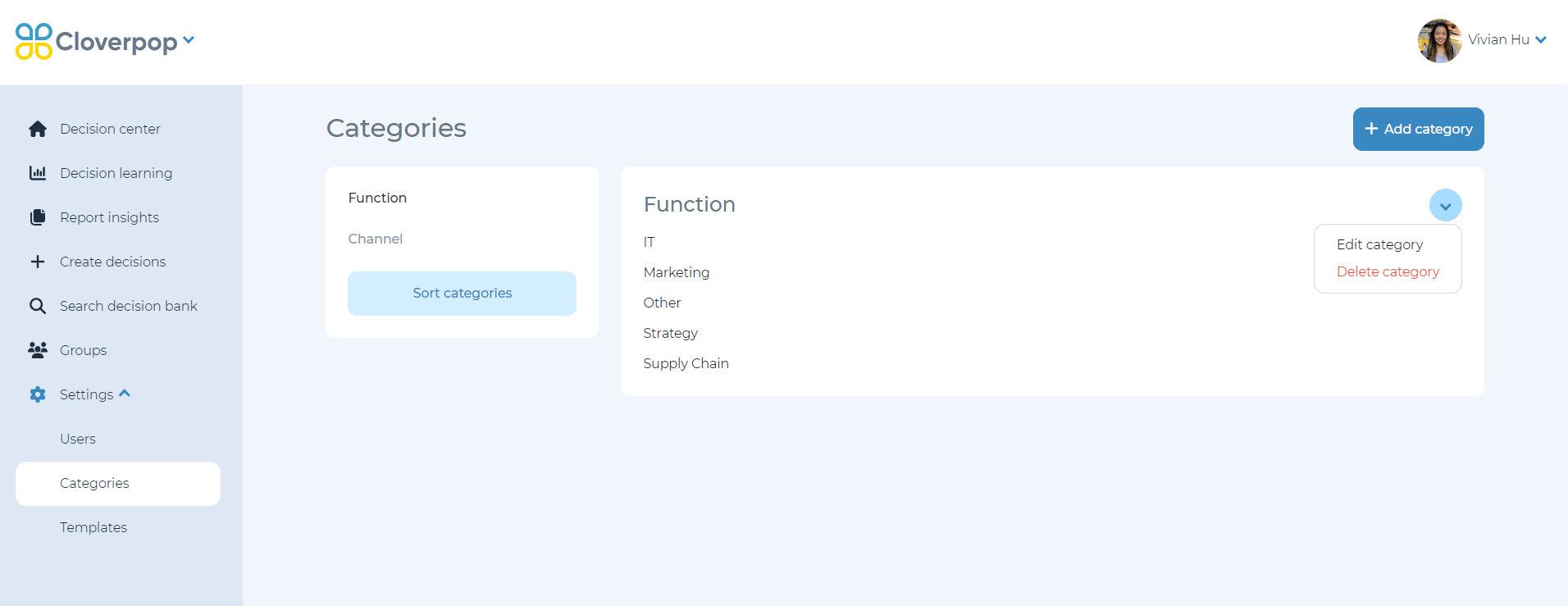
To edit an existing category, use the left-side navigation bar and select ‘Settings’ then ‘Categories’. On the left-side of the page, you can toggle between categories. To edit a category click ‘down arrow’ and select ‘edit category.’
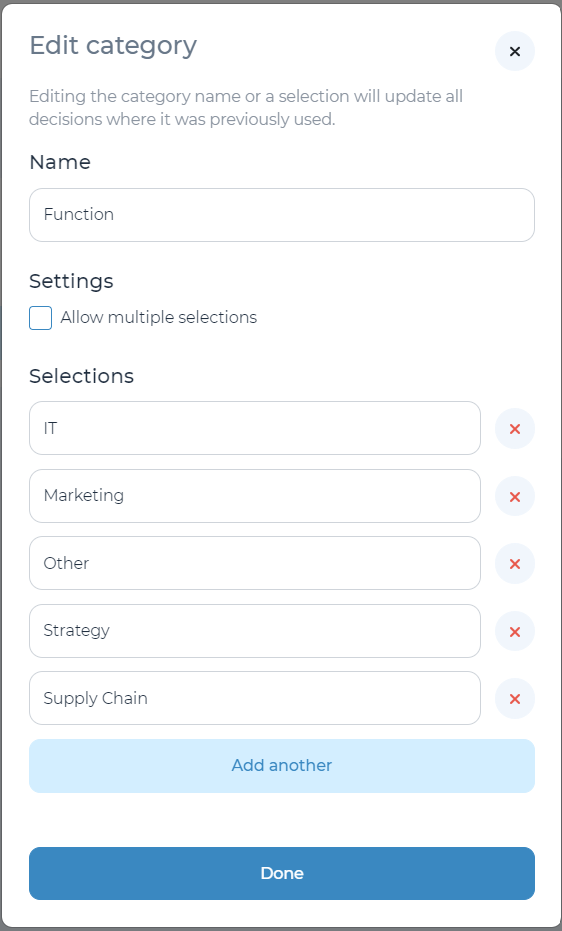
In the pop-up window, you can edit the category name, settings, and selections. Once the edits are complete, click ‘done’ to save changes and close the menu.