
D-Sight overview
Cloverpop's D-Sight AI engine automatically generates actionable insights & recommendations based on your organizations' data. If D-Sight has been enabled for your organization, you will see the option in your left-hand menu.
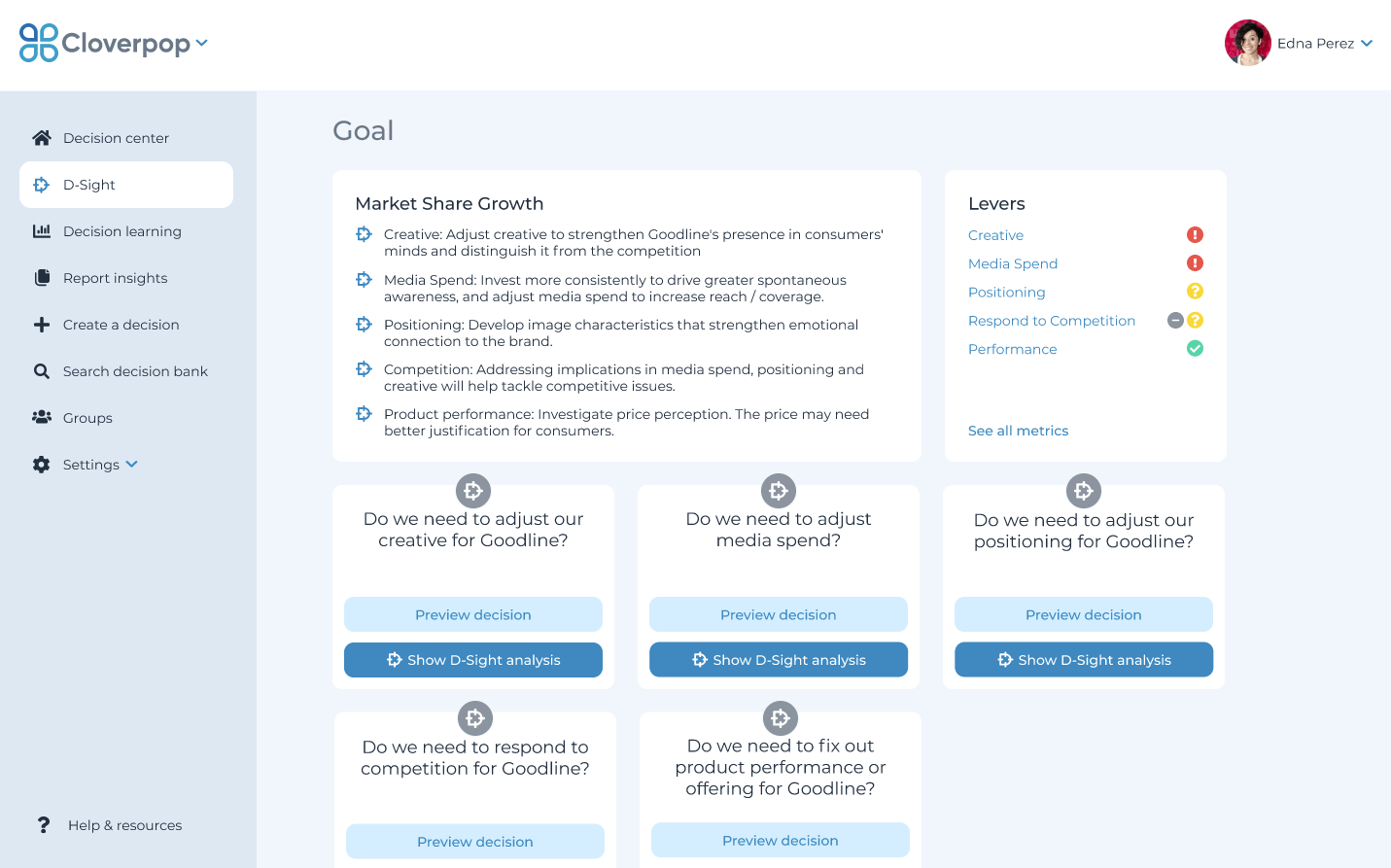
Click the ‘D-Sight’ button on the left side navigation menu to access the D-sight home page. If you have multiple categories being analyzed, there will be a dropdown in the top-right corner of the page to switch views. From here, you can review the following items:
- D-Sight Analysis: To review the insights and analysis behind a recommendation, select it from the ‘Levers’ box, or click ‘Show D-Sight analysis’ on the decision tile.
- All Metrics: click ‘See all metrics’ to view graphs for ALL metrics (across ALL decisions).
D-Sight analysis
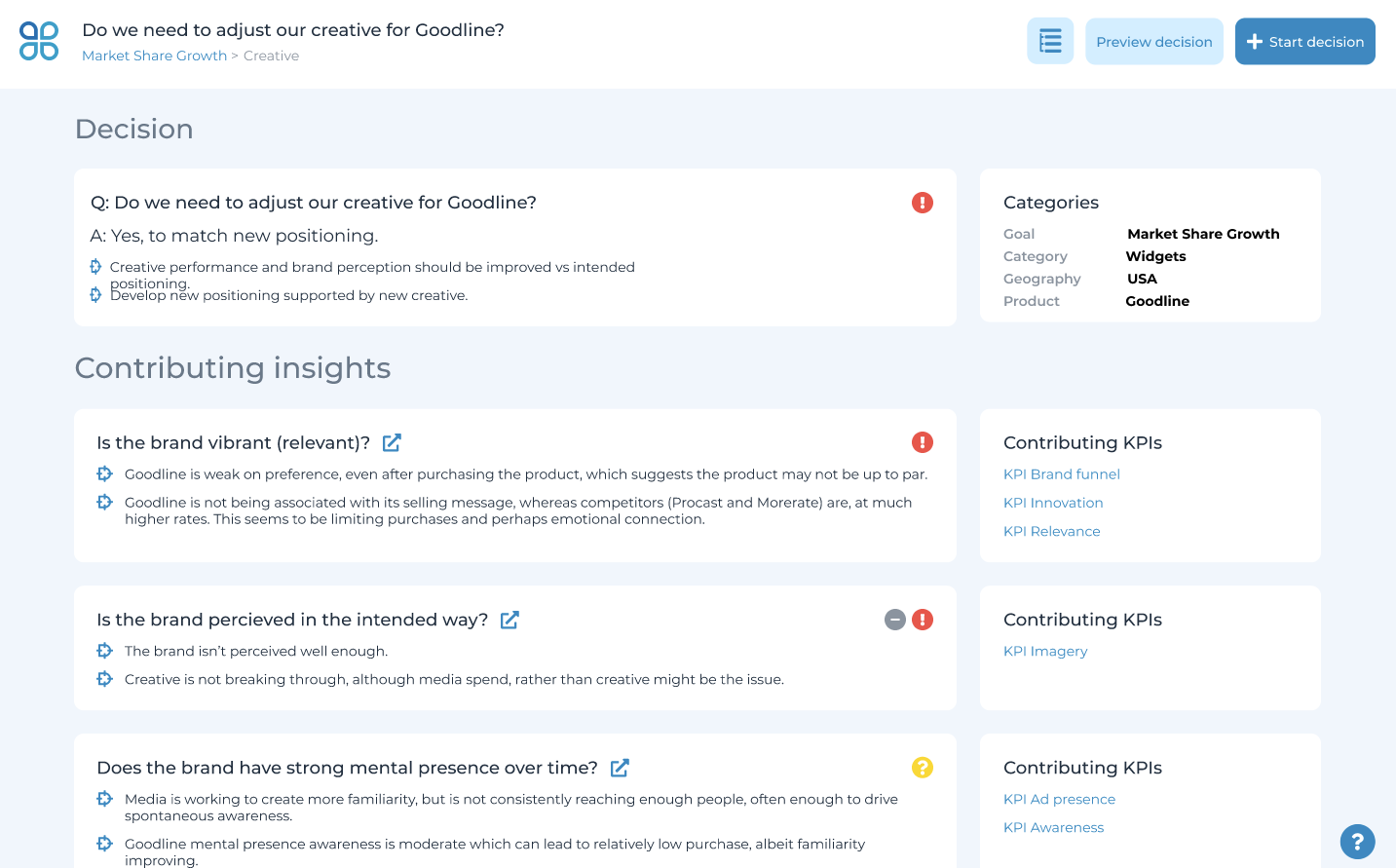
Within the D-Sight analysis, you can review the recommended ‘Decision’, as well as the insights which support it. From this screen, you can review the following items:
- Contributing Insights: To review the details behind an insight, click the pop-out icon next to the insight question.
- Contributing KPIs: Click on the relevant KPI to review details & metrics behind that.
- Contributing Metrics: To review ALL of the metrics that contribute just to THIS decision, select the tree icon at the top of the page, then click ‘See all metrics’.
Contributing Insights
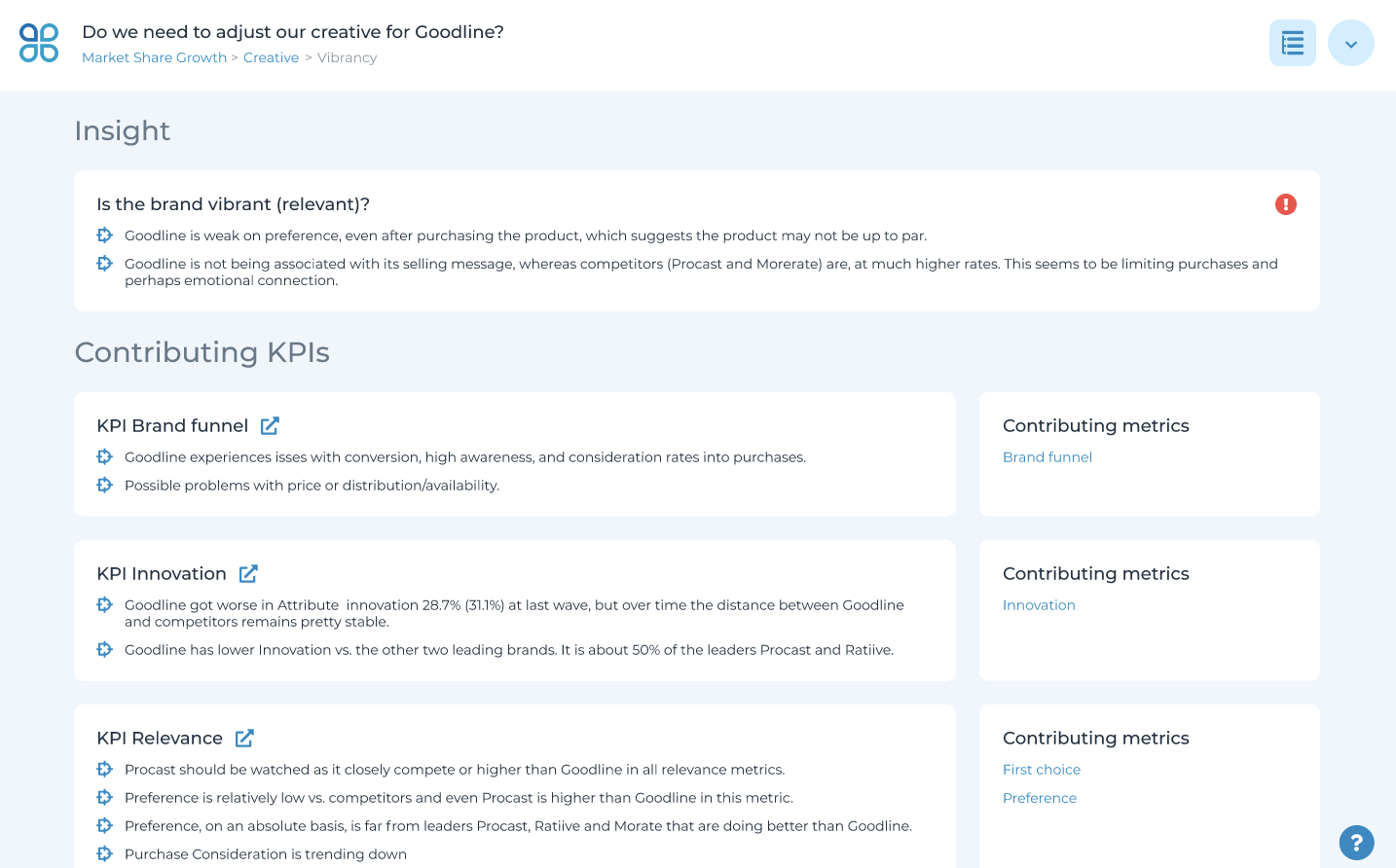
Contributing insights are key elements that support a recommendation in D-Sight. One or more KPIs contribute to an insight. From this screen, you can review the following:
- Contributing KPIs: To review the data behind a contributing KPI, click the pop-out icon.
- Contributing Metrics: Click on a metric to view relevant data & graphs.
Contributing KPIs
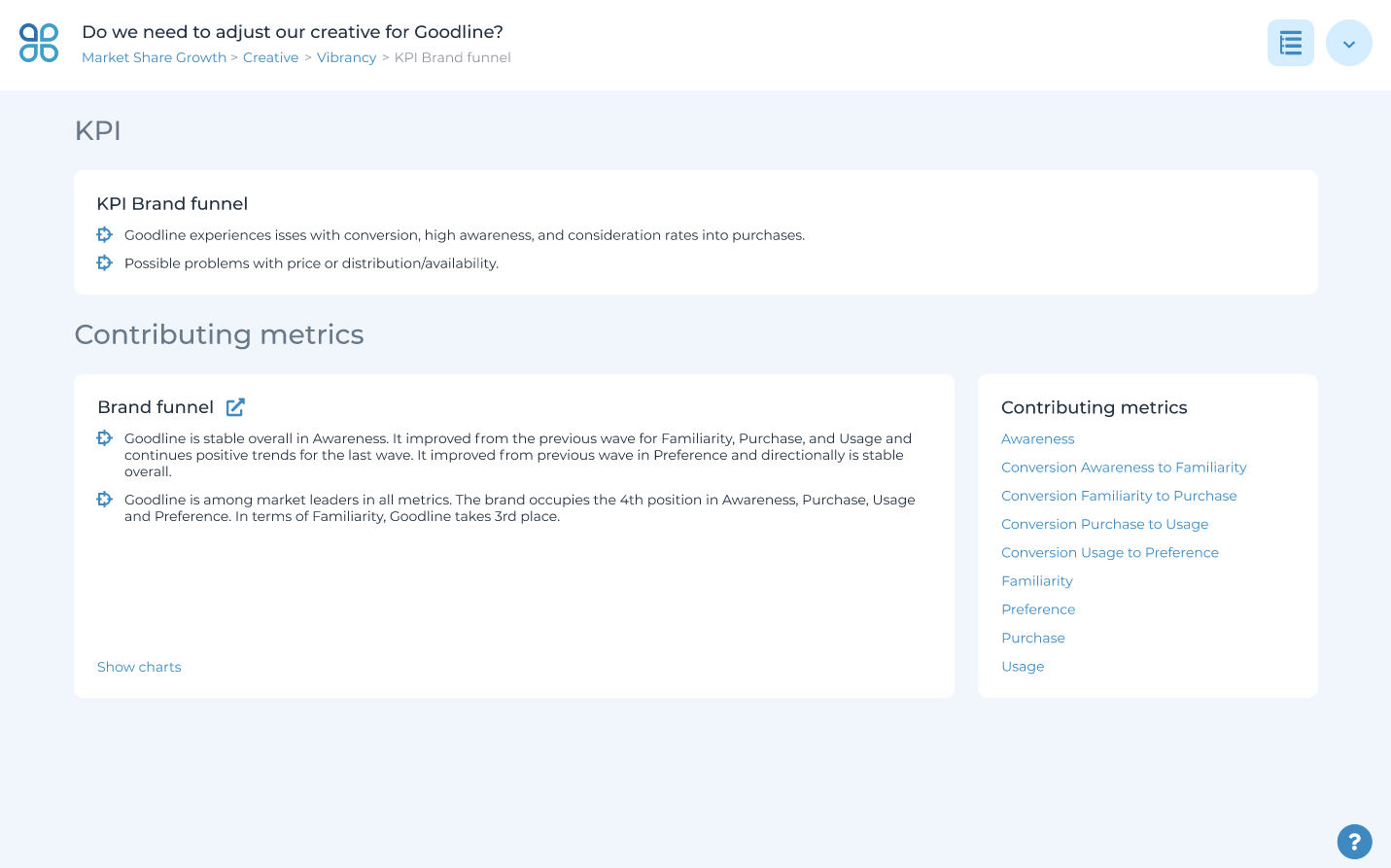
Contributing KPIs combine to form an insight, while one or more metrics combined form a KPI. Scroll down to review all of the metrics & graphs that contribute to this specific KPI. Alternatively, clicking on a specific metric will bring you to the ‘Contributing Metrics’ page.
Contributing Metrics
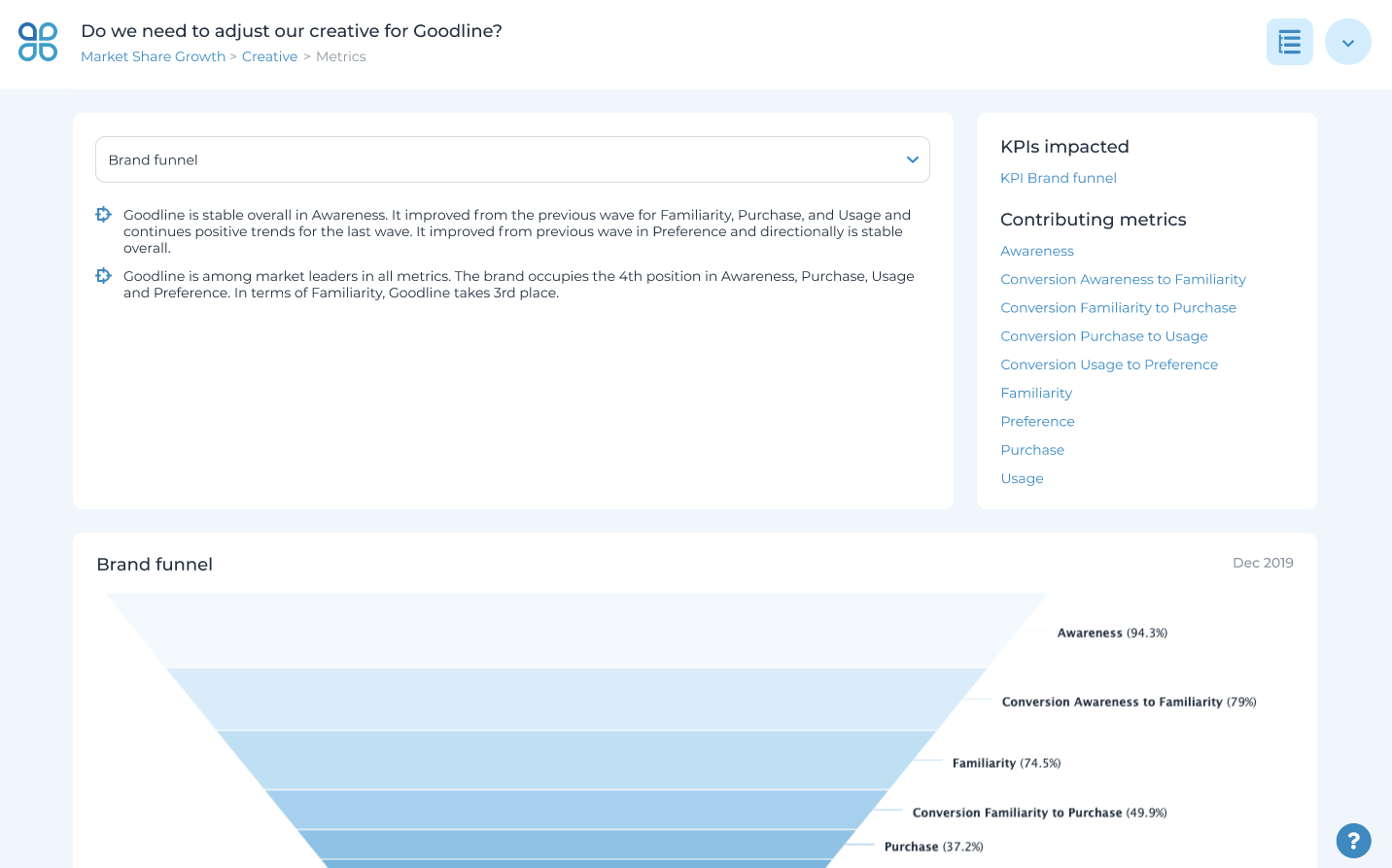
Contributing metrics are data points that support one or multiple KPIs. There are many ways to review the metrics generated by D-sight. Contributing metrics is the most granular way.
On this page, you can:
- Select a metric: click the drop-down box near the top to change metrics
- See impacts: click any links in the top-right corner to see KPIs impacted and other contributing metrics
- Filter charts: select a drop-down filter option or click on the interactive legends to filter the charts below
Reviewing All Metrics
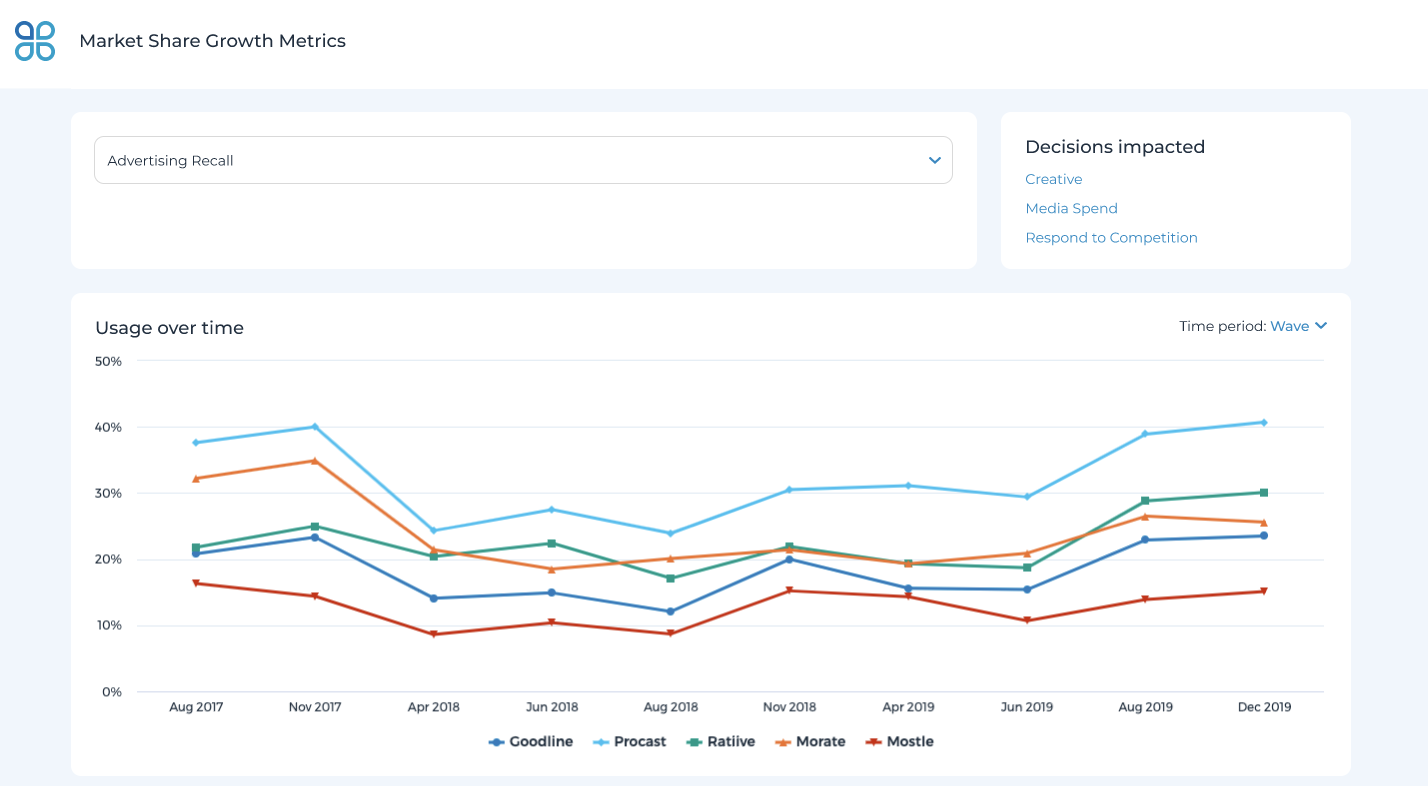
Click the ‘D-Sight’ button on the left side navigation menu to access the D-sight home page. From this page, click ‘See all metrics’ within the ‘Levers’ area to review the metrics driving one or multiple D-Sight recommendations.
You can select the metric for review by clicking the drop-down box at the top of the page (e.g., ‘Advertising Recall’). You can adjust the time for visuals and use additional filters on your D-Sight metrics page to find the intersections of data most important to making your decision.
On this page, you can:
- Select a metric: click the drop-down box near the top to change metrics
- See impacts: click any links in the top-right corner to see KPIs impacted and other contributing metrics
- Filter charts: select a drop-down filter option or click on the interactive legends to filter the charts below