
If you are the decision manager, you can continue editing the decision details through the decision-making process.
Edit decision details
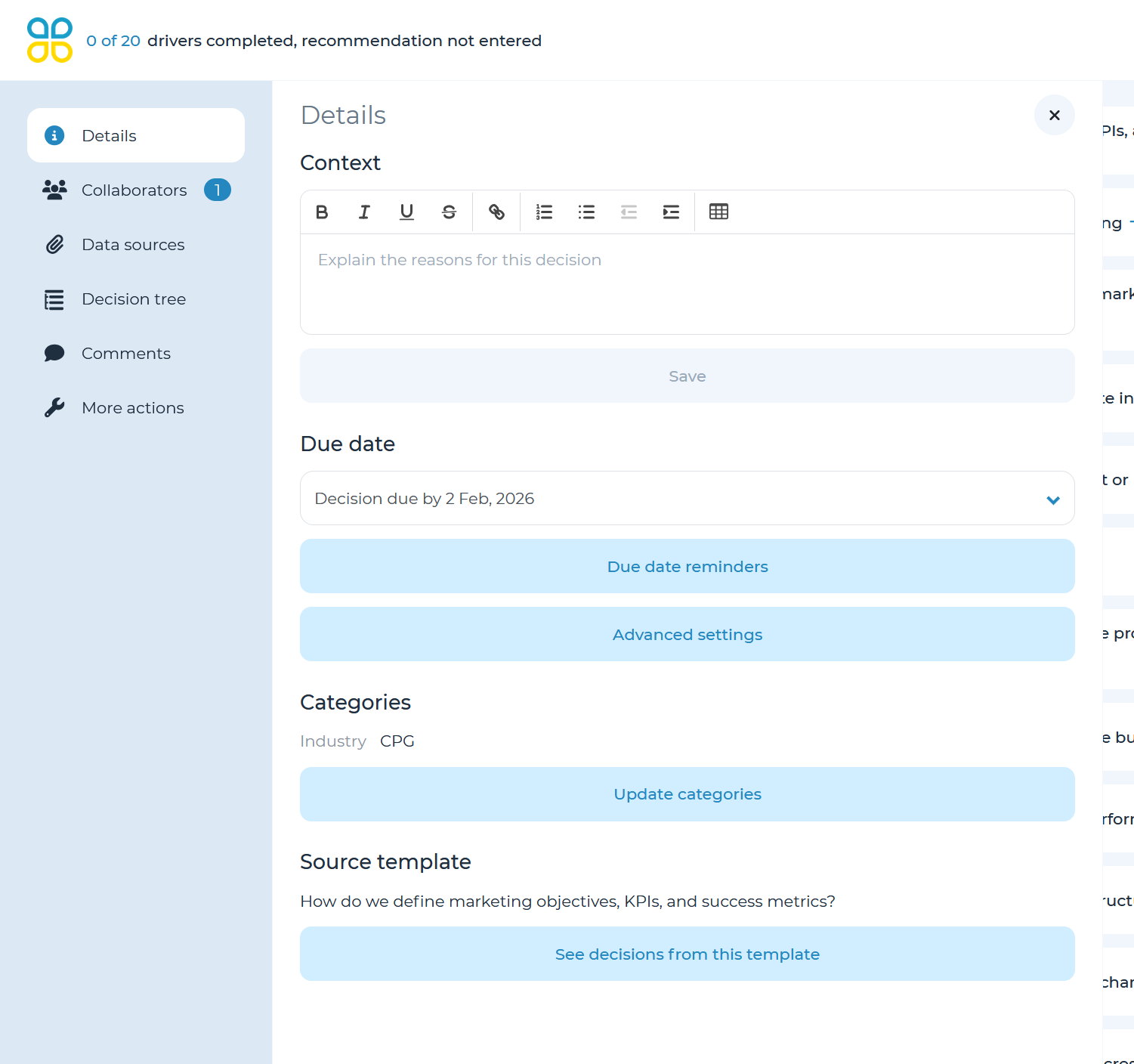
To edit decision details, navigate to ‘Details’ on the left-side panel. Here, you can update the context, due date and category tags.
- Context is space to provide details about this decision-making process.
- The decision due date can be updated here. Select a date from the dropdown calendar. Note: decision due date is different from driver due dates within a decision.
- To update category tags, select the pencil icon. In the popup, you can edit category tags that have been created by your org administrators. These category tags can be used to filter on decisions within the decision bank.
Collaborators
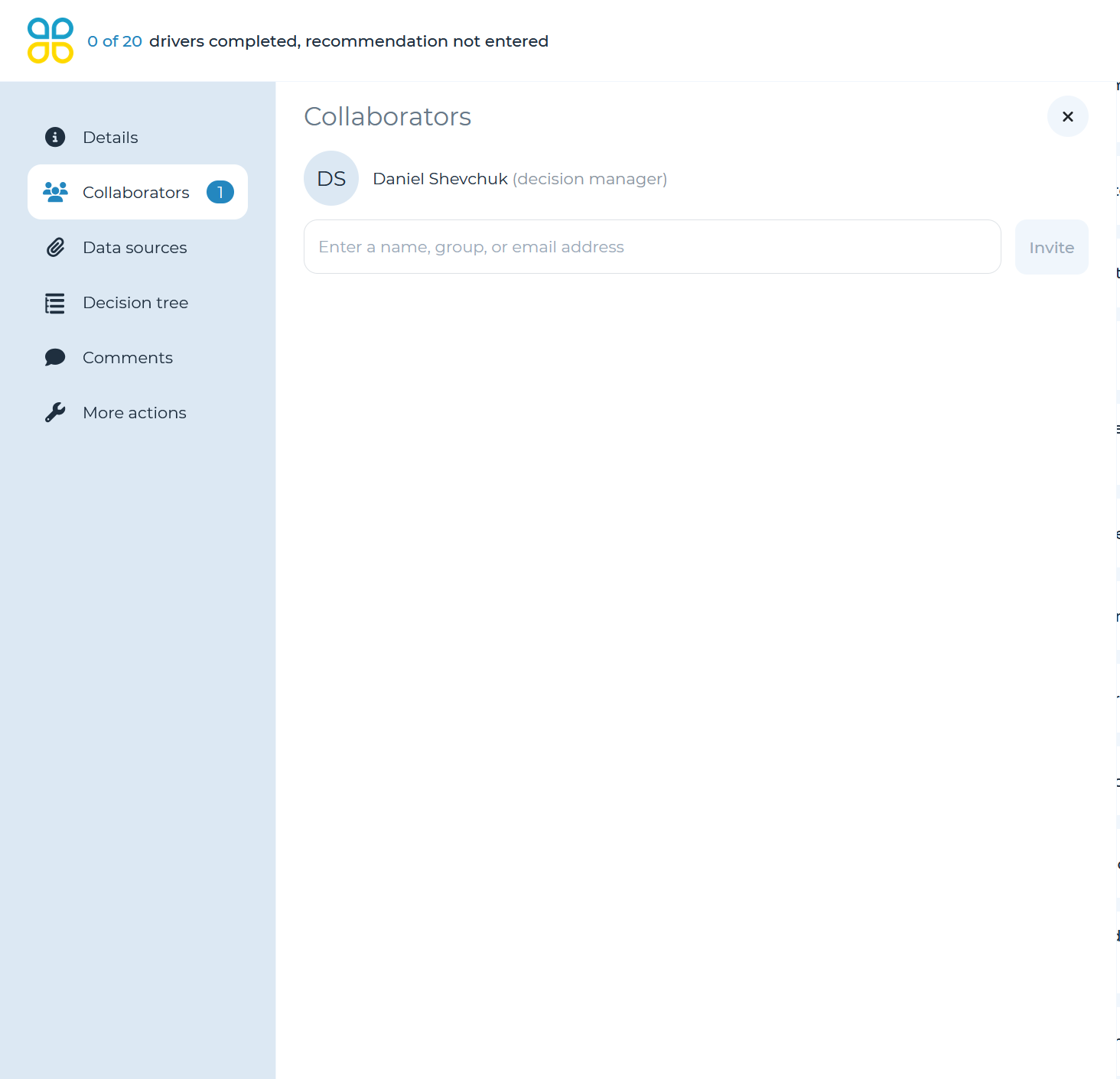
Decision-level collaborators will have the ability to work on the entire decision. To add a collaborator, enter their name or email address in the field and click ‘invite’.
To change decision managers or remove a collaborator, click the down arrow by the collaborator name and select from options.
Data sources
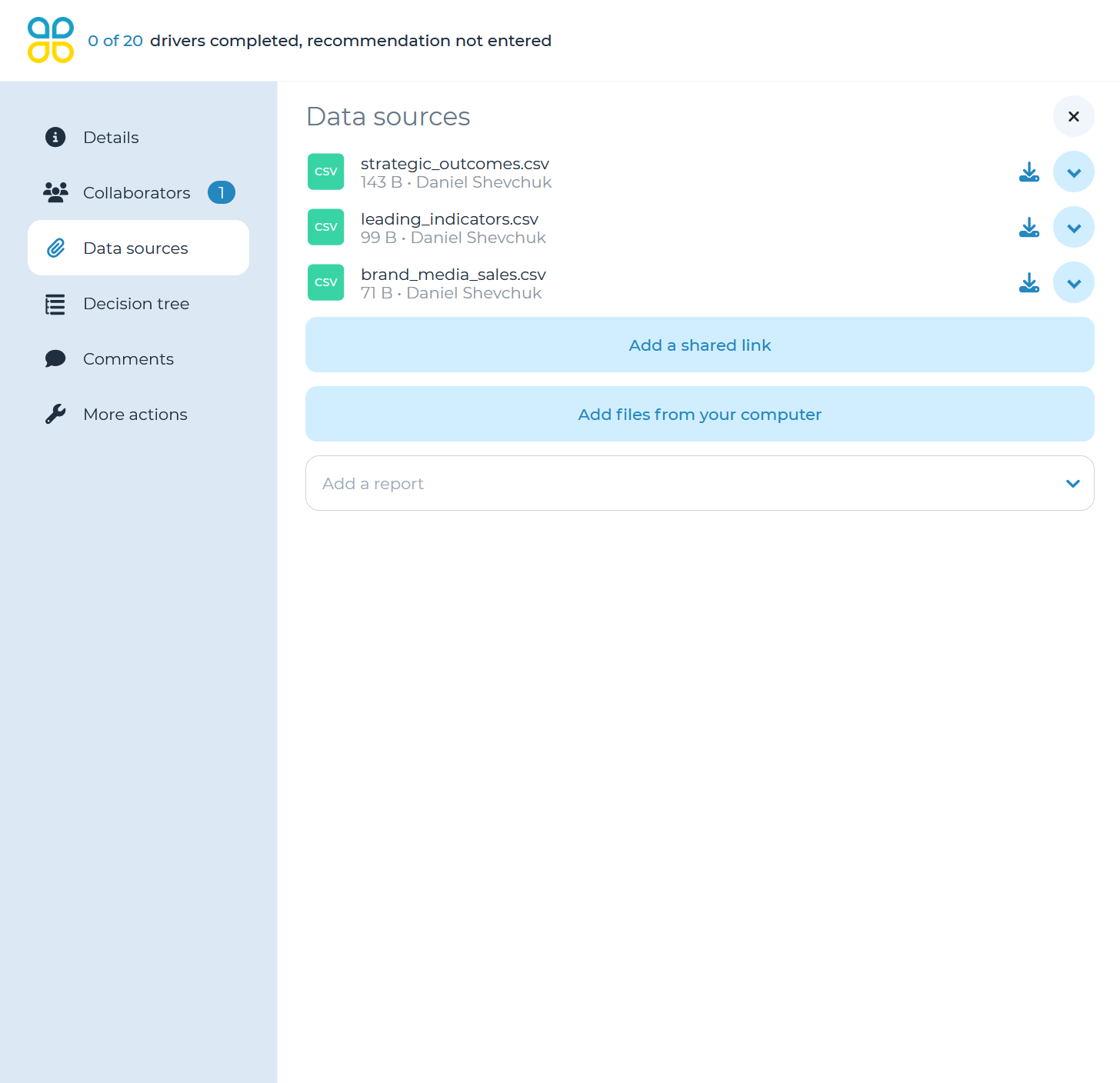
In the details panel, you can add links and files to the decision. You can upload files up to 100MB to support your decision. When adding data sources, you may enter a display name for the decision.
After the files are uploaded, they can be added to drivers from the driver’s editing panel.
Decision tree
You can change the structure of the decision tree from this panel, including adding, deleting and moving around drivers within the structure of the tree. For more information on changing the tree, see the Editing the decision tree section of the decision creation part of the manual.
Comments
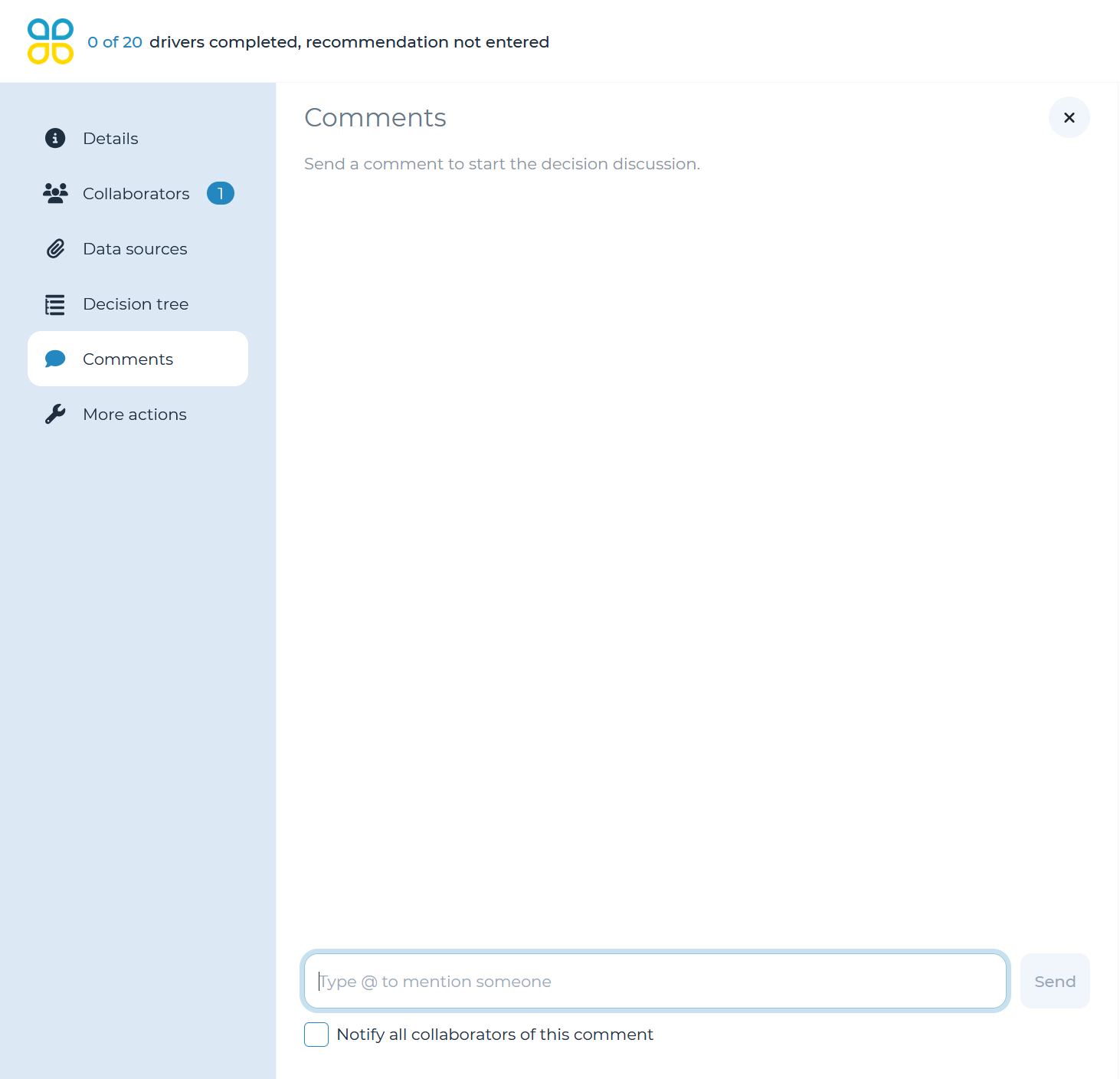
In this panel, you can type messages for all collaborators added to the decision to be able to see and reply to. You can use a “@” symbol before a collaborator’s name to send a specific person a notification after the comment is posted. Additionally, you can select the ‘Notify all collaborators of this comment’ checkbox to send a notification to all collaborators.
More actions
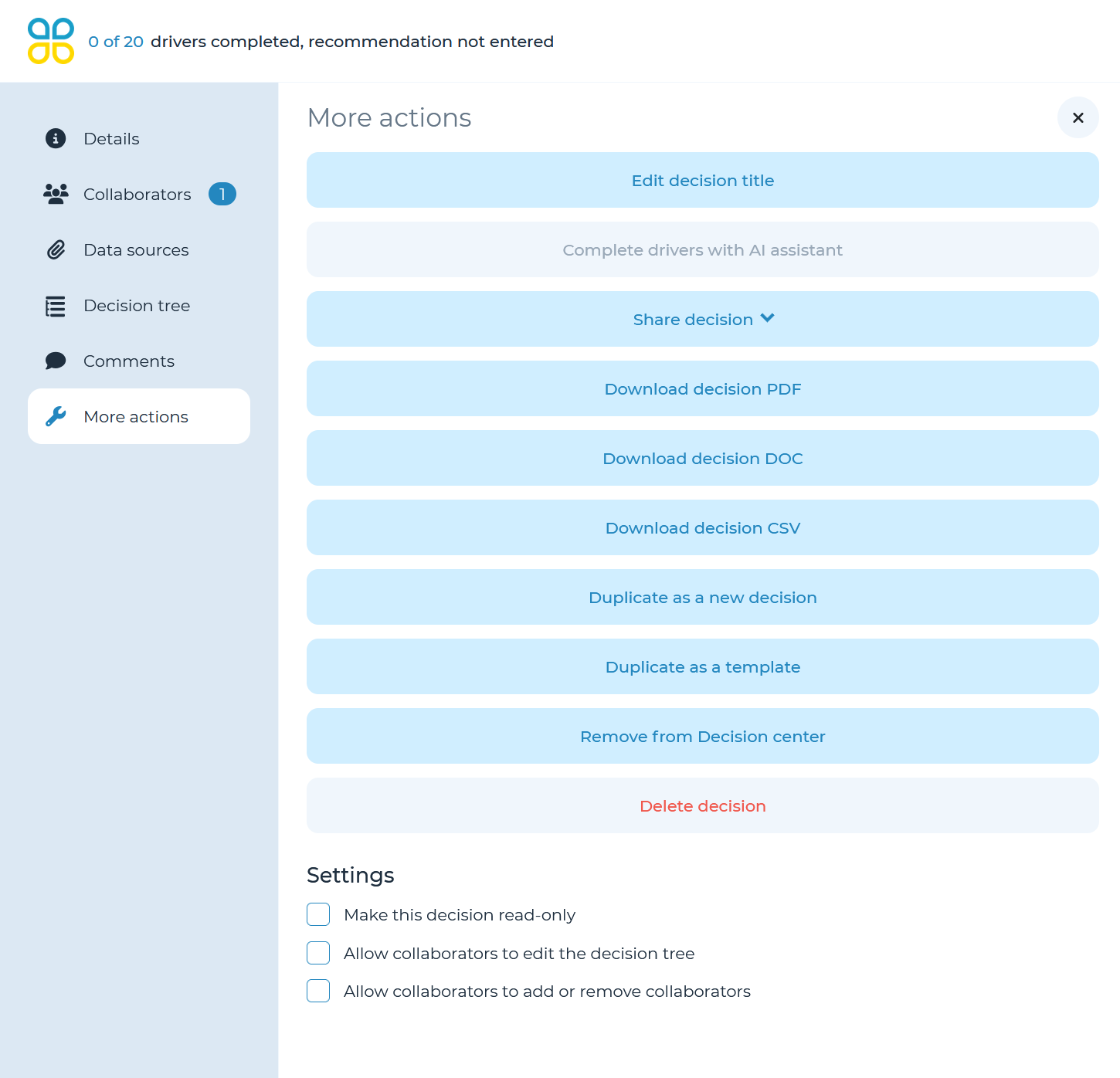
Other miscellaneous actions can be done from the ‘More actions’ panel, such as editing the decision’s title, sharing, downloading, duplicating among others.
- You can also complete all incomplete drivers as long as each driver has at least one data source attached to it.
- You can duplicate your decision into a template that can be reused for future decisions or you can duplicate it as a new decision.
- You can also delete a decision. This action CANNOT be undone, so please confirm before deleting a decision.
There are also settings at the bottom of the panel, which allow for preventing further editing of the decision, allowing collaborators and not just managers to edit the decision tree and allowing collaborators to add or remove other collaborators.