
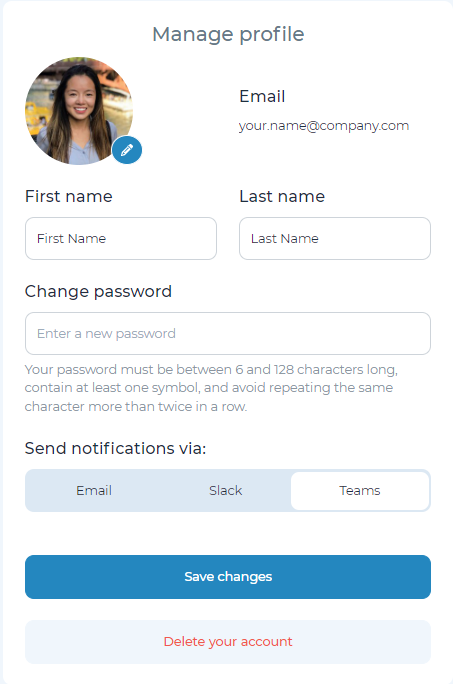
Want to personalize your profile? We’re here to help!
You can change your password, update your profile picture, and manage notifications within the Cloverpop application.
From the homescreen, select your name in the top right corner. In the dropdown, click ‘Manage profile’.
To update your profile picture, click on the ‘pencil icon’ by the existing icon and upload a photo.
To receive notification via Slack or Teams, you will need to connect your organization's Slack and Teams instance to Cloverpop.
Send notifications via Teams
To receive notifications via Teams, first click ‘Manage profile’ and select Send notifications via ‘Teams.’ This will next redirect you to a page where you will be asked to log in with your Microsoft credentials. Once logged in, you will be redirected to the ‘Manage profile’ page with a warning to add the Cloverpop app to your MS teams organization. Click a link to ‘add the Cloverpop app’ and proceed with the download.
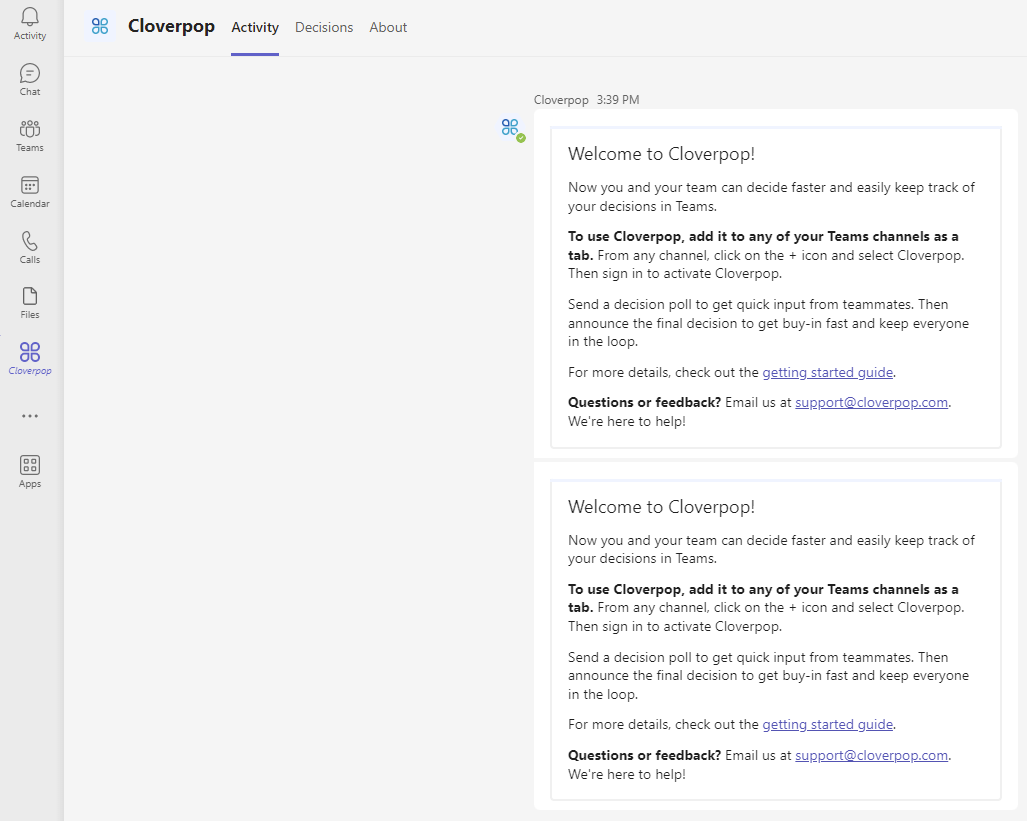
Once you have added the app to your Microsoft Teams account, you will be redirected to the ‘Activity’ tab of the Cloverpop App in Teams. After receiving this message, navigate back to the ‘Manage profile’ page in the Cloverpop platform. You may now click the Teams option under the ‘Send notifications via:’ to receive notifications via Teams moving forward.