
Find Your Assigned Drivers on Home Page
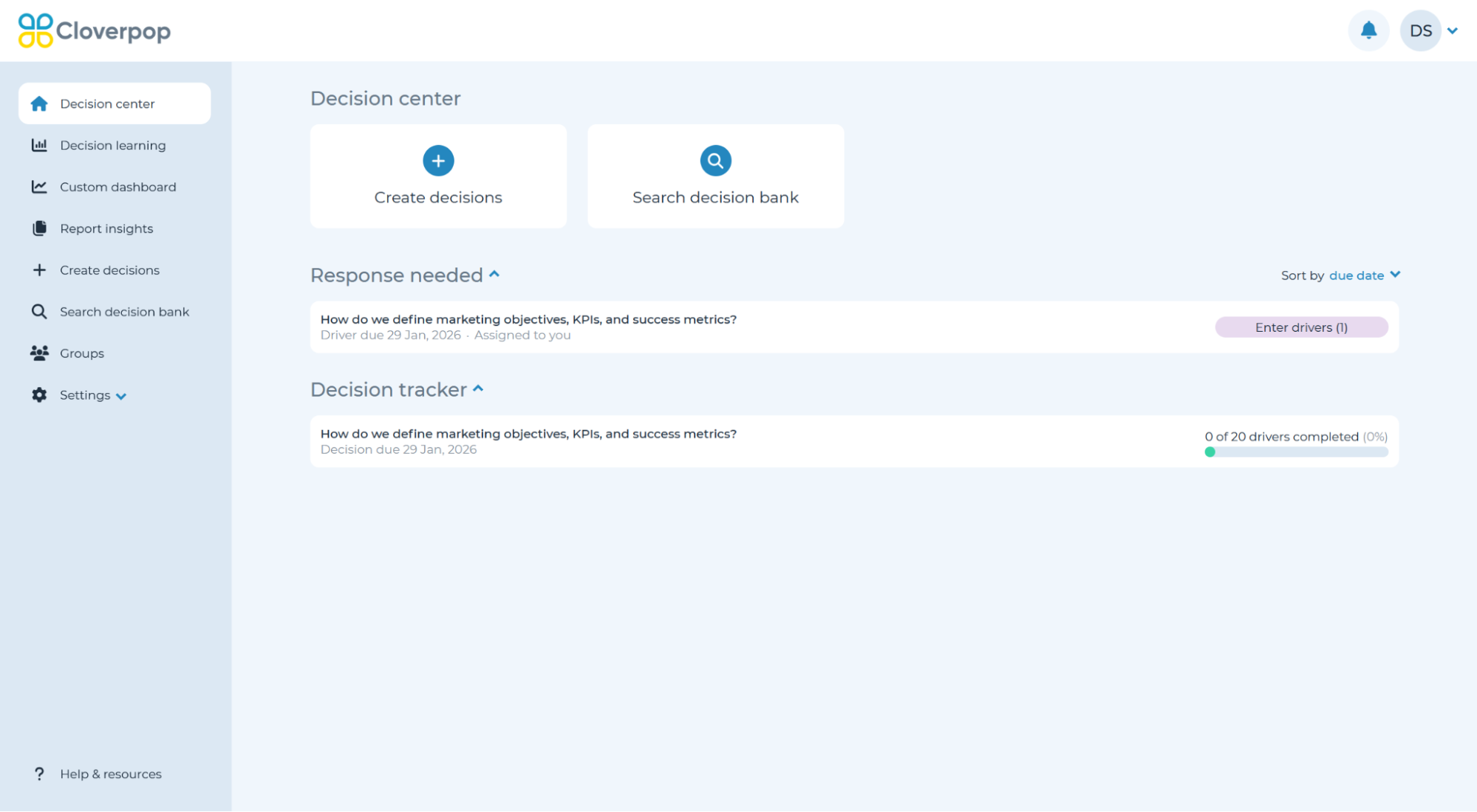
Drivers assigned to you that are not yet completed will appear on the ‘Decision center’ page within the ‘Response needed’ section. Assigned drivers are questions that have been assigned to you to complete. Complete assigned drivers by clicking on the tile and providing answers in the designated panel. Once the driver is complete, the tile will be removed from the Assigned Driver section of the Decision Center. Due dates for the drivers assigned to you are listed at the bottom of the tiles within the Decision center.
Note: each driver is assigned to only one person at a time. For details on how to change the assigned owner, refer to the ‘Assign drivers’ section of ‘Edit decision tree’ user manual section.
Find Your Assigned Drivers within a Decision
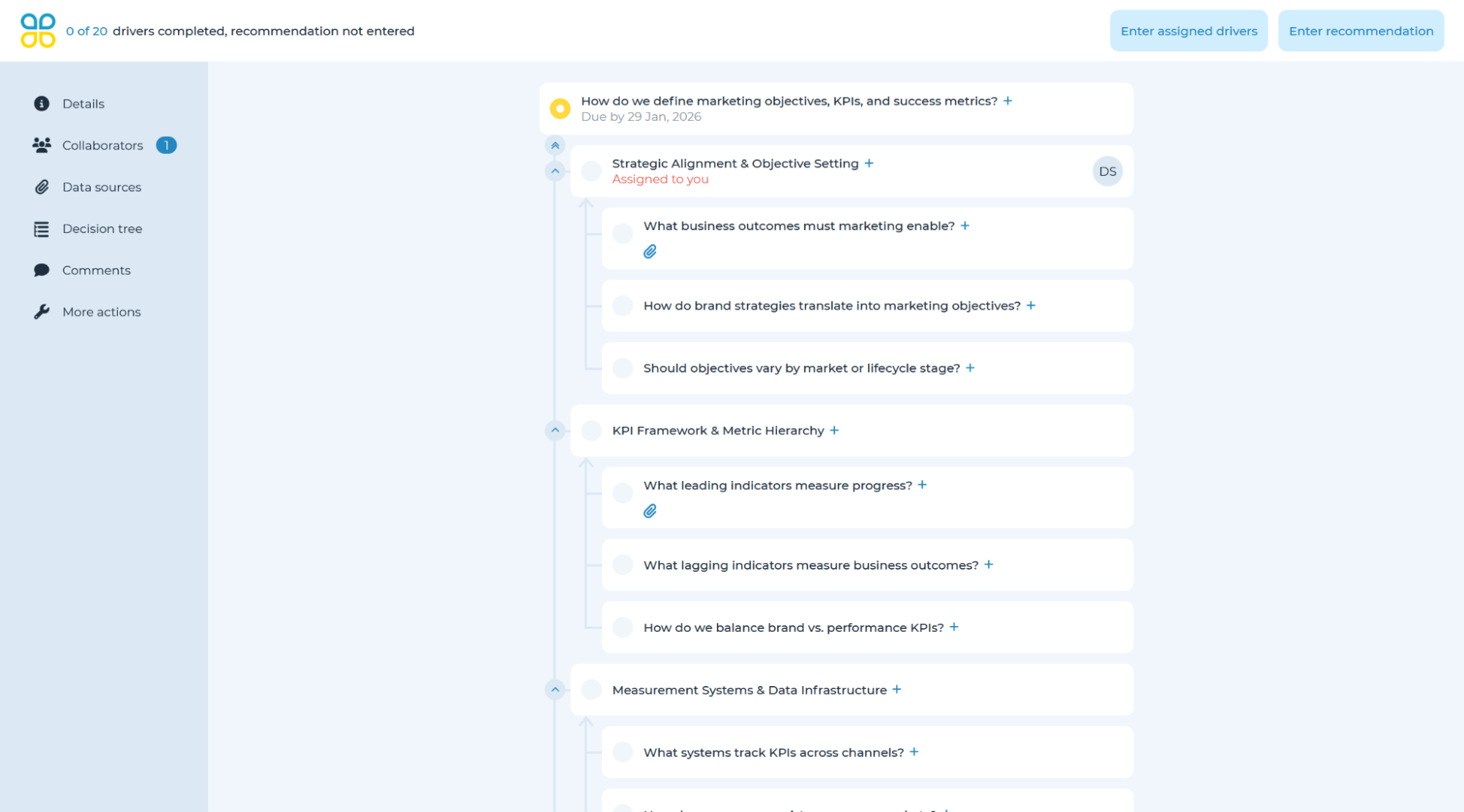
Drivers assigned to you within an active decision tree will have a person icon with the text ‘Assigned to you.’ Assigned drivers are questions that have been assigned to you to complete. You can find assigned drivers in the expand/collapse accordion tree view, or by clicking ‘Enter assigned drivers’ in the top right corner.
Complete assigned drivers by clicking on the tile and providing answers in the designated panel. Once the driver is complete, the tile will change from dark blue to light blue in the decision tree, and be marked with a green check mark.
Note: each driver is assigned to only one person at a time. For details on how to change the assigned owner, refer to the ‘Assign drivers’ section of ‘Edit decision tree’ user manual section.
Once you have located your assigned driver, please refer to Answer a question, manage data, reassign a driver for guidance on how to proceed.