
Add a new group
Members and admin have the ability to add a new group in your instance. Groups can be used to sort users and simplify the process of adding collaborators to a decision. With groups, you are able to add the entire group (e.g., Finance) rather than one collaborator at a time.
Navigate to groups by using the left-side navigation bar. Then, on the left-side of the screen you can toggle between existing groups to see the members.
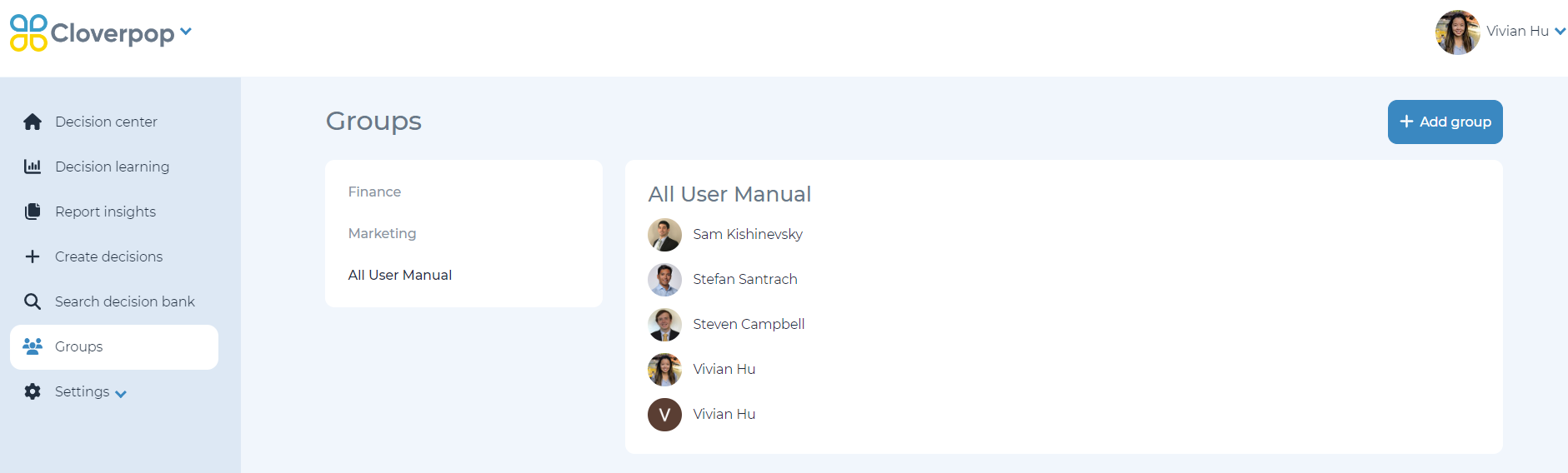
To add a new group, select ‘+ Add group’.
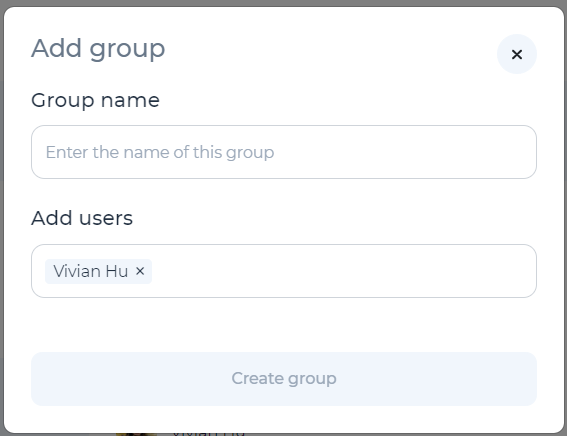
In the pop-up menu create the group name and add users. Once the edits are complete, select ‘Create Group’ to save changes and close the pop-up.
Edit group
Once you are on the group page, you can edit groups by clicking on the ‘down carrot’ on the right-side of group information. Then select ‘Add members’ or ‘Edit group name’ to make your adjustments. Follow the instructions in the pop-up to add a member.
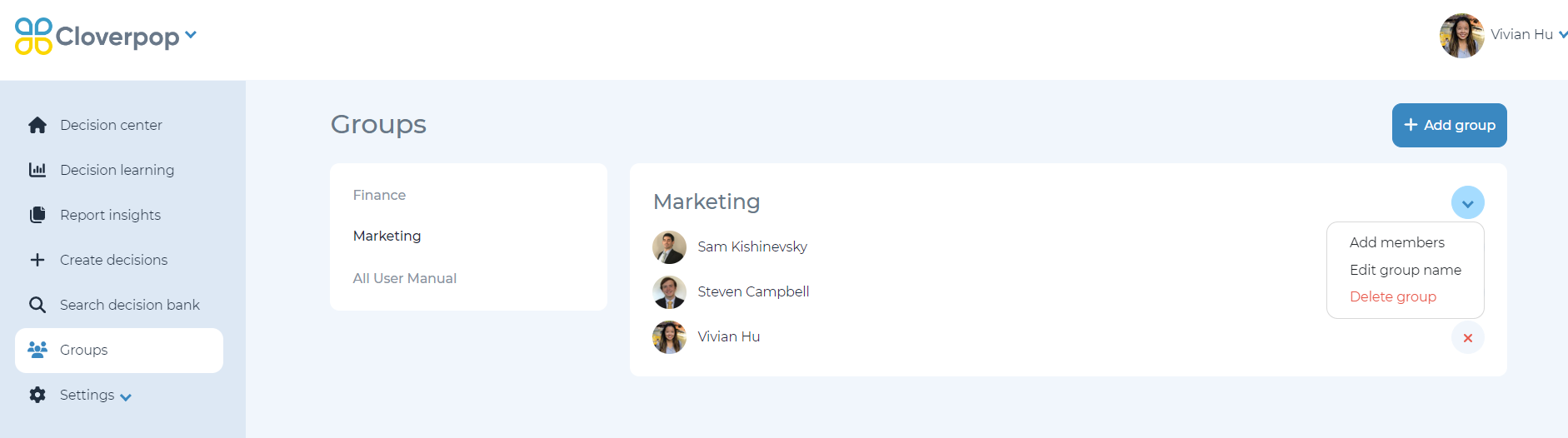
Note: Members can only edit groups to which they already have access, while admins can edit all groups.