
Summarize Drivers
The Driver Summary feature is designed to help users efficiently summarize contributing drivers. This summary can then be copied and utilized in various documentation formats such as Details, Rationale, memos, or presentations.
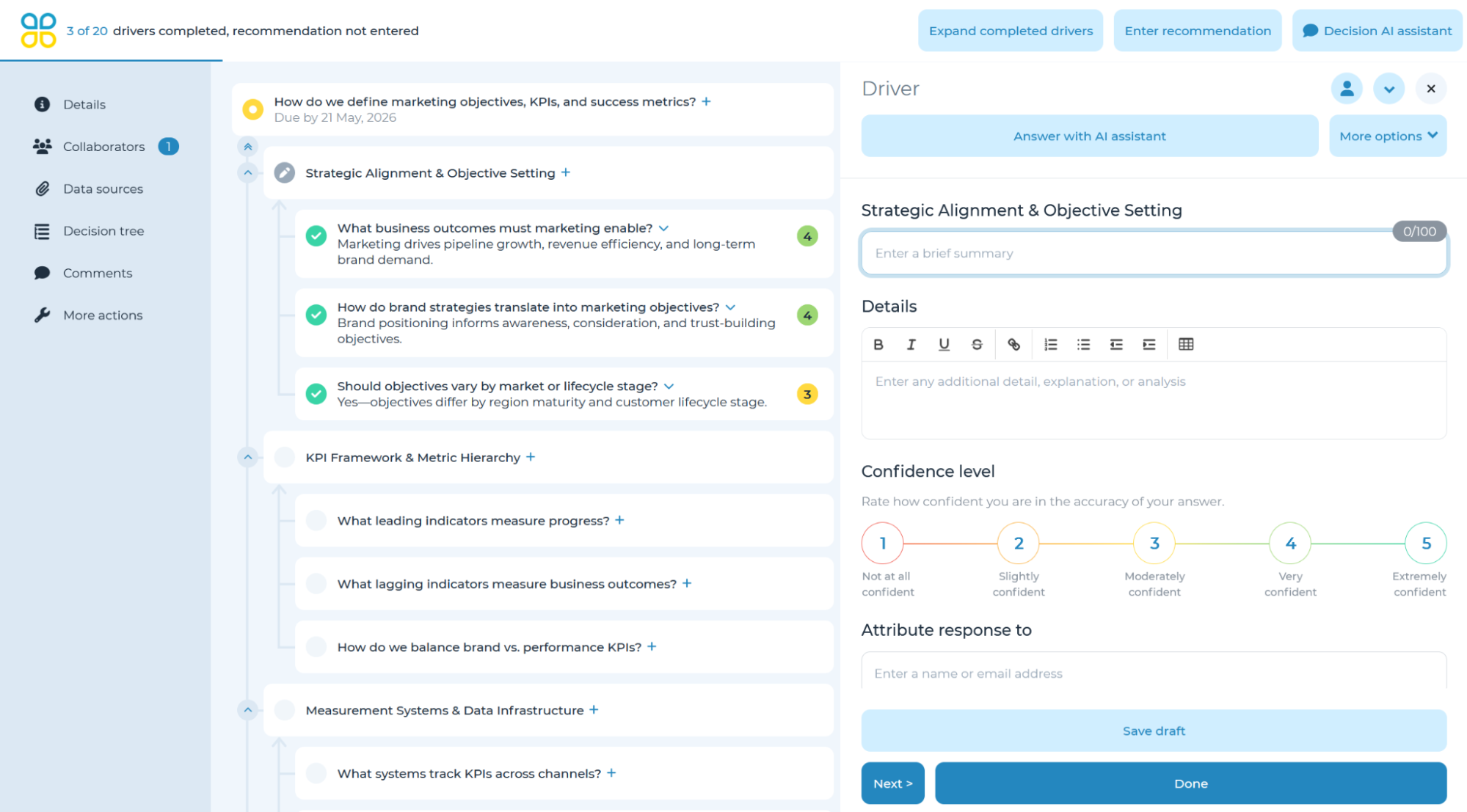
Once at least one contributing sub-driver has been completed, the button ‘Answer with AI assistant’ will appear. The ‘More Options’ dropdown next to the button allows previewing the AI response, providing additional context/instructions for the driver, and asking questions about the driver from the AI assistant.
If selected, the AI assistant will automatically insert a response with accompanying details for that driver and attribute the response to the assistant.

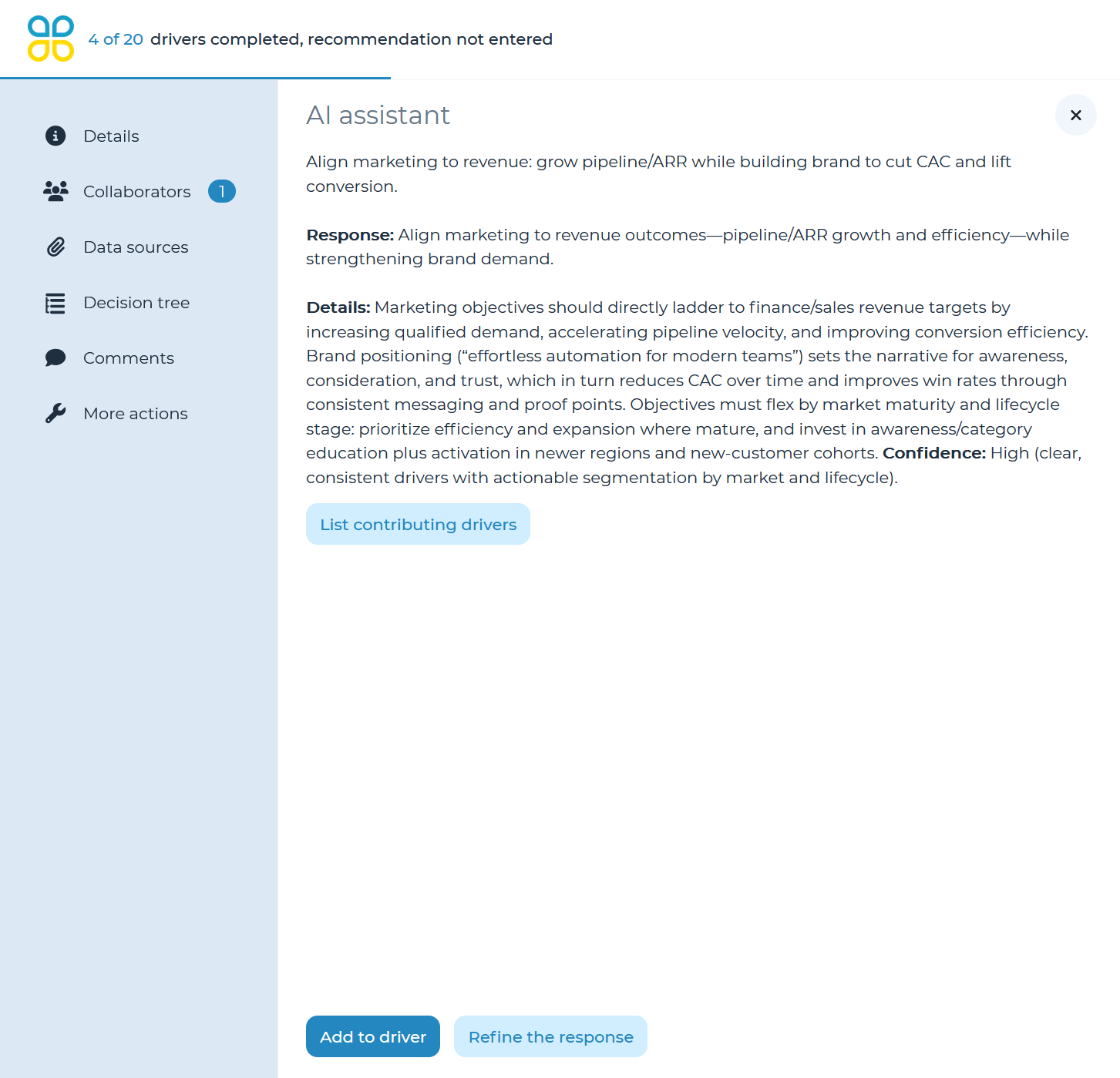
If you use the ‘More Options’ dropdown and select ‘Preview AI assistant response’, a panel will open where the response can be refined or added to the driver if it looks good by using the buttons at the bottom of the panel.
Summarize All Drivers
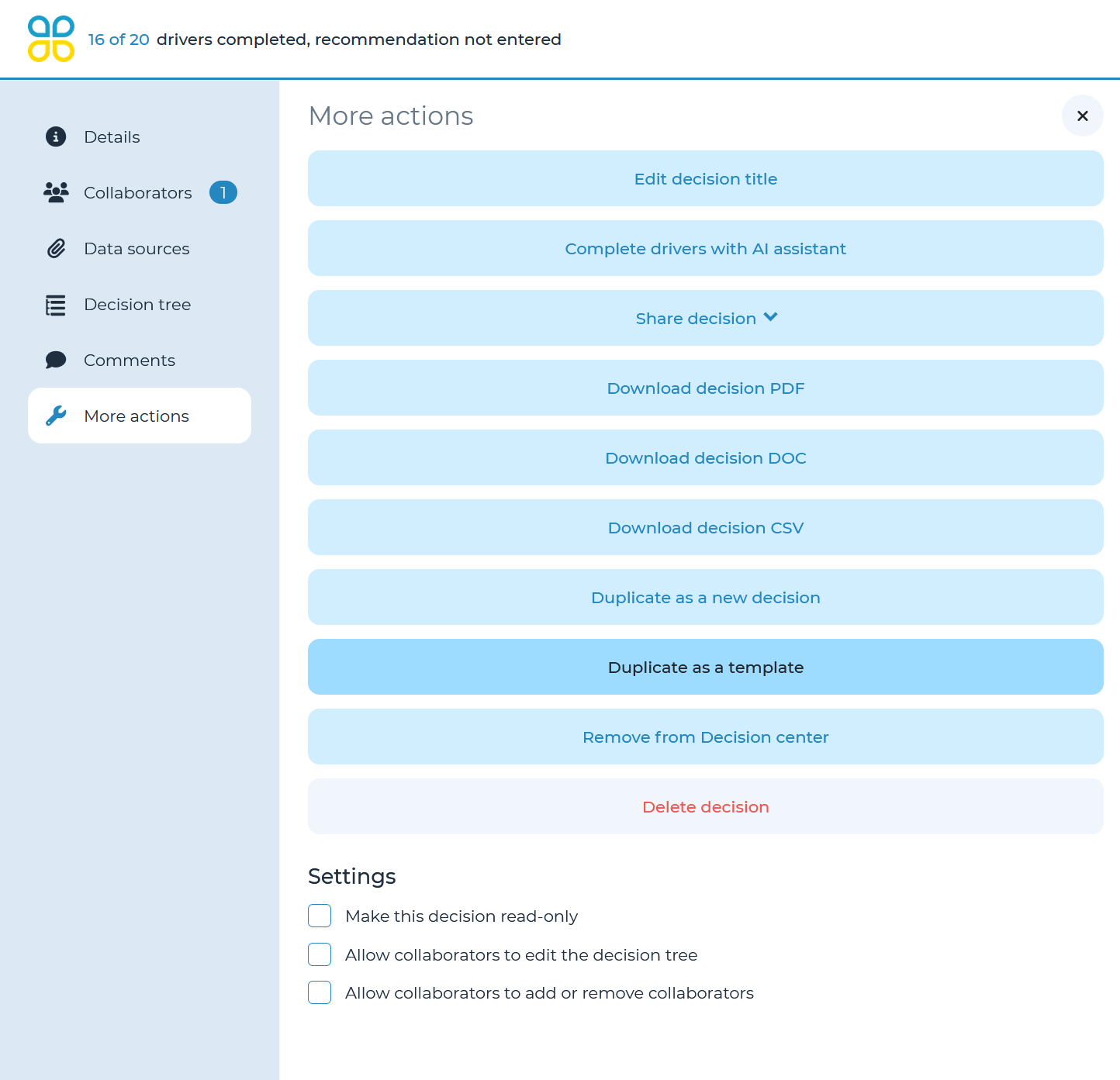
Once enough data sources have been added, or enough sub drivers completed (how many exactly depends on the size and structure of the decision tree), the ‘Complete drivers with AI assistant’ button will be enabled in the ‘More actions’ panel from the left navigation menu.
This can also be done using the ‘Decision AI assistant’ button in the top left corner, and selecting ‘Complete the tree’ in the panel which opens.
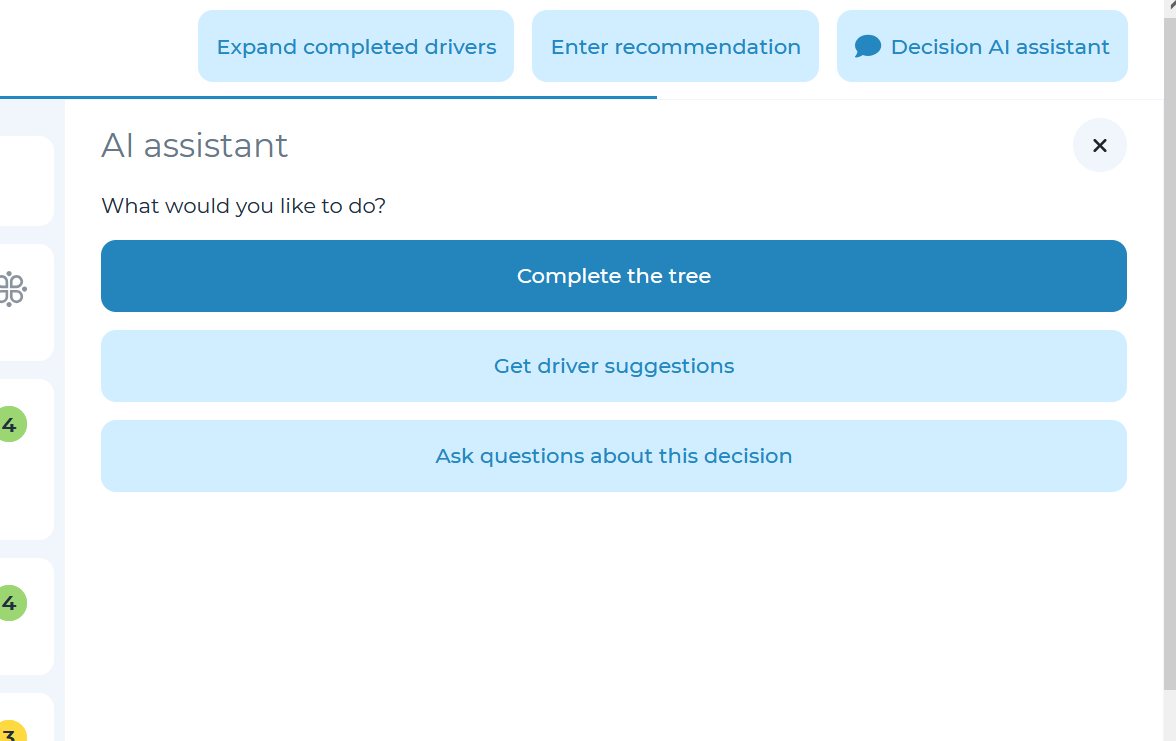
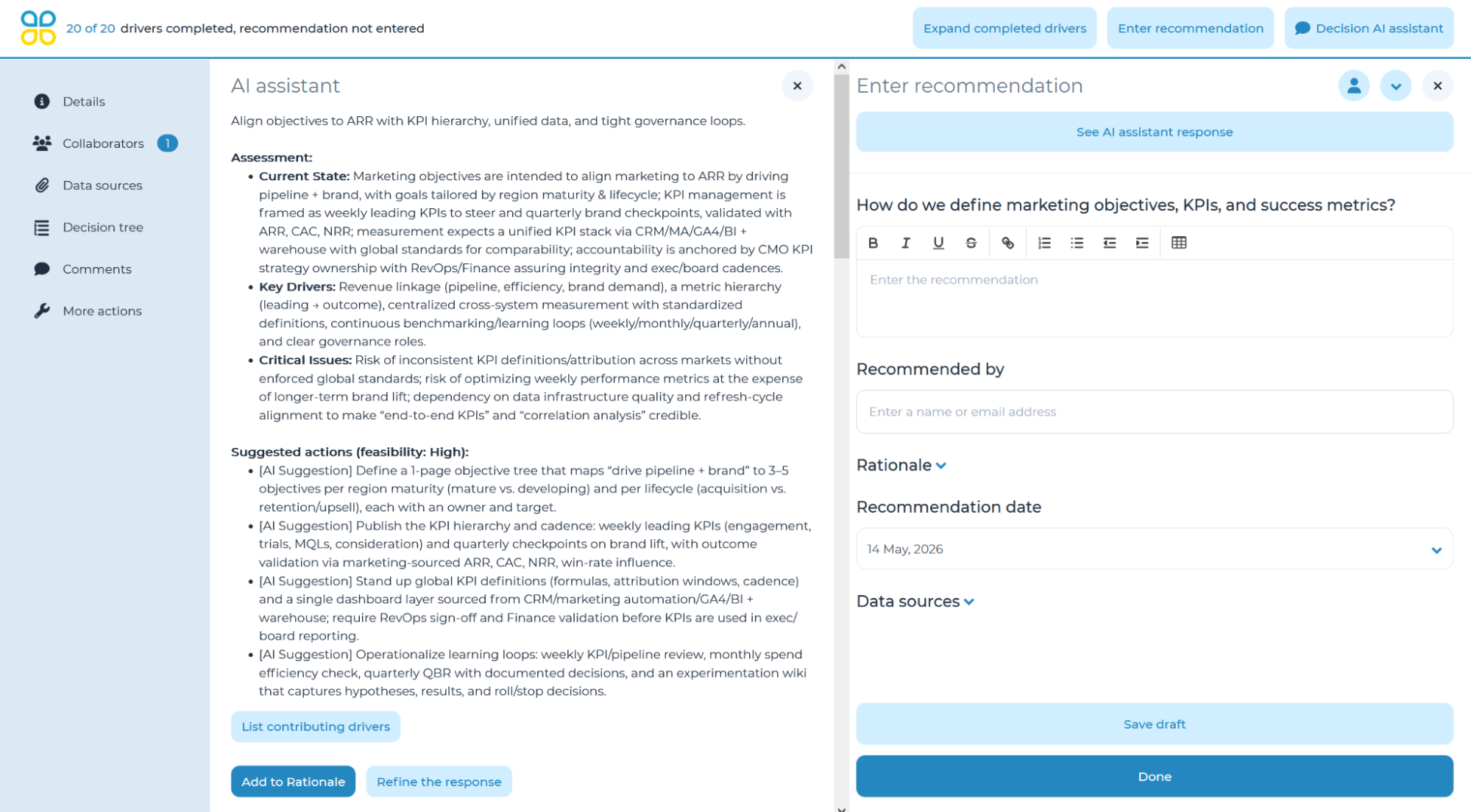
Once selected, the AI assistant will fill in all drivers for which enough data/subdrivers have been provided for it to make an informed recommendation. Afterwards, a recommendation will also be generated based on all completed drivers which you can review by clicking on the ‘See AI assistant decision response’ button which appears.
This option additionally works with the Ratings and Weights feature to suggest a rating score if ratings and weights have been enabled. For more information on setting up Ratings and Weights, see the Setting up Ratings & Weights section of the manual.