
Add a new user
Admin users are able to add new users in Cloverpop.
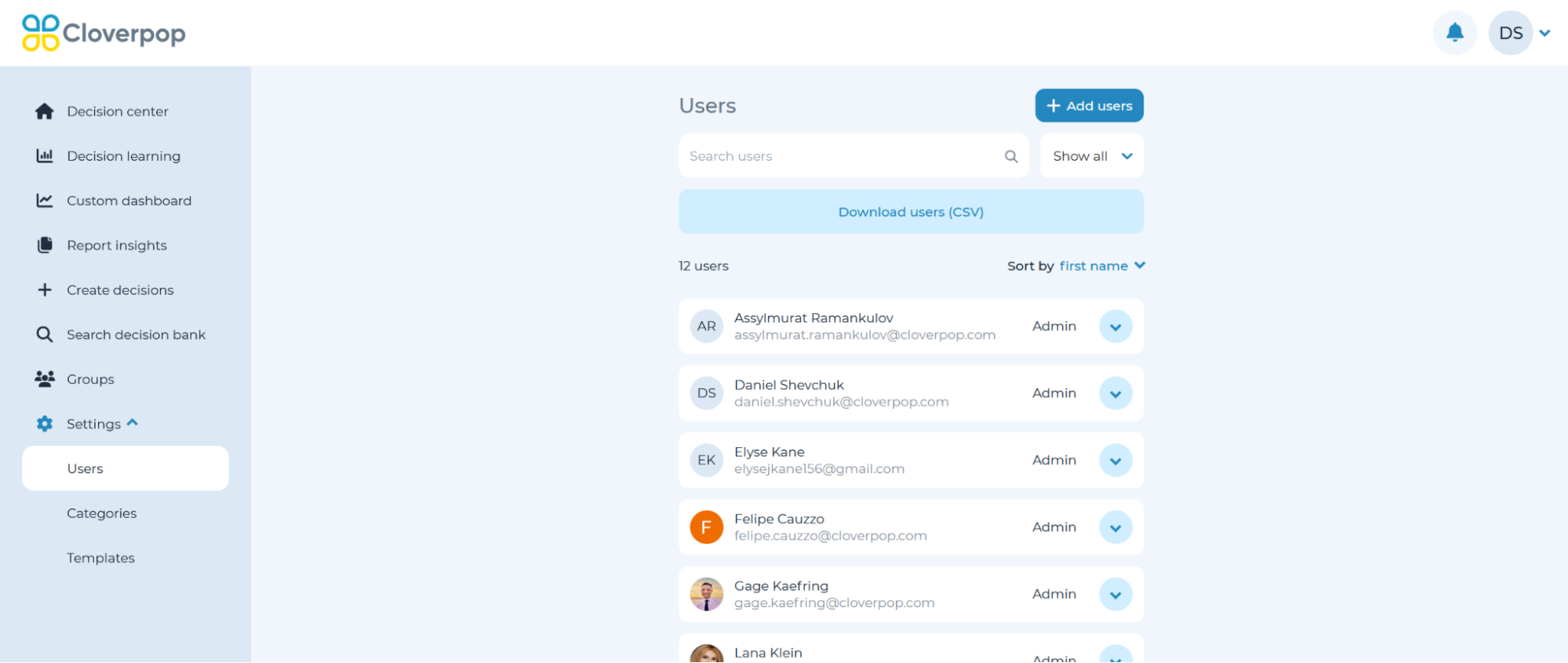
To add a new user, use the left-side navigation bar and select ‘Settings’ then ‘Users’. Then select ‘+ Add users’ to create a new user. Cloverpop will send them a welcome email to set up their account. Once a new user has been added, add them to groups as relevant.
Change user type
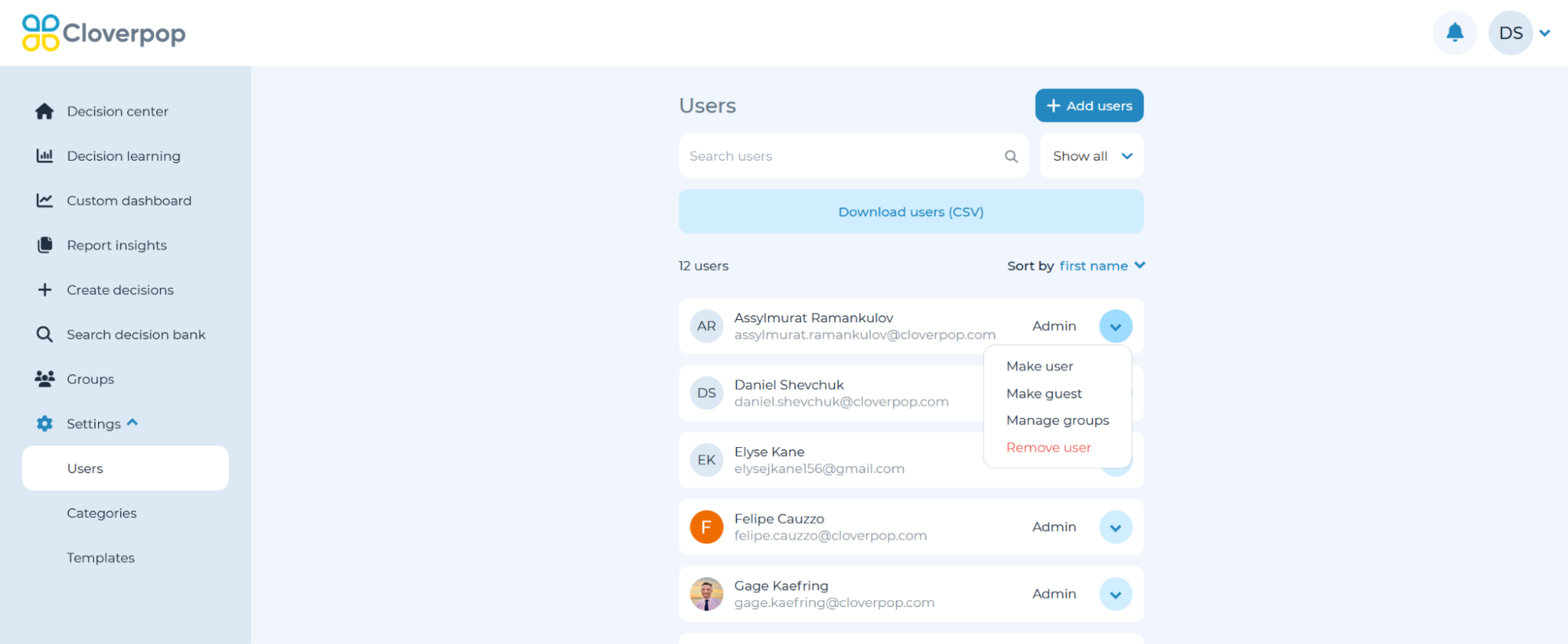
As an admin, you can also change the user type. Within the User page, select the down arrow symbol. You can decide to ‘Make admin', ‘Make guest’, ‘Manage groups’, or ‘Remove user’.
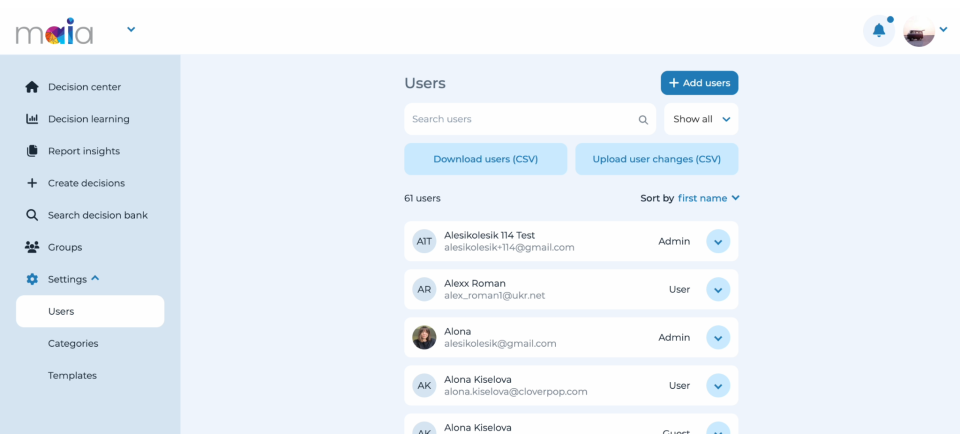
Additionally, depending on your organization’s permissions, there may be an option to instead use the CSV Upload button to change user types. If the feature is available, there will be a ‘Upload user changes (CSV)’ button next to ‘Download users (CSV)’.
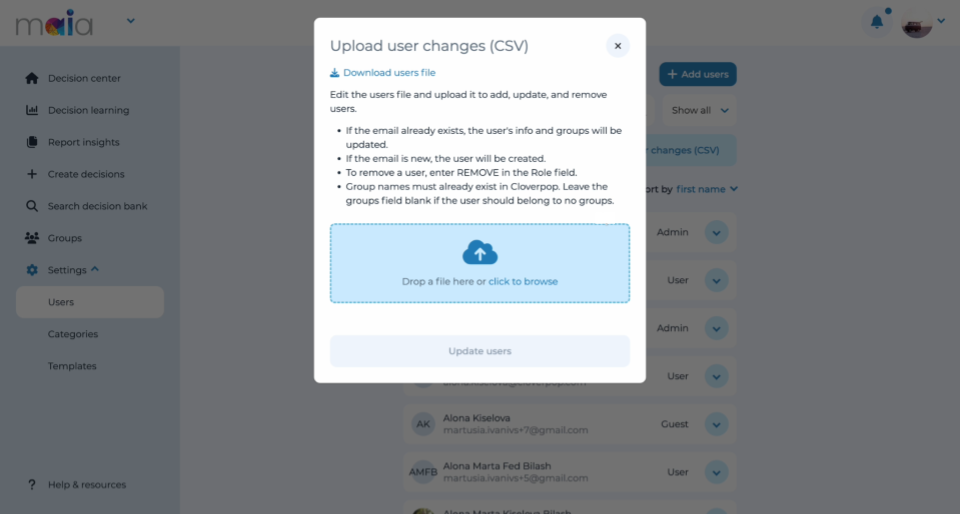
Pressing this button will bring up a window where you can download and upload .csv files containing user permissions. The window will describe the changes which can be made to the user file with your organizational permissions.
To learn more about user types, refer to User Types.