
Note: Creating new templates is a functionality restricted to Admin user accounts in Cloverpop. If you have a use case that is complex but repeatable for similar business needs, please reach out to your Decision Success team for assistance.
Create template from scratch
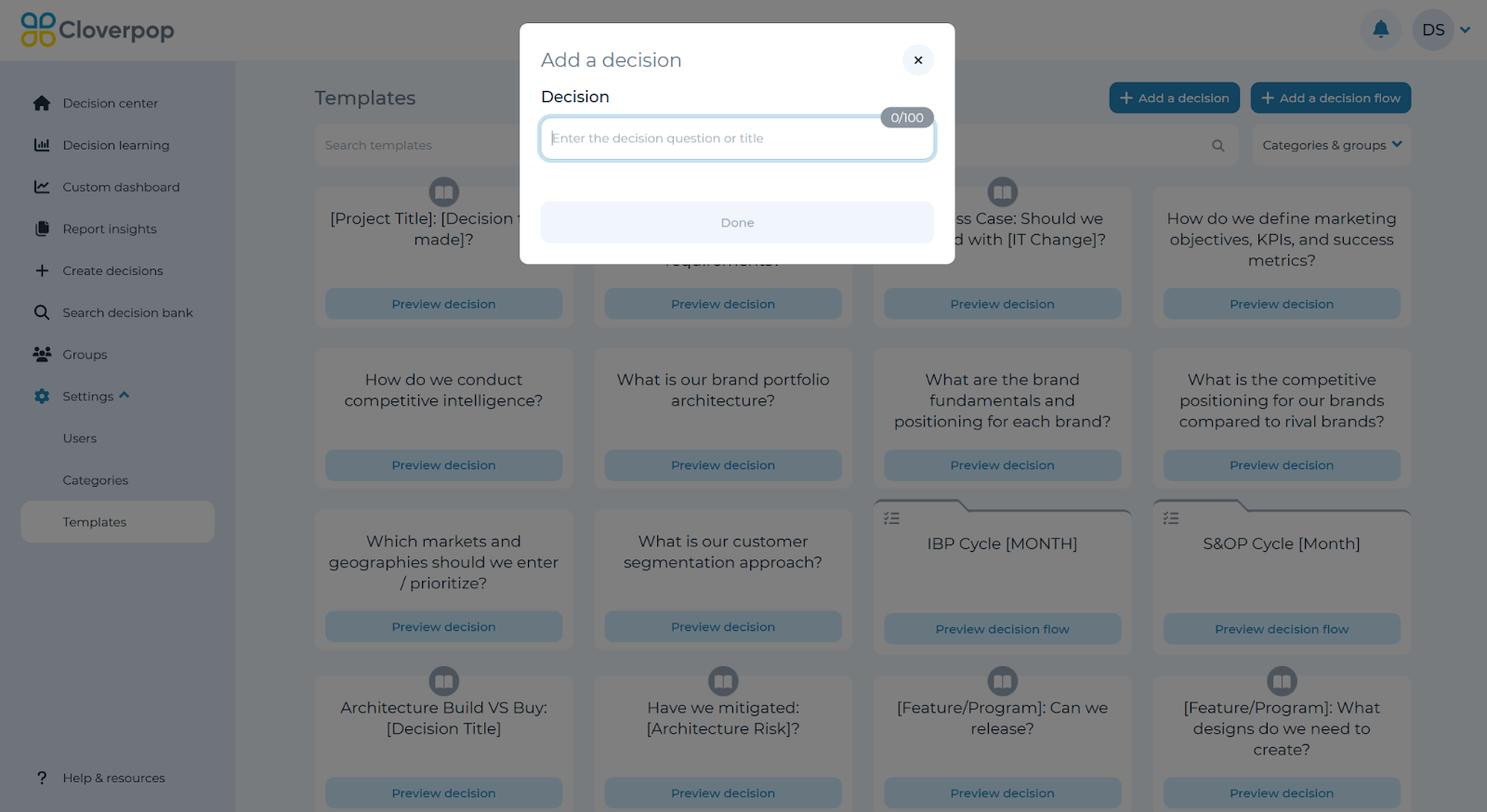
To create a new template from scratch, expand ‘Settings’ on the left-side navigation menu and click ‘Templates.’ Next, click ‘Add a new decision’ in the upper right hand corner and enter the decision question or title to be used for this template.
This will create a blank template which you can edit the structure of the same way an existing decision can be edited. For more information, see the Edit decision tree section of the manual.
Create template from a decision
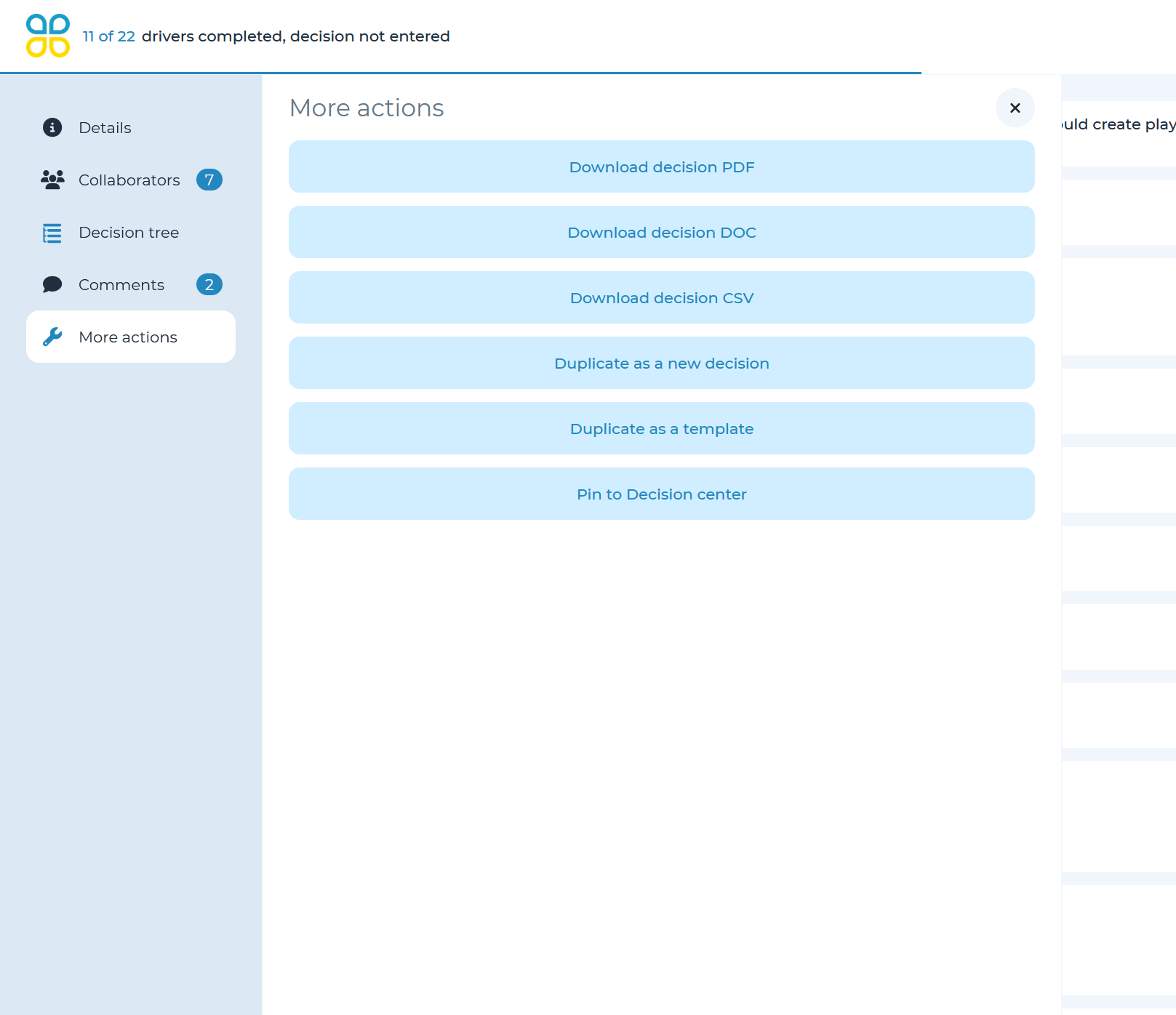
To create a template from an existing decision, first click ‘Search decision bank.’ Next, select the decision that you would like to create a template from. Open the ‘More actions’ panel from the left menu and select ‘Duplicate as a template’
Create template from another template
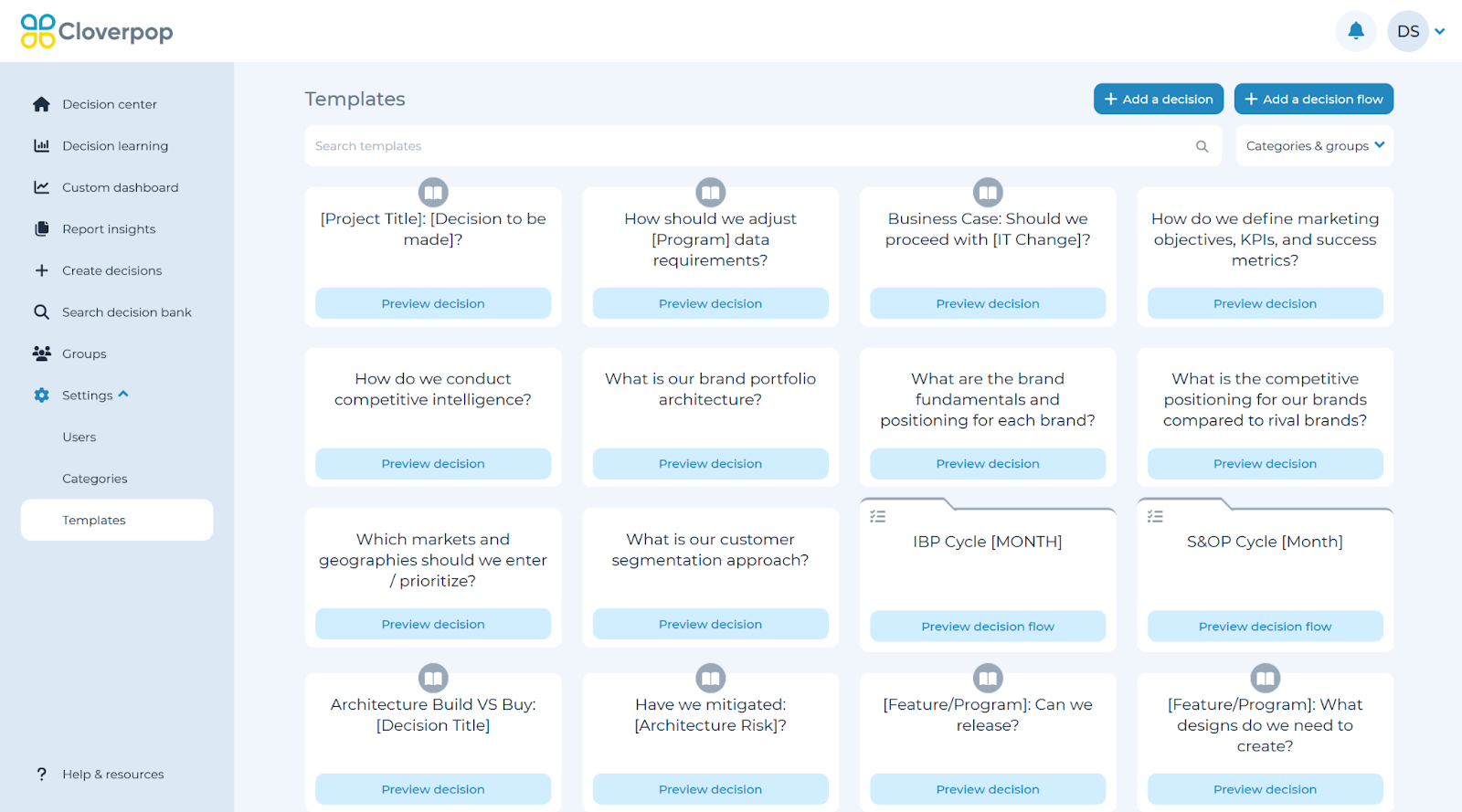
To create a template from an existing template, go to the ‘Templates’ page under the ‘Settings’ drop down and click on ‘Preview decision.’
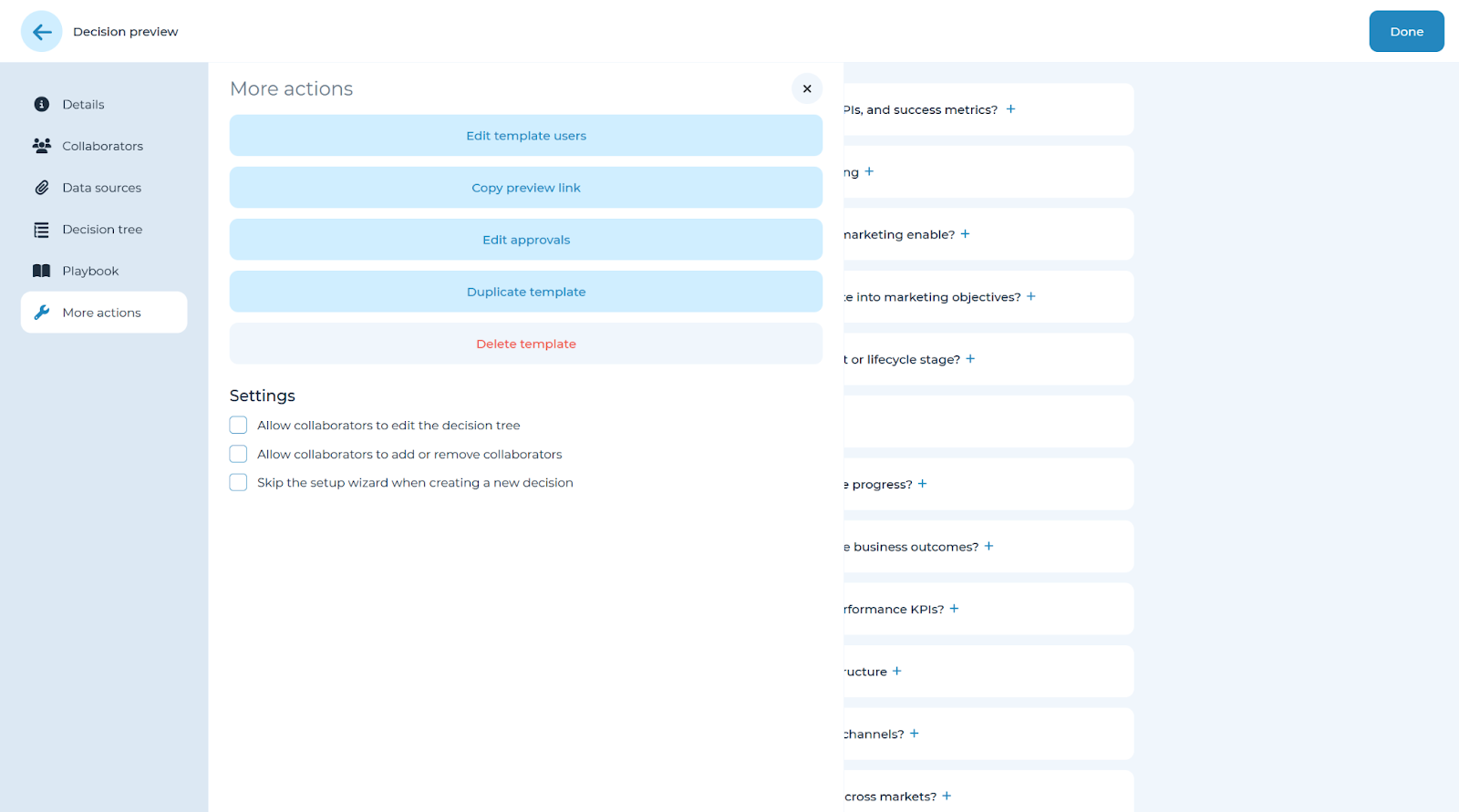
Then open the ‘More actions’ panel from the left-hand side menu on the left-side navigation menu and click ‘Duplicate template.’
Refer to the ‘Step 1: Decision Tree’ and ‘Edit decision tree’ sections of the user manual for more details on how to set up other details of templates in Cloverpop.